A rule changes what a feed sends, never the product in your store. Use rules to leave products out, tidy up titles, or set labels and delivery times. On marketplaces, rules can also change prices and stock. You need no rule to start: a new feed sends every product that is for sale in its market.
Rules live in two places. Feeds → Rules holds the rules of the whole store. A feed's own Rules tab holds that feed's rules, with the store-wide rules that also run on it.
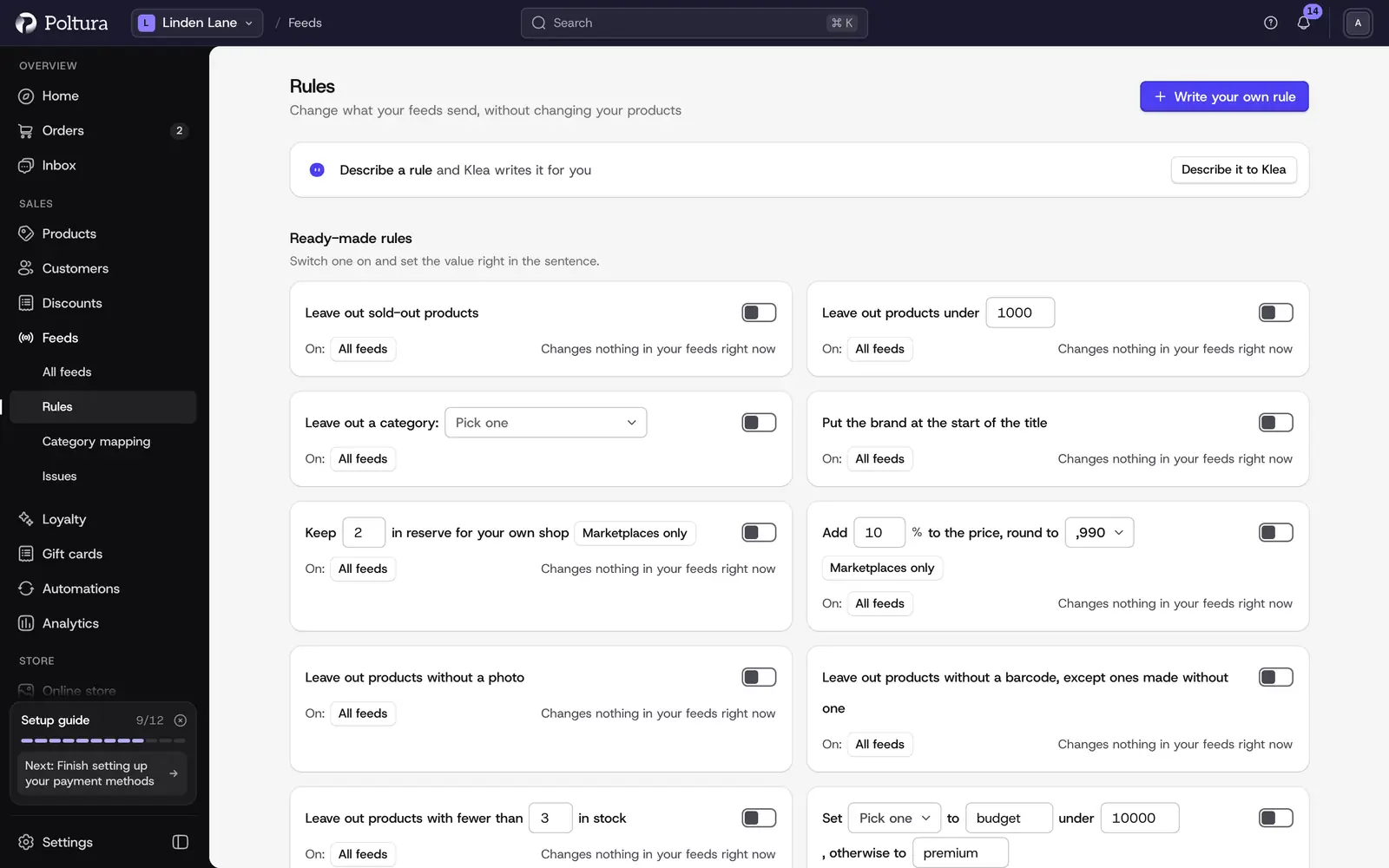
Switch on a ready-made rule
Ready-made rules cover the common cases: leave out sold-out products, leave out products under a price, leave out a category, leave out products without a photo or a barcode, put the brand at the start of the title, shorten long titles, keep some stock in reserve for your own shop, or add a percent to the price on marketplaces.
Open Feeds and choose Rules.
Under Ready-made rules, find the rule and set its value right in the sentence, for example the price or the category.
Next to On:, choose Every feed or add the feeds one by one.
Switch the rule on. Its card now says how many products it leaves out or changes.
Edit as your own rule opens a ready-made rule in the builder. Once you change what it does, it is saved as one of your own rules.
Write your own rule
On the Rules page, click Write your own rule.
Choose which products it is for: all products, or only products where one or more conditions hold. A condition picks a field, a comparison in words and a value.
Choose what happens. Leave them out drops the products. Other steps change a field, for example Set a field, Put at the start of a field, Shorten a field, Set a label, Choose the photos or Set delivery details. You can add several steps.
Choose the feeds the rule runs on, and under When leave it on Always or pick a schedule.
Click Review and turn on. Under Before you turn it on you see how many products the rule leaves out or changes on each feed, with sample products.
Click Turn on for 1 feed (the button names the number of feeds). The rule appears under Your rules.
On the review step, Test on products lets you check the rule on products you pick. Choose the feed under Test on, click Add products, then Test. For each product you see what is in your store and what the site would get.
Change the order of rules
Rules run from top to bottom, and each rule sees the result of the ones above it. Drag a rule to move it. When two rules change the same field, each card says which runs first.
- Leave them out ends the product's run. No rule below it sees the product.
- Keep them in, whatever later rules say stops a later rule from leaving the product out.
- Your own Include or Leave out on the feed's Products tab wins over every rule. See choosing products.
Turn off, bring back or delete a rule
Open the menu on a rule's card.
- Turn off keeps the rule without running it. Undo right after turns it back on.
- Duplicate makes a copy you can change.
- History lists the rule's Versions, with who saved each one. Bring back saves an old version as the newest one.
- Delete removes the rule together with its versions.
A change reaches each site with its next download, or within minutes on a connected feed.
Use a swap table
A swap table swaps your values for the ones a site expects, for example your own color names for the site's.
On the Rules page, under Swap tables, click New swap table.
Give it a name and choose where the rows come from: Type them in, Upload a CSV file or A shared Google Sheet.
Fill in the rows. Value is what you have, Becomes is what the site gets.
Save the table, then pick it in a rule under Swap values using a table.
A table read from a Google Sheet is refreshed by itself, and Download again reads it at once. A table cannot be deleted while a rule reads it.
Good to know
- Price comparison sites, Google and Facebook & Instagram require your shop price. Steps that change price or stock run only on marketplaces, and the builder says so on the step.
- A rule set to every feed also runs on feeds you add later.
- Schedules are Between two dates, On days of the week, Every month and Every year. Times are in your store's time zone. A rule whose schedule is over shows Schedule ended and stays saved.
- Any condition or value can be a formula, with fields written in braces, for example
IF({stock} < 3, "Last pieces", ""). - Formulas, schedules and saved swap tables depend on your plan. Where your plan lacks one, the builder shows a lock with See what it unlocks. Ready-made rules and the rest of the builder work on every plan.
If something goes wrong
- A rule shows "Paused: needs a feature your plan does not include". It uses a formula, a schedule or a swap table your plan lacks. Nothing is deleted. Edit the rule without that part, or see Plan and billing.
- A rule says "Changes nothing in your feeds right now". No product matches its condition on the feeds it runs on. Check the condition and the feeds next to On:.
- "Changed by someone else". A colleague saved the rule or moved rules while you had them open. Click Reload and try again.
- A product is still sent although a rule should leave it out. Open the product on the feed's Products tab. The panel names the rule that changed or kept it, and shows if someone chose to include it by hand.