The Inbox collects every chat from your storefront and every email sent to your store's support address. Your team reads, assigns and answers them in one place. The Inbox is in beta.
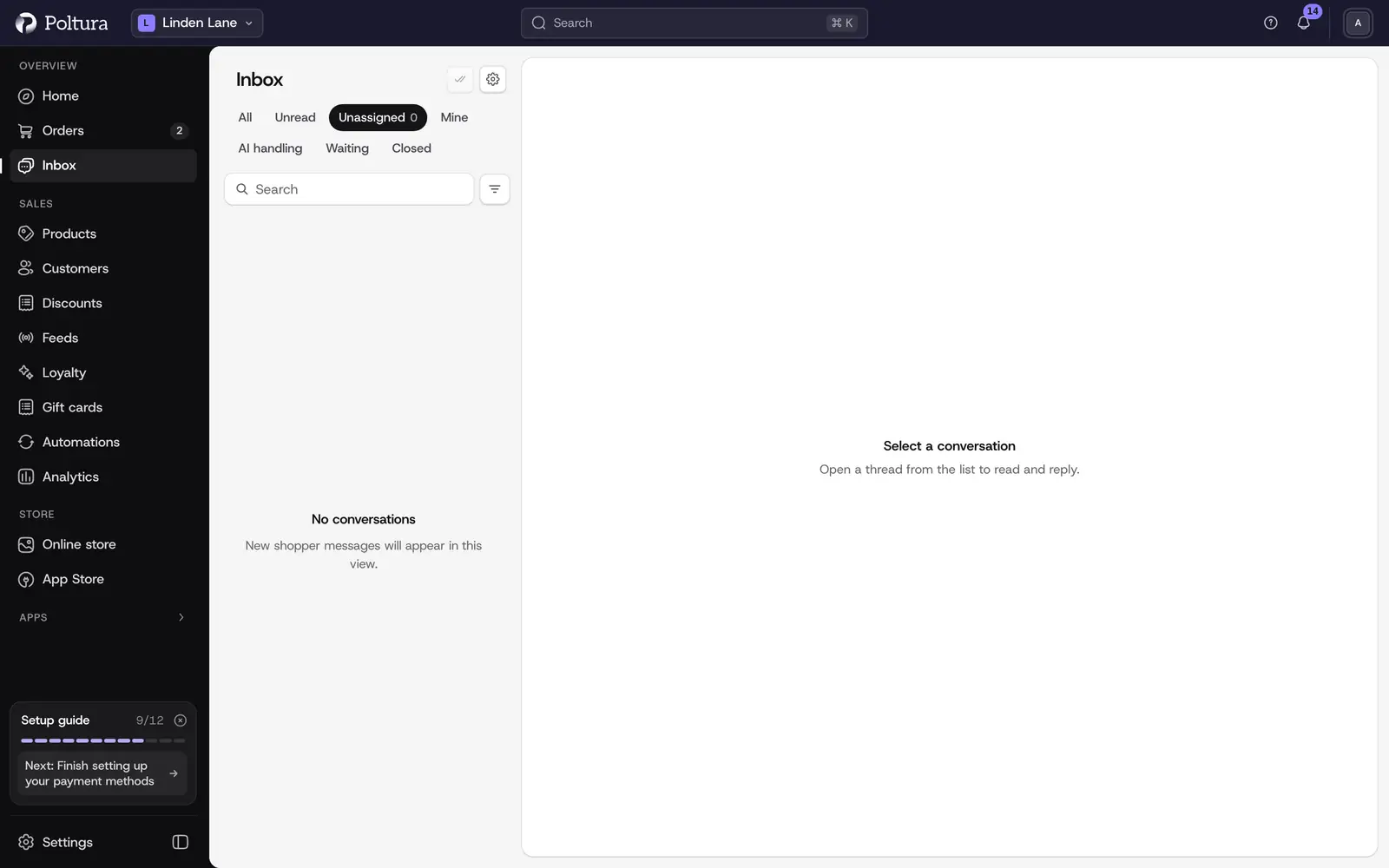
Before you start
- The Inbox comes with every live store on a paid plan. There is nothing to install. A store that is still private has no customer inbox. See Go live.
- Your role decides what you can do: read messages, reply to them, change the inbox settings or draft replies with AI. See People and roles.
What arrives in the Inbox
- Chat: messages from the chat launcher on your storefront. You switch chat on or off and set your opening hours in Inbox settings.
- Email: mail sent to your store's support address, once you enable the email channel in Inbox settings. Your reply goes back by email in the same thread.
- Contact forms: a storefront form can deliver its submissions here. See Forms.
Each conversation shows its channel, its status (Open, Waiting, Snoozed or Closed) and who owns it: a team member, nobody, or the AI.
Find a conversation
Open Inbox in the sidebar.
Choose a view above the list:
- Unassigned: nobody owns it yet.
- Mine: assigned to you.
- AI handling: the AI is answering.
- Waiting: the customer wrote last and is waiting for an answer.
- Closed: resolved conversations.
- All: everything.
To narrow the list, set Channel to Chat or Email, or type in Search conversations. Search looks at the subject and the customer's name.
Select a conversation to open it beside the list.
A dot marks a conversation with messages you have not read. The number beside the Inbox title is your unread total. Mark all as read clears it.
Good to know
- New messages appear without reloading the page. The sidebar shows the number of conversations with unread messages, and the bell in the top bar lists them under New inbox messages.
- Unread state is tracked per team member. Reading a conversation clears it for you only.
- Your plan sets how many team members can use the Inbox, how many channels you have and how many new conversations are included per billing month. Customers can always reach you: above the conversation allowance only automatic AI replies pause until the next billing date. See Plan and billing for add-ons.
- A team member above the seat limit is locked out of the Inbox only, not out of the rest of the admin.
- The look of the chat launcher is edited in the theme Customizer.
If something goes wrong
- "Inbox is turning on". The inbox is being prepared for your store. This usually takes a minute. Reload the page.
- "Inbox setup failed". Select Retry setup.
- "Inbox is not available for this store yet". The store cannot reach the inbox, for example because it is still private. Shopping and the rest of the admin keep working.
- You cannot open the Inbox at all. Your role may not include reading messages, or your plan's inbox seats are all in use.