The Notifications page has two tabs. My alerts is personal: each team member chooses which store events notify them, where and when. Messages is shared: it holds the text a notification channel, such as Telegram, sends for a store event.
Alerts arrive in the bell in the top bar of the admin and, if you want, by email.
Before you start
- Every team member can open the page and set their own alerts. Nobody else sees or receives your alerts.
- Email alerts go to the email address of your account. See Your profile.
- Messages need a notification channel. Today that is the Telegram app.
Set up your alerts
In the sidebar open Notifications under Apps and choose the My alerts tab. The bell's Alert settings link opens the same page.
Under Delivery check where alerts reach you. In-app is always on. Switch Email on to receive emails as well.
Under Alerts go through the events. For each one tick In-app if you want it in the bell, and set Email to Off, Instantly or In digest.
Where an event has a condition, fill it in: the stock level for Low stock, the order total and currency for High-value order, the number of hours for Order waiting to ship, the star rating for New review.
Under Schedule set the Time zone, the Digest time and the Digest days. Alerts set to In digest arrive together in one email at that time.
Optionally switch on Quiet hours and set From, Until and the Quiet days. Tick Critical alerts still send instantly if, for example, an out-of-stock alert should reach you at night too.
Click Save alerts. The Summary line describes your schedule in one sentence.
Click Send test alert and check the bell and your inbox.
The events you can choose from:
- Orders: New order, High-value order, Order canceled, Order waiting to ship, Return requested, Claim or exchange, Payment refunded.
- Inventory: Low stock, Out of stock.
- Customers: New customer, New review.
- Engagement: Form submission, Contact message, Abandoned cart, Mentioned in an order comment.
- Feeds: Feed not updating, Fewer products in a feed.
Recent alerts at the bottom lists the last alerts raised for you and how each was delivered: In bell, Emailed, Queued for digest, Held for quiet hours or Email failed.
Use the bell
The bell in the top bar collects what needs your attention in three sections: Inbox, Billing and Activity. Your alerts appear under Activity. Some items carry buttons, so you can act on them straight from the bell. Dismiss removes an item.
Edit the messages a channel sends
Open Notifications and stay on the Messages tab.
Channels lists the notification channels and whether each is Active. For an inactive channel, Enable app opens the app's page.
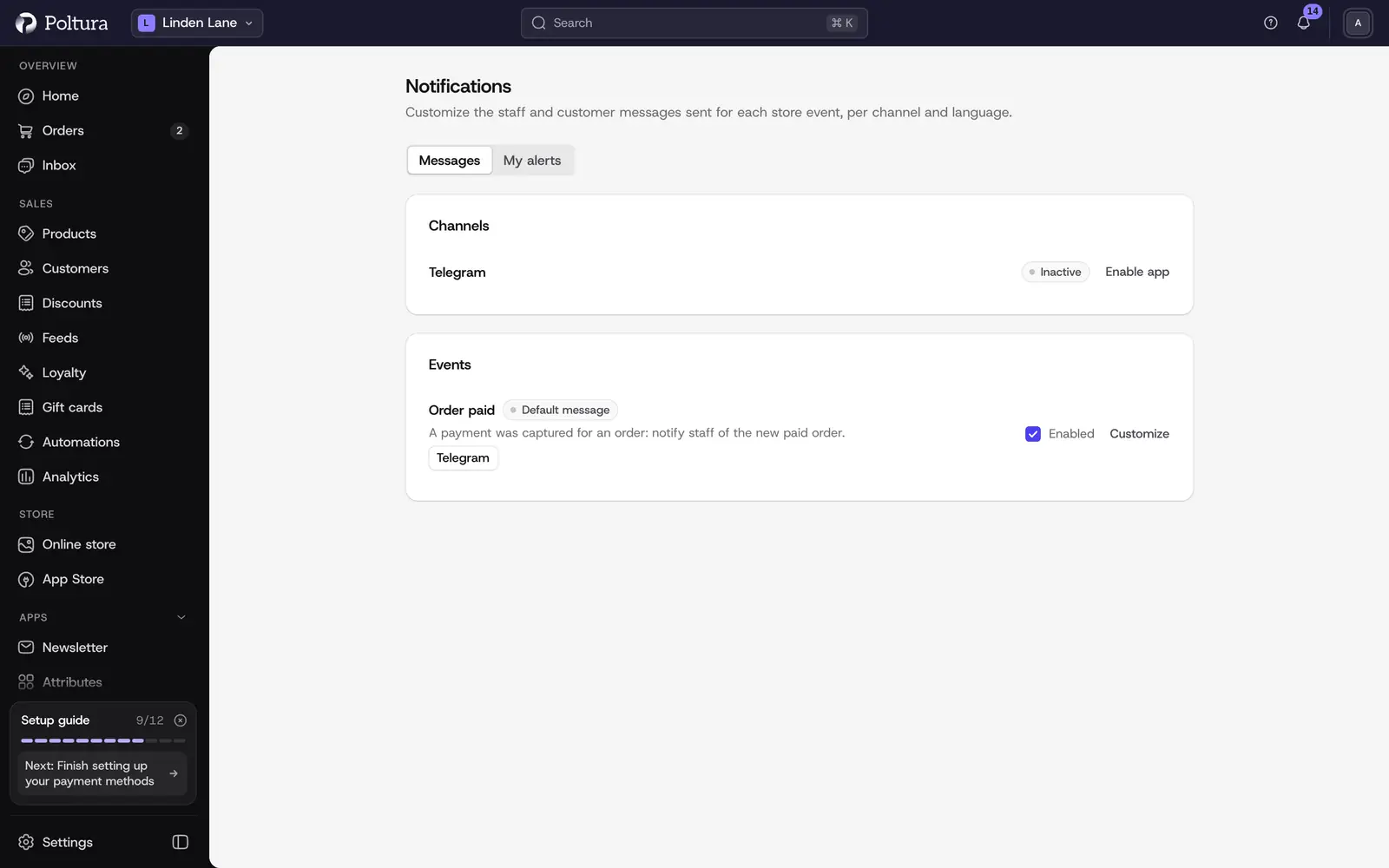
Customize on an event row opens its message. Under Events find the event and click Customize. Events with a changed message are marked Customized. The others use the Default message.
Choose the channel and the language, then edit the Message body. Insert placeholder adds values such as the order number. The Live preview shows the result.
Click Send test to try it, then Save.
- The switch on an event's row turns its message on or off.
- Reset to default deletes your version and restores the built-in message for that channel and language.
- A message can have a version per language. There is the default, plus Hungarian, English, German, Slovak, Romanian and Polish.
Good to know
- In-app alerts are never held back. The schedule and quiet hours apply to emails only.
- During quiet hours, instant emails and digests wait until quiet hours end. Held instant emails then arrive as one summary.
- The schedule uses the store's time zone unless you pick another one.
- Alerts are set per store. If you work in several stores, set them in each.
- Messages are shared by the whole team: a change applies to everyone.
If something goes wrong
- "Your account has no email address, so email alerts cannot be delivered." Add an email address on your profile.
- "Pick at least one day." A digest or quiet hours need at least one day selected.
- No email arrives. Check Recent alerts: the alert may be queued for the digest or held for quiet hours. Also check that Email is on under Delivery and that the event is not set to Off.
- "No notification channels are registered." Install and set up a channel app, for example Telegram, then return to edit its messages.
- A channel shows "Inactive". You can edit its message, but the app must be switched on and set up before anything is delivered.