The Telegram app sends store notifications through a Telegram bot that you create. Messages can go to a shared staff group. They can also go as private messages to every team member who links their own Telegram account. Other apps use the same bot for approval buttons, for example Fraud detection.
Before you start
- The app comes installed on new stores.
- You have a Telegram account. The bot itself is free and takes a minute to create.
Set up Telegram
In Telegram, open a chat with
@BotFatherand send/newbot. Follow its questions and copy the bot token it gives you.In the admin, open Telegram in the Apps group of the sidebar. If it is not there, install the app first from the App Store.
Under Settings, paste the token into Bot token.
Select Save settings. The Status panel shows Token stored.
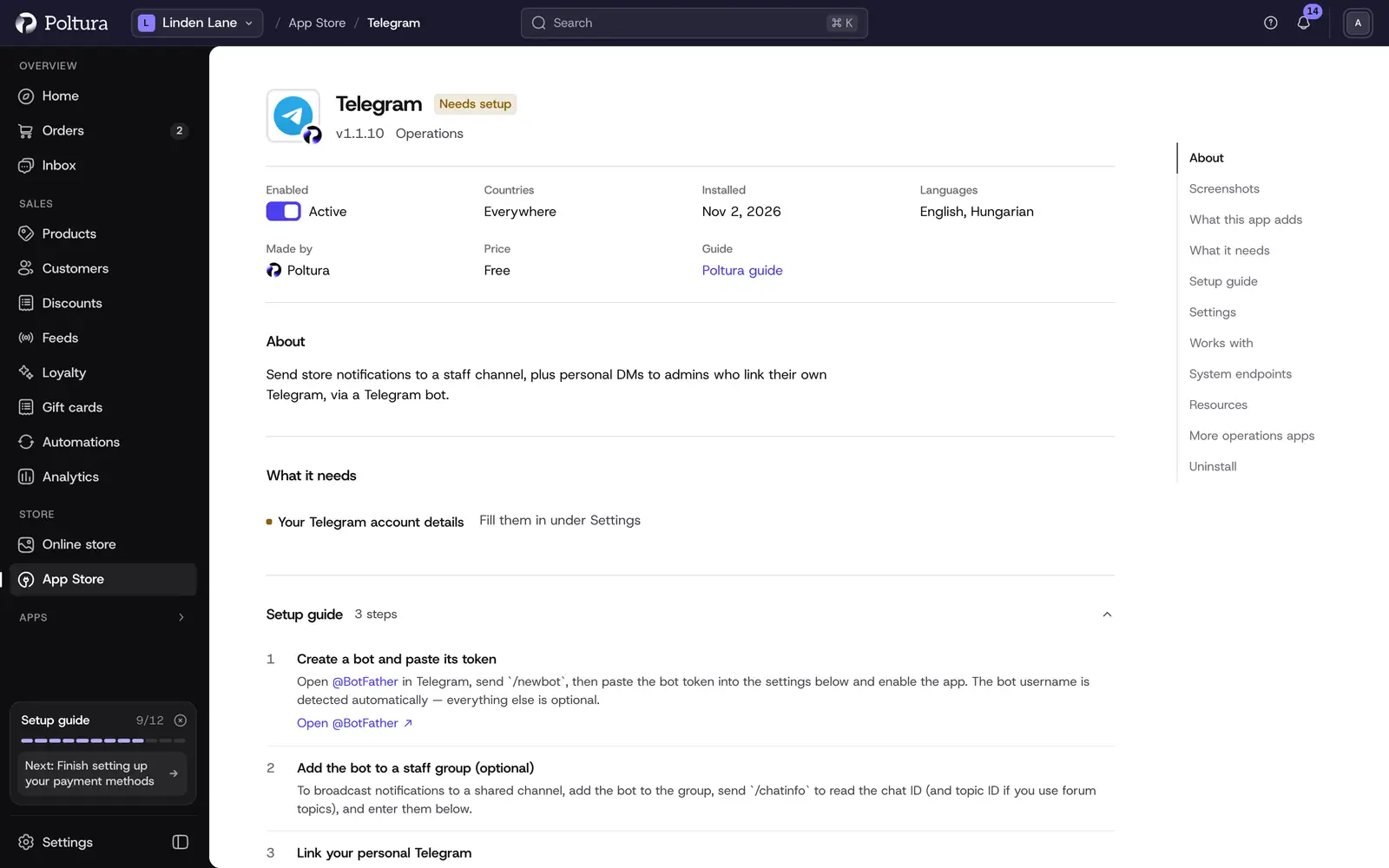
After saving, the Status panel on the right shows Token stored. Select Validate credentials. Credentials validated confirms that the bot answers.
If the app is not on yet, open it in the App Store and select Turn on.
The bot username is detected from the token. Everything else is optional.
Settings
The same four fields are on the Telegram page and in the app's Settings in the App Store.
- Bot token: the token
@BotFathergave you. It is stored encrypted and never shown again after saving. To change it, use Replace bot token. - Bot username: optional. The bot's username without the leading
@. It is used for the link team members follow to connect their own Telegram. Leave it blank and it is read from the token. - Staff chat ID: optional. The group or channel that receives store notifications.
- Staff topic ID: optional. A forum topic (thread) inside the staff group, if you want the notifications in one topic.
Send notifications to a staff group
Add your bot to the Telegram group or channel your team uses.
In that group, send
/chatinfo. The bot answers with the chat ID, and with the topic ID if the group uses forum topics.On the Telegram page, enter the value in Staff chat ID, and the topic in Staff topic ID if you want one.
Select Save settings. The Status panel shows the IDs in force.
Connect your own Telegram
Each team member does this for themselves. A linked person gets private messages whether or not a staff group is set.
Open Telegram in the Apps group of the sidebar.
Under Your Telegram, select Connect Telegram. The button changes to Waiting for Telegram….
Select Open Telegram and start the conversation with the bot.
Return to the admin. The status shows Linked with your Telegram username under Account.
To stop the private messages, select Disconnect and confirm with Disconnect again.
Good to know
- Which events you are told about is set per person under Notifications and alerts. The wording of the messages is edited on the Notifications page, linked from the Telegram page.
- Fraud detection sends its reviews to the staff chat with Approve and Refund buttons when its Notify Telegram setting is on.
- Anyone who has the bot token can control the bot. If it leaks, create a new token with
@BotFatherand replace it here.
If something goes wrong
- "Telegram is not configured. Set the bot token in the app settings." No token is saved. Add it under Settings.
- "Could not determine the bot username." The token is wrong, or Telegram could not be reached. Check the token, or type the username into Bot username.
- "Validation failed". The token was not accepted. Copy it again from
@BotFather, without spaces. - Nothing arrives in the group. Check that the bot is still a member of the group. Check that Staff chat ID is the value
/chatinforeturned. In a group with topics, check Staff topic ID too. - "Could not start Telegram linking." Try Connect Telegram again after a moment.