The Klarna app lets shoppers buy now and pay later. On Klarna's secure page they choose Pay Later, Pay in 3 or 4, or financing. What they can choose depends on what Klarna offers in their country. Klarna works across Europe, including Hungary in HUF. The app is available on every plan.
Before you start
- To try it out you need a Klarna playground account. It is free and you create it yourself at
https://playground.eu.portal.klarna.com/. - To take real payments you need a signed Klarna merchant agreement.
- You need an API credential (a username and a password). Create it in the Klarna merchant portal under Settings → API credentials. The password is shown only once, so copy it straight away.
- Playground and production credentials are separate and cannot be mixed.
- Klarna charges in the currency of the shopper's country: Hungary in HUF, Czechia in CZK, Poland in PLN, Slovakia in EUR, Romania in RON. A shopper who pays in another currency than the one Klarna uses for their country does not see Klarna.
Set up Klarna
Open Apps → App Store, open Klarna and select Install. Installing works the same for every app, see App Store.
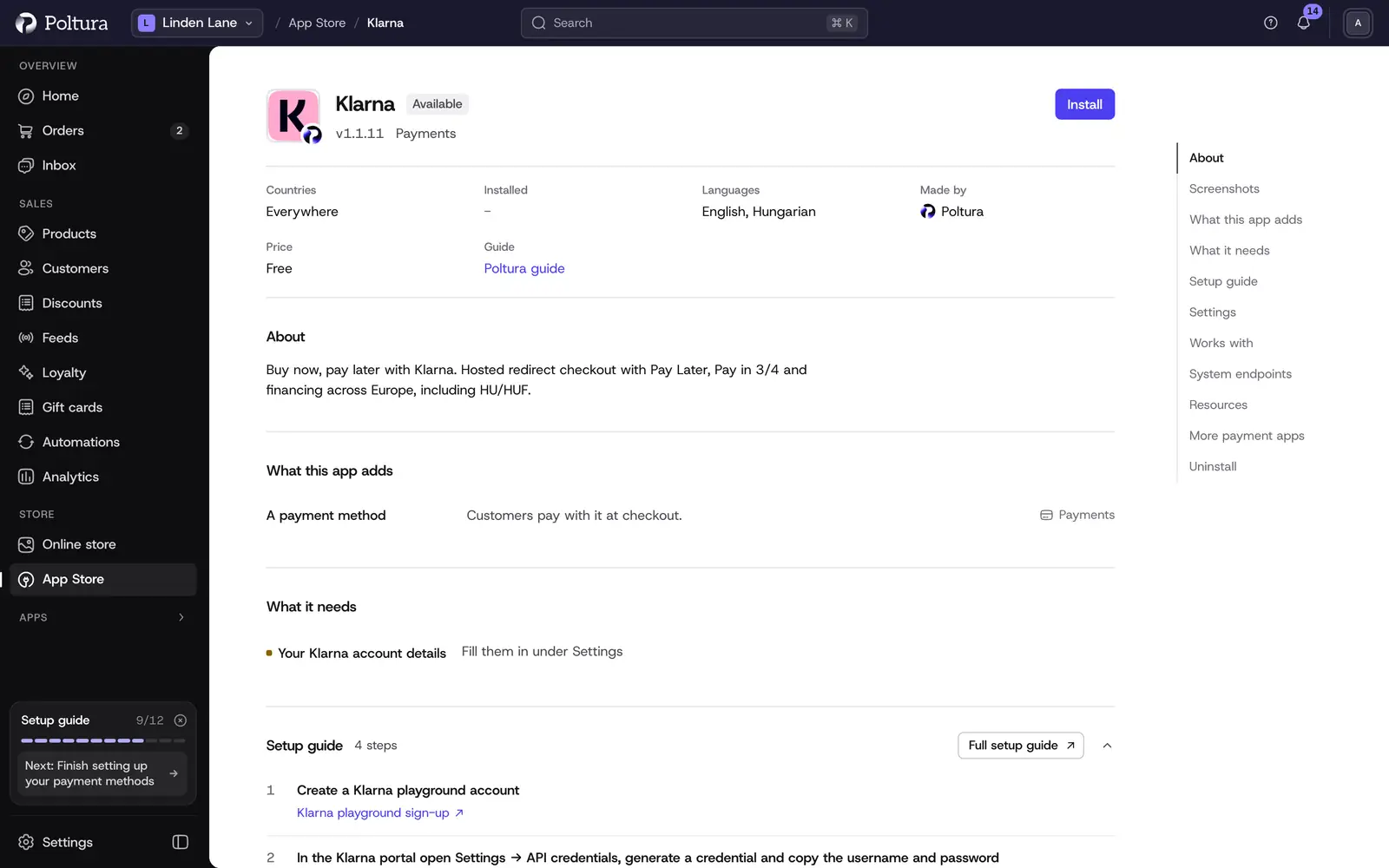
Klarna in the App Store, before you install it. In the Settings section, leave Environment on
playgroundand enter the API username and API password.Select Save in the save bar.
Select Check the credentials. The message The credentials work. confirms that Klarna accepted them.
Select Turn on. The status of the app changes to Active.
Open Settings → Payments. Klarna is listed under Payment methods with the status Ready.
Shoppers now see Klarna at checkout when they pay in a currency Klarna charges, on every domain. See Payments.
Place a test order in the playground.
When your merchant agreement is live, change Environment to
production, enter the production credential, save and check the credentials again.
You do not have to enter any address in the Klarna portal. The callback address travels with every payment.
Settings
- Environment:
playgroundorproduction. The playground is self-serve and free. Production needs a signed Klarna merchant agreement. New installs start onplayground. - API username (required): the username of the API credential, for example
PK00000_1a2b3c4d5e6f. - API password (required): the password of the same credential. It is stored encrypted and is never shown again after you save it.
What shoppers see at checkout
The payment step lists Klarna with the note that the shopper can pay later or split the purchase. After placing the order they are taken to Klarna's secure page and choose how to pay. If Klarna needs a moment to check the purchase, your store shows that Klarna is reviewing it and asks the shopper not to close the page.
Day to day
- Klarna always approves the purchase first and charges it only when you capture. Open the order and select Capture payment when you ship. The admin captures the full amount. See Payments and refunds.
- You can refund a captured payment in full or in part with Create Refund. See Refund an order.
- Canceling an order that was not captured releases the approval at Klarna. A captured order cannot be canceled at Klarna any more: refund it.
If something goes wrong
- The credential check says Klarna rejected the credentials. Check the username and the password. Also check that they belong to the system selected in Environment.
- The check says Klarna could not be reached. Try again in a few minutes.
- Klarna does not appear at checkout. Open Settings → Payments and check that Klarna is Ready, and that the shopper pays in the currency Klarna uses for their country. Offer that currency on the domain under Currencies.
- The shopper sees "Klarna declined this purchase." Klarna decides this for each shopper. They need to choose another payment method.
- The shopper is asked to restart the payment. The cart or the amount changed while they were on Klarna's page.