The Teya app takes bank card payments through Teya (formerly Borgun). Teya is a European card acquirer that serves Hungary, Czechia, Slovakia and Croatia. Shoppers pay on Teya's hosted page. 3D Secure is handled there automatically, and Apple Pay is offered. The app is for merchants who already work with Teya or want to. It is available on every plan.
Before you start
- You need access to Teya Online Payments. Test credentials are not self-serve: ask
partnersupport@teya.comfor a development store. - In the Teya Business Portal you need an API client with these four scopes:
checkout/sessions/create,checkout/sessions/id/get,captures/createandrefunds/create. - You also create a webhook in the Business Portal, as described below. Teya shows its public key only once, when the webhook is created.
Set up Teya
Open Apps → App Store, open Teya and select Install. Installing works the same for every app, see App Store.
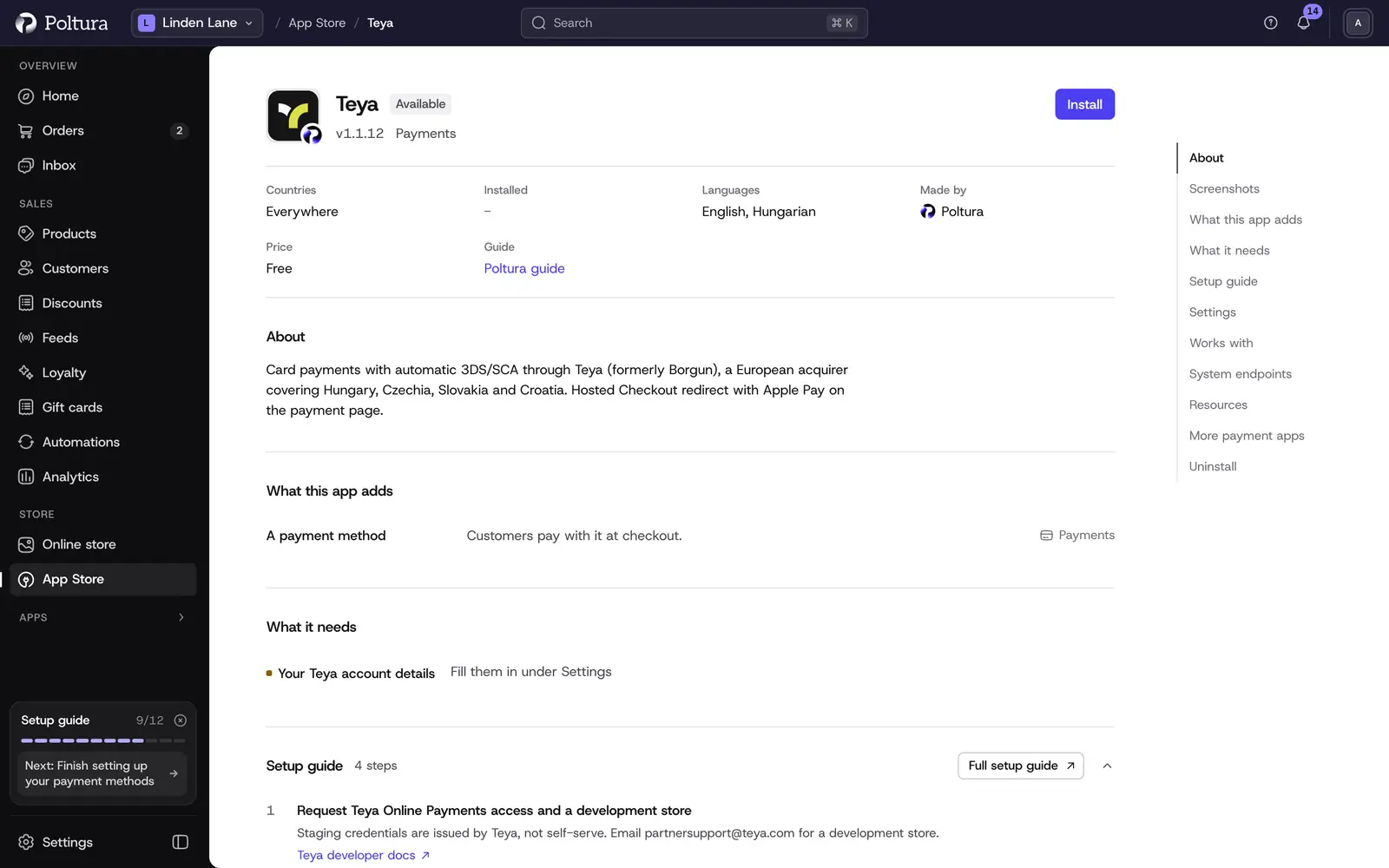
Teya in the App Store, before you install it. In the Settings section, leave Environment on
sandboxand enter the Client ID and the Client secret of your API client.Select Save in the save bar.
Select Check the credentials. The message The credentials work. confirms that Teya accepted them and granted all four scopes.
On the app page, open System endpoints and copy the Webhook URL.
In the Teya Business Portal, create a webhook for the
payment.succeeded.v1event with this address. Copy the public key that Teya shows.Back in Poltura, paste the key into Webhook public key and save.
Select Turn on. The status of the app changes to Active.
Shoppers now see Teya at checkout in every currency it can charge, on every domain. See Payments.
Place a test order. To go live, enter the production API client, create the webhook for the live system too, change Environment to
productionand save.
Settings
- Environment:
sandboxorproduction. Sandbox talks to Teya's staging system. New installs start onsandbox. - Client ID (required): the client ID of your Teya API client, from the Business Portal.
- Client secret (required): the secret that goes with the client ID. It is stored encrypted and is never shown again after you save it.
- Store ID: optional. Only needed when your API client belongs to more than one Teya store.
- Webhook public key: the public key Teya shows when you create the webhook. Without it your store rejects every notification from Teya.
- Two-step (authorise then capture): when ticked, the amount is only reserved at checkout and charged when you capture it. Teya allows one capture per payment and releases whatever is not captured, so the capture is final and always for the full amount. When it is not ticked, the card is charged at once.
What shoppers see at checkout
The payment step lists Bank card payment (Teya). After placing the order the shopper is taken to Teya's secure page and pays there by card or with Apple Pay. Teya's page stays open for 15 minutes. If the shopper takes longer, they have to start the payment again.
Day to day
- Without two-step payment there is nothing to capture.
- With two-step payment, open the order and select Capture payment when you ship. The full amount is captured, and a partial capture is not possible. See Payments and refunds.
- You can refund a payment in full or in part with Create Refund. See Refund an order.
- Teya has no separate way to release a reserved amount. Canceling a payment sends a refund of the full amount, which releases a reservation or pays back a charge.
If something goes wrong
- The credential check says Teya did not grant some scopes. The message names them. Add the missing scopes to the API client in the Business Portal and check again.
- The check says Teya rejected the client ID or client secret. Compare both values with the Business Portal, and make sure they belong to the system selected in Environment.
- A shopper paid and closed the browser, and the order stays unpaid. Your store learns about such payments from the webhook. Check that the webhook exists for
payment.succeeded.v1, points at the Webhook URL from the app page and that its key is in Webhook public key. - The shopper sees that the payment page expired. They took longer than the page stays open. They can start the payment again.
- Teya does not appear at checkout. Open Settings → Payments and check the status. Setup incomplete means a required field is missing, Off means the app is switched off.