CodesWholesale is a wholesale supplier of license codes for games and software. The app connects your CodesWholesale account to the store. It keeps a copy of the supplier catalog and syncs stock and cost to the products you link. It can also buy codes from the supplier when a customer orders. It is for stores that sell digital keys.
Before you start
- You have a CodesWholesale account with an API client. Create the client in the CodesWholesale panel (
https://app.codeswholesale.com/) and copy its client ID and client secret. - You sell digital products with keys. Linking a product to a supplier product and delivering keys is done on Digital products, not in this app.
Installing the app and saving the credentials never places a CodesWholesale order and never publishes a product.
Set up CodesWholesale
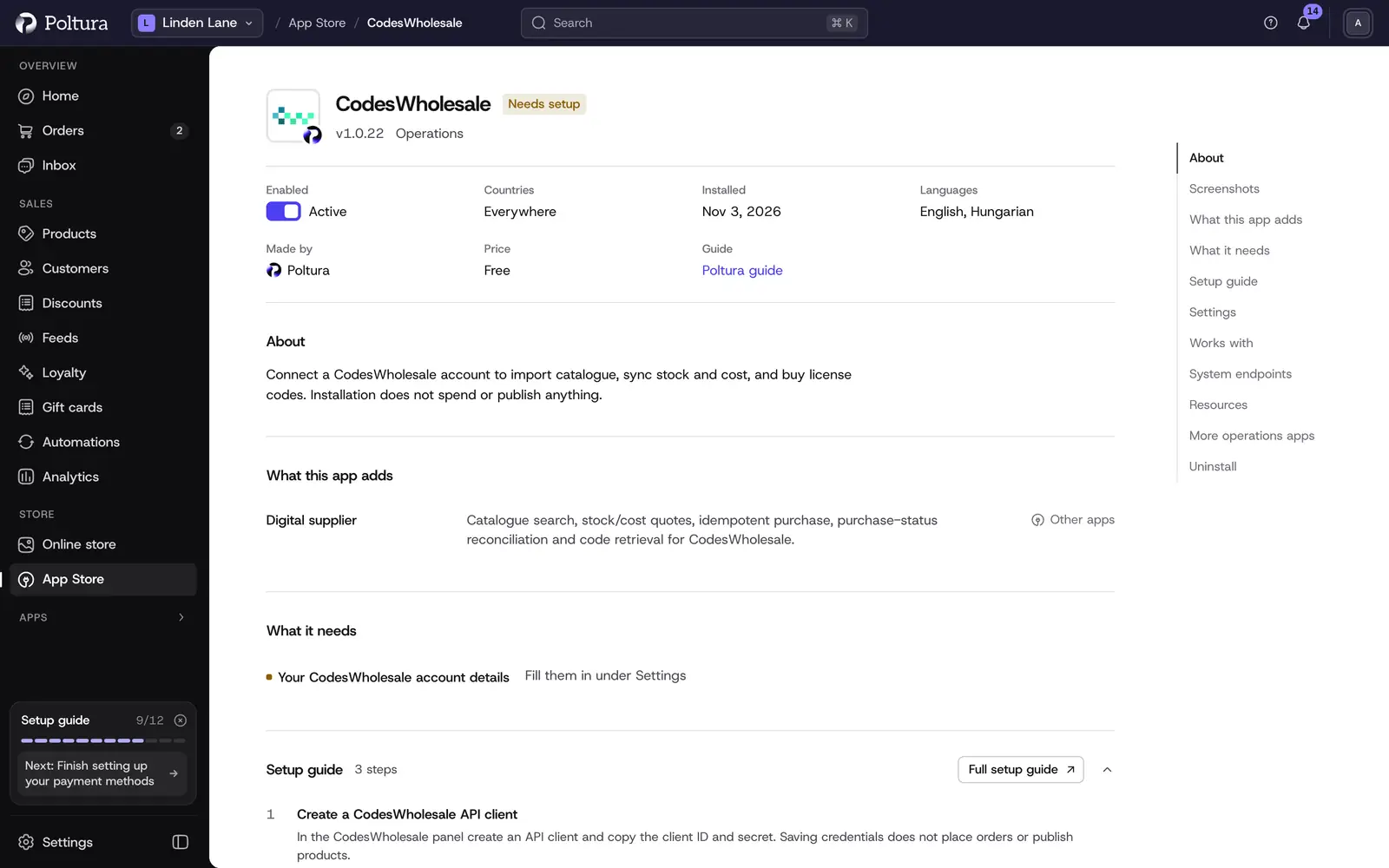
Open App Store in the sidebar and choose CodesWholesale.
Select Install. See App Store.
Under Settings, fill in Client ID and Client secret, then select Save.
Select Turn on.
Open CodesWholesale in the Apps group of the sidebar and select Test connection. Credentials verified confirms the account, and the Account panel shows the account email and balance.
Select Refresh catalogue to load the supplier's products. Cached products shows how many were loaded.
Settings
The fields are in the app's Settings in the App Store. The first four can also be edited on the CodesWholesale page.
- Client ID: the OAuth client ID from the CodesWholesale panel. Stored encrypted and never shown again after saving. Change it with Replace client ID.
- Client secret: the OAuth client secret. Stored encrypted and never shown again. Change it with Replace client secret.
- API base URL: choose
https://api.codeswholesale.comfor the live service orhttps://sandbox.codeswholesale.comfor the sandbox. Changing it clears the saved client ID and client secret, so enter the ones for the new environment. - Allow automatic supplier purchases: off to begin with. When it is on, the store may buy codes at CodesWholesale for paid orders. When it is off, no new purchase starts; orders that CodesWholesale has already accepted are still completed.
- Low balance limit: we alert you when the money you can spend at CodesWholesale falls below this amount (20 to begin with). Balance currency is the currency code used to show it (EUR to begin with).
- Alert when sync stalls after (minutes): we alert you when no price and stock sync has finished for this long (15 to begin with).
Where these alerts arrive, including a Telegram topic, is set in your notification settings.
Check the account, the catalog and pending orders
The CodesWholesale page shows the state of the connection next to the settings.
- Status: whether the client ID and secret are Stored, and whether automatic buying is on (Automatic buying on or Automatic buying off).
- Account: Available to use, Credit and Account email as CodesWholesale reports them.
- Catalogue: the number of Cached products and whether a refresh is running. Refresh catalogue starts a new one.
- Pending supplier orders: orders CodesWholesale has accepted but not finished. They keep recovering even while new purchases are blocked.
Compare supplier price and stock on a product
A product that is linked to a CodesWholesale product shows a Wholesale Sync panel on its page.
Open the product from Products.
In Wholesale Sync, compare Current with Live (CWS) for Price and for Stock. The panel marks whether the live value is up or down.
Select Sync now to take over the live values.
If the supplier's price is above your selling price, the panel warns that the product is sold at a loss. When the panel notes that price sync is disabled, only stock is taken over for that product.
Good to know
- The supplier's stock and cost are synced on a schedule. You do not have to press Sync now for every product.
- Unlinked products do not show the Wholesale Sync panel.
- Switching the app off does not abandon orders CodesWholesale has already accepted: they are still completed.
If something goes wrong
- "Connection test failed". The client ID or secret is wrong, or it belongs to the other environment. Sandbox credentials only work with the sandbox API base URL.
- The page title shows "Not set". The client ID or the client secret is missing.
- Orders are paid but no code is bought. Allow automatic supplier purchases is off. Also check Available to use in the Account panel.
- "Failed to load CWS data" on a product. The supplier could not be reached. Try again later; Sync now stays disabled meanwhile.
- A product has no Wholesale Sync panel. It is not linked to a supplier product. Link it on Digital products.