The Árgép app sends your products to Árgép.hu, a Hungarian price comparison site where you pay per click. It serves Hungary only, in Hungarian and in forints. Árgép reads a feed address. Poltura keeps a file of your products up to date, and Árgép downloads it.
The app installs on every plan and has no page of its own. You set it up in Feeds.
Before you start
- Hungary in one of your markets.
- You need a partner account with Árgép. Its partner site runs on partner.guenstiger.de, and new shops sign up there.
- Árgép finds and groups products by barcode, and also asks for the manufacturer's part number. Fill both in on your products where you can.
Set up Árgép
Open the App Store, find Árgép and select Install. See App Store.
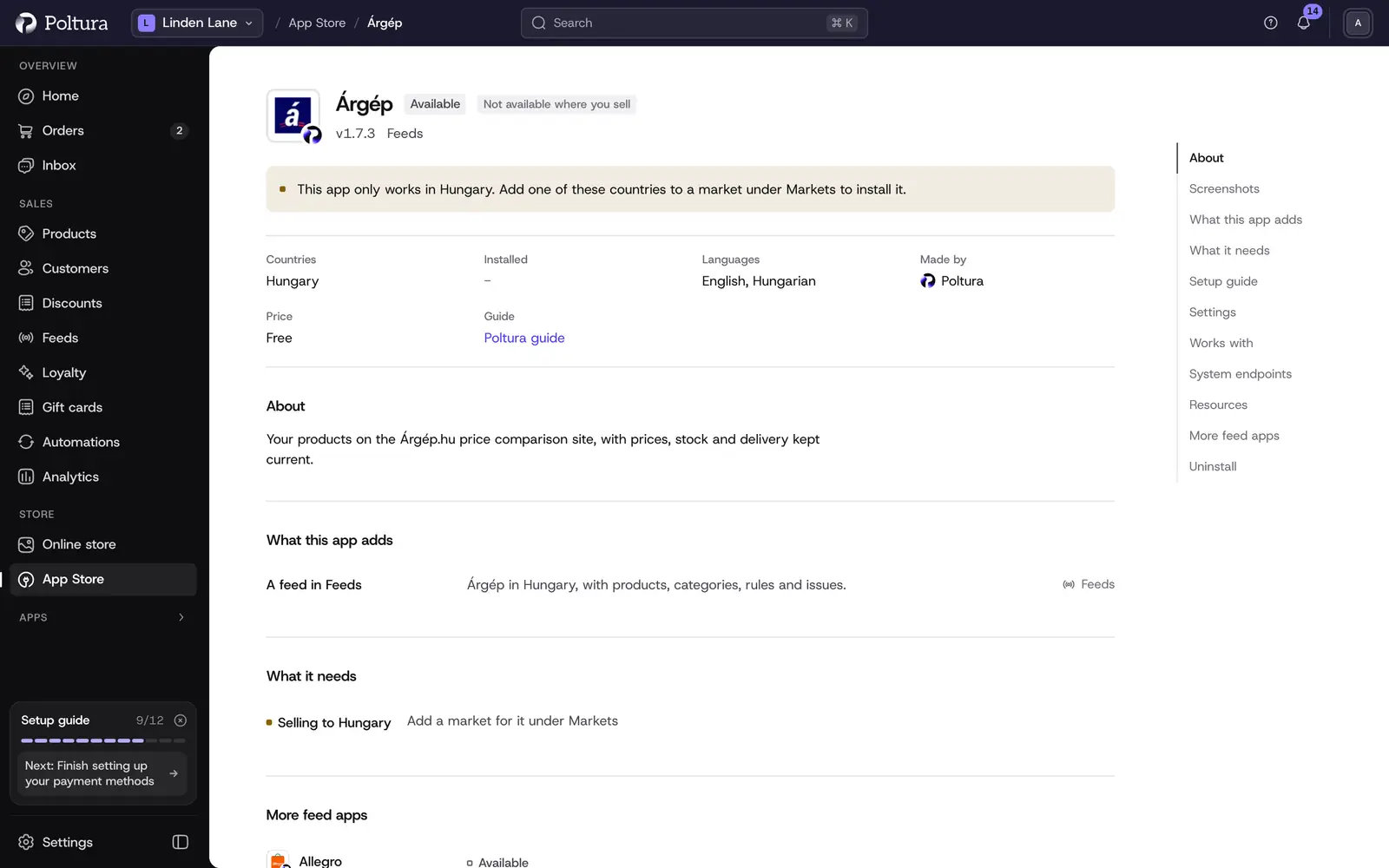
The app adds a feed in Feeds and needs you to sell to Hungary. Open Feeds, select Add feed and choose Árgép under Ready to set up.
On Market, choose your Hungarian market.
On What we send, go through the checklist: delivery cost, handling time and barcodes. Then select Create the feed.
On Feed address, copy the address. On Árgép's partner site open Bolt információs oldal and paste the address into Árlista - CSV, vagy XML export file - címe (URL). You fill in this field when you sign up.
If you are already an Árgép partner, email the address to info@argep.hu instead. Árgép's terms ask for the change at least 14 days ahead, by email with a read receipt.
Select I have pasted it. The feed now shows on the Feeds page.
Árgép reads the address at least once every working day. The general steps of a feed are in Add and set up a feed.
Settings
Árgép has one setting, on the feed's Settings tab under Product links:
- Mark Árgép clicks for Google Analytics: adds
utm_source=argepto every product link in the feed, as Árgép asks, so the clicks coming from Árgép show apart in your analytics. It is on by default.
The rest comes from your store:
- Delivery cost from the shipping options of the Hungarian market. Without one, Árgép shows the delivery cost you gave it when you signed up.
- Delivery time from the handling time of the store or the product.
- Barcodes and manufacturer part numbers from your products.
Árgép is a price comparison site, so it must show your shop price. Price rules do not apply to this feed.
What shoppers see on your storefront
While the feed is live, the Árgép logo appears in the footer of the Hungarian storefront, in the Partner badges section. It links to Árgép.hu. The site does not require it, so you can hide or move it in the Customizer. The app adds no scripts and nothing to your privacy notice or checkout.
If something goes wrong
- Árgép has not downloaded the feed yet. Check that the address is in Bolt információs oldal, or that your email to info@argep.hu arrived. A change asked by email can take up to 14 days. The feed's Overview tab lists every download.
- Árgép shows a different delivery cost than your shop. The Hungarian market has no delivery cost, so Árgép uses the one from your sign-up. Add a shipping option under Delivery.
- Barcode Árgép does not take. Correct the barcode on the product.
- Photo is not GIF, JPG, PNG, BMP or TIFF. Upload the main photo in one of these formats.
- A product is missing from the site. Open the feed's Products tab and select the product to see which step stopped it. See Feed issues.