The Allegro app lists your products on Allegro and brings your Allegro orders into Poltura. Allegro has four marketplaces: allegro.pl (Poland), allegro.cz (Czechia), allegro.sk (Slovakia) and allegro.hu (Hungary). Each Allegro account gets one feed, on the market of the marketplace where the account was registered. From there you choose which other marketplaces you also sell on.
Allegro works only through a connection. There is no feed address. Poltura sends your products straight to Allegro and keeps price and stock current. Allegro always brings orders, so the app needs "Marketplaces with orders" on your plan. Plus and Pro include it. See Plan and billing. The app has no page of its own. You set it up in Feeds.
Before you start
- An Allegro business account that you sell with.
- The country the account was registered in, added to one of your markets.
- In Allegro Sales Center: at least one shipping rate table, a return policy and a complaints policy.
- Barcodes on your products where you have them. Allegro finds a product with a barcode in its own catalog. A product without a barcode needs a matched Allegro category.
Set up Allegro
Open the App Store, find Allegro and select Install. See App Store.
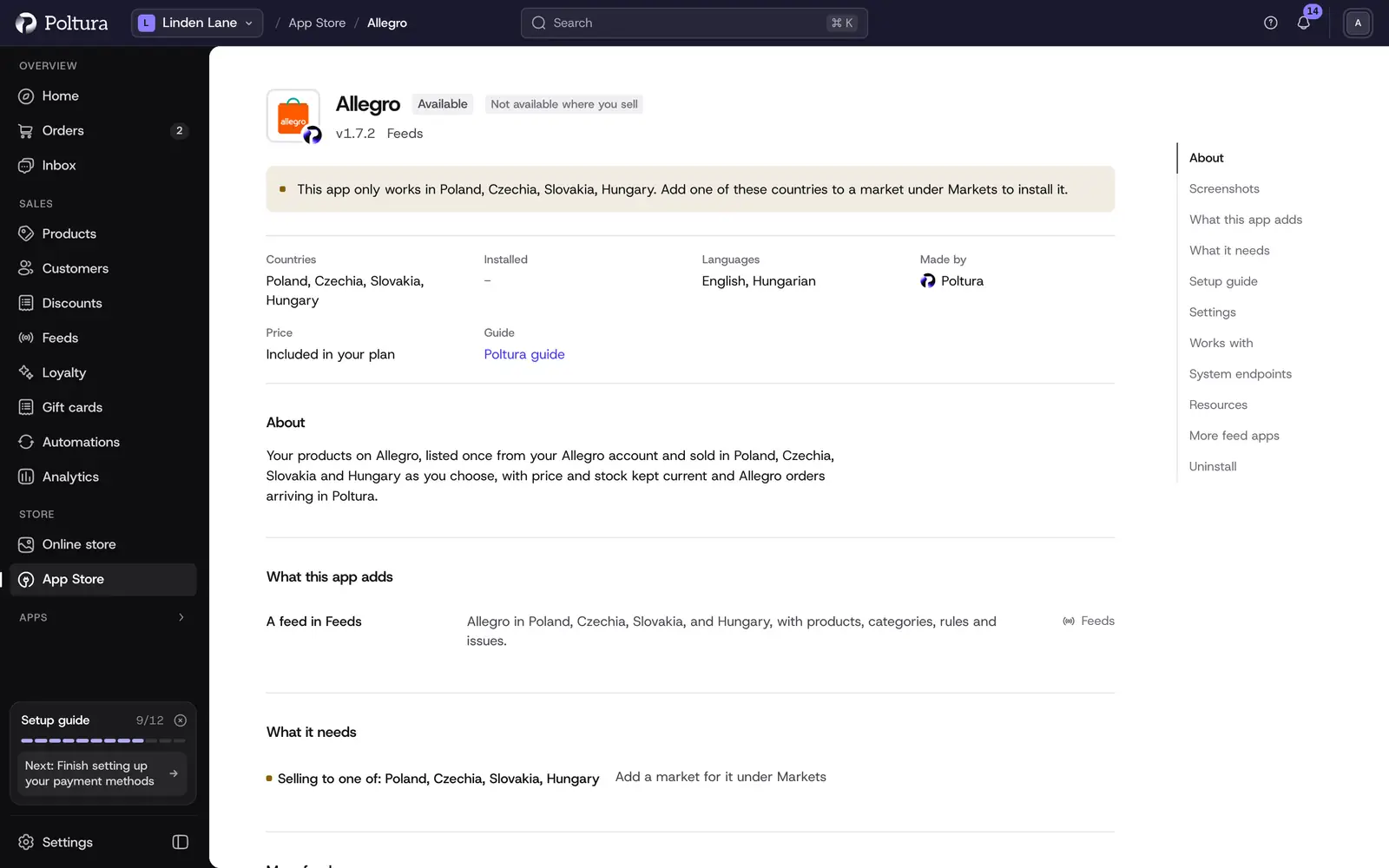
The page lists the countries the app sells in and what it needs from your store. Open Feeds, select Add feed and choose Allegro. If it shows Upgrade to add, your plan does not include "Marketplaces with orders".
On Market, choose the market of the country your Allegro account was registered in.
On Connect, sign in with your Allegro business account.
On Details, choose under Also sell on what happens on each other marketplace, then pair your Shipping rates, pick your policies and pair the Delivery methods of orders.
On What we send, go through the checklist: the connected account, the marketplace it sells from, shipping rates, return and complaints policies, Allegro categories and barcodes.
Select Go live. Poltura starts sending your products, and the feed's Overview tab shows what Allegro took.
The general steps of a feed are in Add and set up a feed.
Settings
You find these on the feed's Settings tab.
Allegro account
- Allegro account: the account Poltura is connected to. Poltura may list and end your offers, read your shipping rates and policies, read and update your orders, and refund buyers of orders you cancel. One Allegro account serves your store.
- Take over my offers already on Allegro: Poltura looks for your existing Allegro offers and matches them to your products by their signature, SKU or barcode. Turned on, it updates those offers instead of listing the products again. Offers it cannot match stay as they are.
Also sell on
Allegro lists each product once, on your account's own marketplace, and shows it on another one wherever its shipping rate delivers. For each other marketplace choose:
- Do not sell there
- Sell there, Allegro converts my price: Allegro converts your price to the other marketplace's currency.
- Sell there at my shop price for that country: the price of your own market for that country is used.
Delivery and returns
Without a choice here, Allegro uses your only one, or the one named "default".
- Shipping rates: for each of your shipping methods, the Allegro shipping rate table its products go out with. Each table shows where it sells. You manage the tables in Allegro Sales Center under Delivery settings.
- Return policy
- Complaints policy: how you handle complaints under the legal guarantee. Allegro calls it implied warranty.
- Warranty: only if you or the manufacturer give a warranty on top of the legal guarantee.
Orders
- Delivery methods of orders: for each of your shipping methods, the Allegro delivery method buyers pick for it, so an Allegro order arrives with your own shipping method.
Paid orders and cash on delivery orders arrive from every Allegro marketplace you sell on, each with its own country and currency. See Marketplace orders.
What shoppers see on your storefront
Nothing. The Allegro app adds no badge, script or text to your shop.
If something goes wrong
- Your Allegro account sells from another marketplace. Allegro lists products once, on the marketplace the account was registered on. Set up the feed for that country, or connect the account registered on the marketplace you chose.
- No barcode and no Allegro category. Add a barcode to the product, or match its category in Category mapping.
- Allegro does not know this barcode. Allegro can add the product only as a new one. Match its category to an Allegro category.
- Stock is not tracked. Allegro sells only up to a quantity. Track the product's stock, or keep a fixed quantity for this feed with a rule.
- A policy you chose is gone from Allegro. It was deleted in Allegro Sales Center. Pick it again on the Settings tab. Updates wait until then.
- A product is not on one of the other marketplaces. Its shipping rate does not deliver there, or there is no shop price for that country.
- Changes reach Allegro slowly. Allegro limits how many calls it takes a minute. A large change goes in batches and nothing is lost.
Other problems are covered in Feed issues.