The UPS app connects your store to your UPS account. At checkout, shoppers choose UPS home delivery or pickup at a UPS Access Point. When you fulfill the order, the app creates the label and puts the cash on delivery amount on the shipment for you. Then it follows the parcel status on its own. It suits stores that send parcels abroad as well as at home.
The app needs "Courier apps" on your plan, which Plus and Pro include. See Plan and billing.
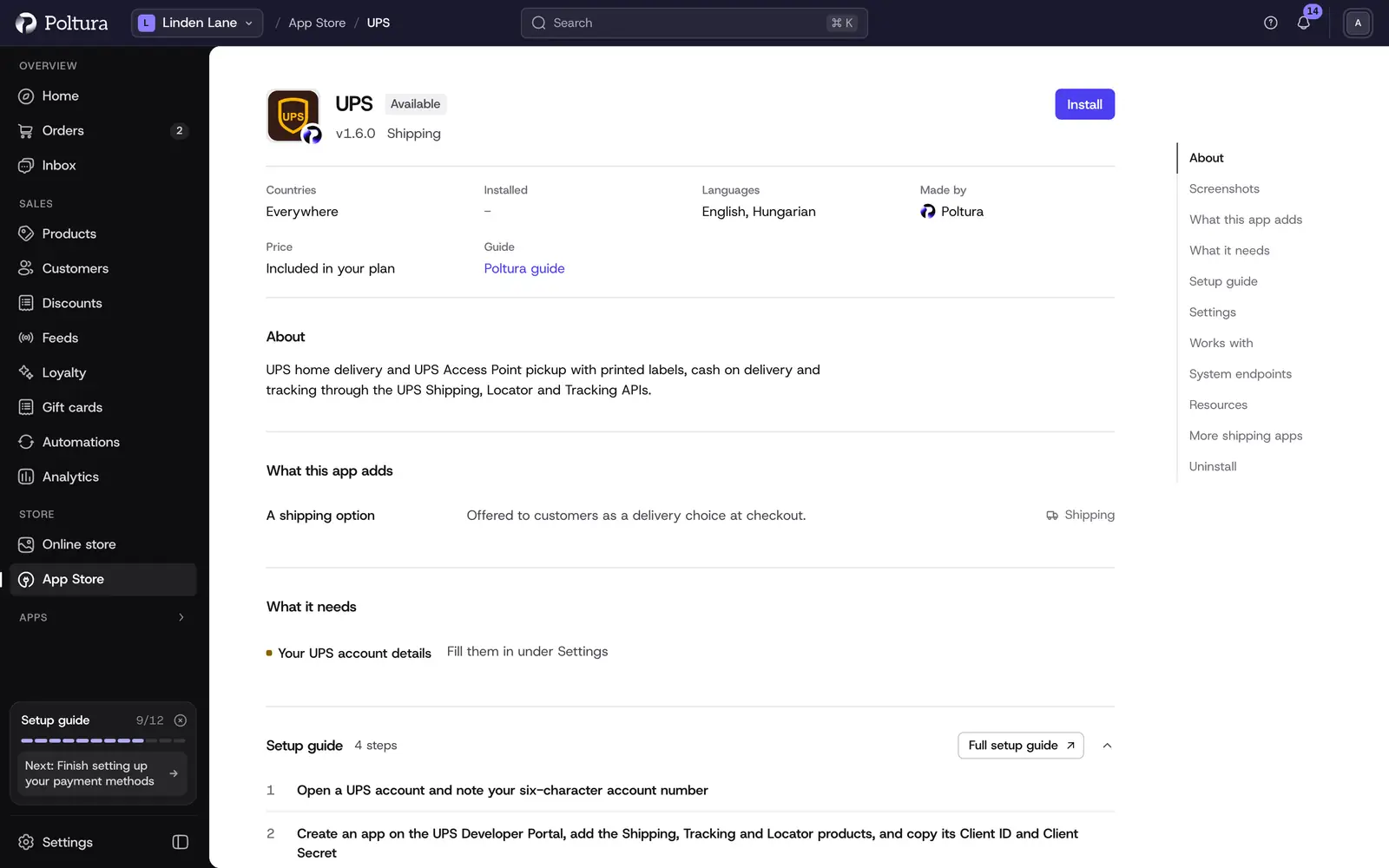
Before you start
- You need a UPS account. Note its six-character account number.
- You need an app on the UPS Developer Portal at
https://developer.ups.com/with the Shipping, Tracking and Locator products added. It gives you a Client ID and a Client Secret. - You need the address the courier collects from.
Set up UPS
Open Apps → App Store, open UPS and select Install. Installing works the same for every app, see App Store.
In the Settings section, fill in the fields described under Settings and leave Environment on
test.Select Save in the save bar.
Select Check the credentials. The message The credentials work. confirms that UPS accepted the Client ID and Secret.
Select Turn on. The status of the app changes to Active.
Open Settings → Delivery and go to the shipping settings of the location you ship from. Select Connect a courier and connect UPS to the location.
In the shipping zone that covers the countries you send UPS parcels to, select Add rate.
Type the Rate name the shopper sees at checkout, choose UPS under Courier, enter your price and save. Checkout now offers the rate.
Create a test fulfillment and print the label. When it is right, change Environment to
productionand save.
A rate added this way is a UPS home delivery rate. To offer Access Point pickup as well, turn on developer mode, add a shipping option for the same zone and choose the entry ending in "UPS Access Point pickup" under Provider and delivery. See Locations and shipping.
The prices are the ones you set. The app does not ask UPS for live rates.
Settings
- Environment:
testorproduction. The UPS test environment creates no real shipments. New installs start ontest. - Client ID (required): from the app you created on the UPS Developer Portal.
- Client Secret (required): the secret of the same app. It is stored encrypted.
- UPS account number (required): your six-character UPS shipper number. Shipping charges are billed to this account.
- UPS service: the service every label is created with:
UPS Standard,UPS Express Saver,UPS Express,UPS ExpeditedorUPS Express Plus. Your UPS contract decides which ones you can use. The default is UPS Standard. - Parcel weight (kg): UPS needs a weight on every label. This one value is sent for each parcel. The default is 1.
- Sender name (required): printed on the label as the shipper. Usually your shop or company name, up to 35 characters.
- Sender phone (required): a phone number with the country code, for example
+36301234567. - Sender street address (required), Sender city (required) and Sender ZIP code (required): the pickup address.
- Sender state or province code: only for countries UPS addresses by state, such as the US, Canada and Ireland.
- Sender country code (required): the two-letter country code of the pickup address, for example
HU.
What shoppers see at checkout
For home delivery the shopper just picks the rate. For an Access Point rate they select Select a UPS Access Point. The list starts from the delivery postal code, and they can search by postal code or city. The Access Point has to be in the same country as the delivery address, and they cannot continue to payment without choosing one.
Day to day
- Open the order and select Fulfill items. Creating the fulfillment creates the shipment at UPS and stores the label. See Fulfill and ship.
- If the order was placed with pay on delivery, the order total is sent as the cash on delivery amount.
- The order page has a UPS parcels panel with Label to download the label, Track to open UPS tracking, and the Access Point. See Parcels.
- The parcel status is checked every 30 minutes. A delivered parcel marks the fulfillment as delivered. Returned and Delivery exception flag parcels you should look at.
- Canceling the fulfillment voids the shipment at UPS, see Cancel a fulfillment.
Not available: customs documents for destinations outside the EU, several parcels in one shipment, and return labels. Create returns in your UPS account.
If something goes wrong
- The credential check fails. Check the Client ID and the Client Secret, that the three products are added to your UPS developer app, and that Environment matches the credentials.
- "UPS sender address is incomplete". The message names the missing sender fields. Fill them in and save.
- "UPS Access Point delivery needs the customer email on the order." Add the email address to the order, then fulfill again.
- "The order has no complete shipping address". Complete the shipping address on the order.
- The shopper is told the Access Point is in a different country than the delivery address. They pick another one.
- UPS did not void a shipment. The message gives UPS's reason. Void it in your UPS account.
- A label was created, but no parcel moves. Environment is still on
test, which creates no real shipments.