This page appears only when developer mode is switched on.
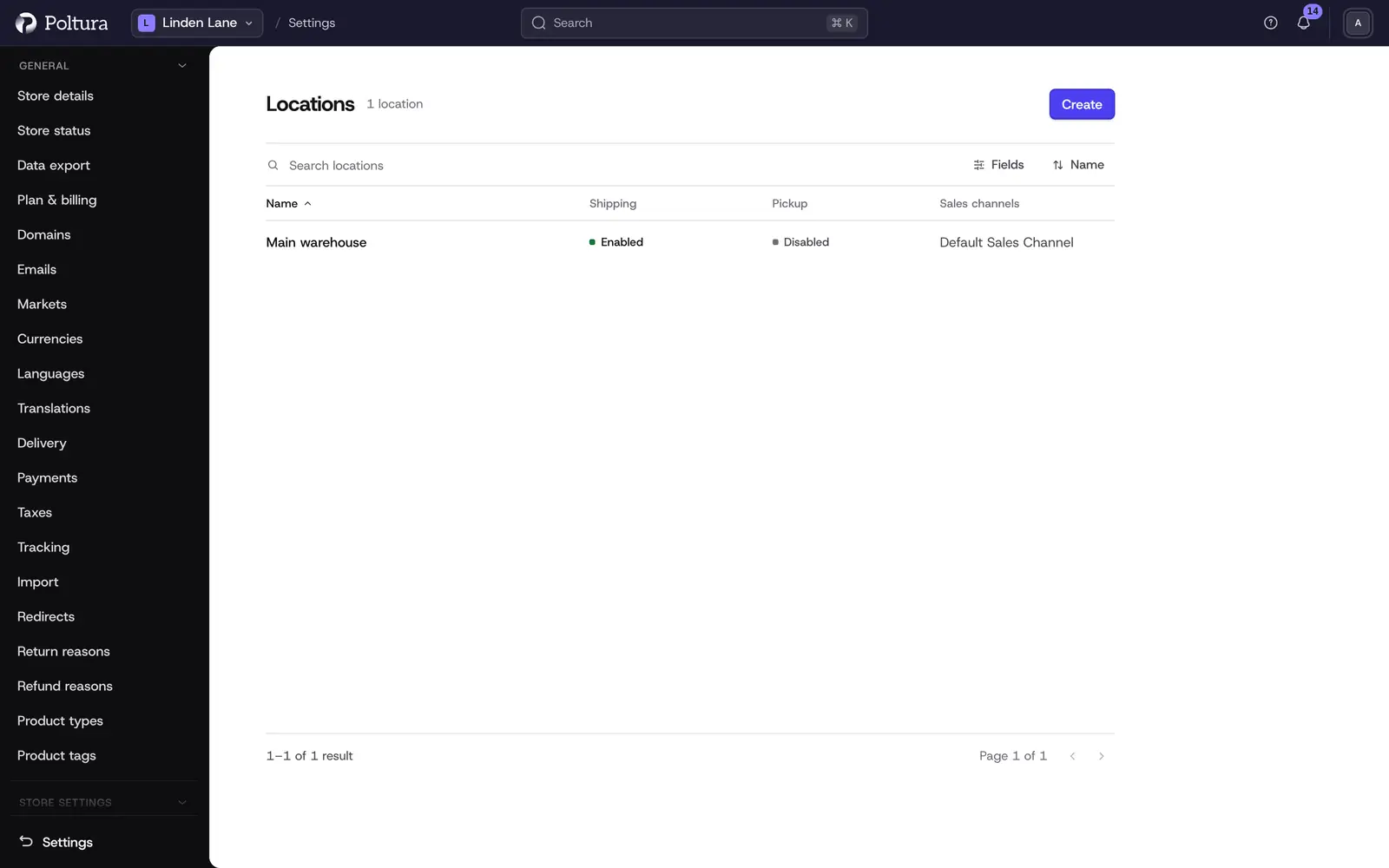
Locations & Shipping is the full view of where your store keeps stock and how it ships. The everyday Delivery page edits the same records in simpler words (locations, zones, rates, delivery groups). Come here for what Delivery does not show: pickup, several sets at one location, prices calculated by a carrier, return options and shipping option types.
How the pieces fit together
- A location is a place you keep stock in and ship from.
- A location has one or more fulfillment sets. A set is either for shipping or for pickup.
- A set has service zones. A zone is a list of countries.
- A zone has shipping options. An option is what the customer chooses at checkout, with its prices.
- Every option names a shipping profile (which products it can carry) and a shipping option type (what kind of shipping it is).
A location also needs to be linked to the sales channels it serves and to at least one fulfillment provider, such as a carrier app.
Before you start
You need a role that includes store settings and products, such as Owner, Administrator or Store manager. The country list of a location comes from your regions, so set up a market or a region first.
Create and edit a location
Open Settings and choose Locations & Shipping in the Developer group.
Select Create.
Fill in Name, Address and Country. The other address fields, Company and Phone are optional.
Save. The page of the new location opens.
In the Location section select the pencil beside Sales Channels, tick the channels this location fulfills orders for and save.
Select the pencil beside Fulfillment Providers, tick the providers this location can ship through and save.
The location page lists every fulfillment set with its zones and options, then the address, the linked channels and providers, and View inventory, which opens the stock held at this location. To change the name or address, select Edit location.
A new location cannot ship yet. Add a fulfillment set, a service zone and a shipping option, as described below.
Delete a location
Open the location, go to Danger zone, select Delete location, type the name of the location and confirm.
Set up shipping options
Add a fulfillment set
On the location page select Add fulfillment set.
Check the Name. Customers never see it.
Choose the Type: shipping (delivered to the customer) or pickup (collected at this location).
Save. The set gets its own section on the location page.
The name and the type of a set cannot be changed later. A location can have several sets, also of the same type.
Add a service zone
In the section of the set select Add service zone.
Type a Name. Customers never see it.
Tick at least one country under Countries. Use Search countries to find one.
Save.
A country can be in several zones. To rename a zone, open its menu and choose Edit service zone. To change its countries, choose Edit areas: saving replaces the whole list with what is ticked.
Add a shipping option
In the zone select Add shipping option.
On the Details tab type the Name. Customers see it at checkout.
Optionally add a Storefront message and the fastest and slowest delivery in working days.
Choose the Price type: Flat rate for a price you set, or Calculated for a price the provider quotes at checkout.
Choose a Shipping profile and a Shipping option type.
Under Provider and delivery choose how this option ships. This cannot be changed later.
Leave Offer in the storefront on if customers may choose the option. When it is off, only staff can pick it in the admin.
Turn on Return option only for an option meant for goods coming back. This cannot be changed later.
For a flat rate, open the Prices tab and type a price per currency or per region.
Save. The option is listed in its zone.
Edit prices
Open the menu of a flat-rate option and choose Edit prices. The grid has one column per store currency and one per region. A region price overrides the currency price. Clear a cell to remove that price. 0 is a price (free shipping), an empty cell is no price.
Each cell also has a conditional price control. It sets a different price when the cart item total falls in a range, for example free shipping above an amount. Give each row an amount and at least one bound.
Type amounts with a dot as the decimal separator. A comma is refused.
Delete a set, a zone or an option
Each delete asks you to type the name of what you delete.
Shipping profiles
A shipping profile is a group of products that ship the same way, for example default or heavy. The Delivery page calls them delivery groups. Open the list with Manage delivery groups on the Delivery page.
Select Create.
Type a Name and a Type.
Save.
A profile cannot be edited after it is created. To correct one, delete it and create it again. A profile that products or shipping options still use cannot be deleted. To give a product another profile, see Edit a product.
Shipping option types
A shipping option type classifies an option, for example standard or express. It has a Label, a Code that a storefront can read, and an optional Description. No menu entry leads to this list yet: open /settings/locations/shipping-option-types in the address bar of the admin.
Select Create to add a type. Open a type to edit it with Edit shipping option type or to delete it. A type that shipping options still use cannot be deleted.
Good to know
- Changes made here show on the Delivery page at once, and the other way round.
- If you unlink a fulfillment provider from a location, the admin does not warn about shipping options that use it.
- Switching an existing option from Flat rate to Calculated deletes its prices without a warning.
- The delivery days of an option are used as the delivery time in product feeds.
- Most labels on these pages are in English, also when the admin language is Hungarian.
If something goes wrong
- "The store is not answering right now, so nothing was changed." when saving or deleting. On these pages this message often hides the real reason. Check that the name of the set or zone is not already used elsewhere in the store, that the profile or type you delete is not used by a product or an option, and that the provider can calculate a price for a calculated option.
- "This location links no fulfillment provider yet". Link a provider on the location page before you add a shipping option.
- "Add a region first" or a missing country in the location form. Only countries of your regions are listed. Add the country to one of your markets.
- "The currencies or regions changed while this was open, so nothing was saved." Type the prices again in the grid now shown.
- A conditional price was not saved and no field shows an error. Check that every row has an amount, at least one bound, and a lower bound that is not above the upper one.