This page appears only when developer mode is switched on.
Every record in your store (a product, an order, a customer) is made of properties, such as a title, a status or a date. Property Labels lets you store your own label and description for each property of a record type, in the words your business uses.
Before you start
You need a role that includes both store settings and products, such as Owner, Administrator or Store manager. A role that can edit products but not store settings cannot open this page.
What the list shows
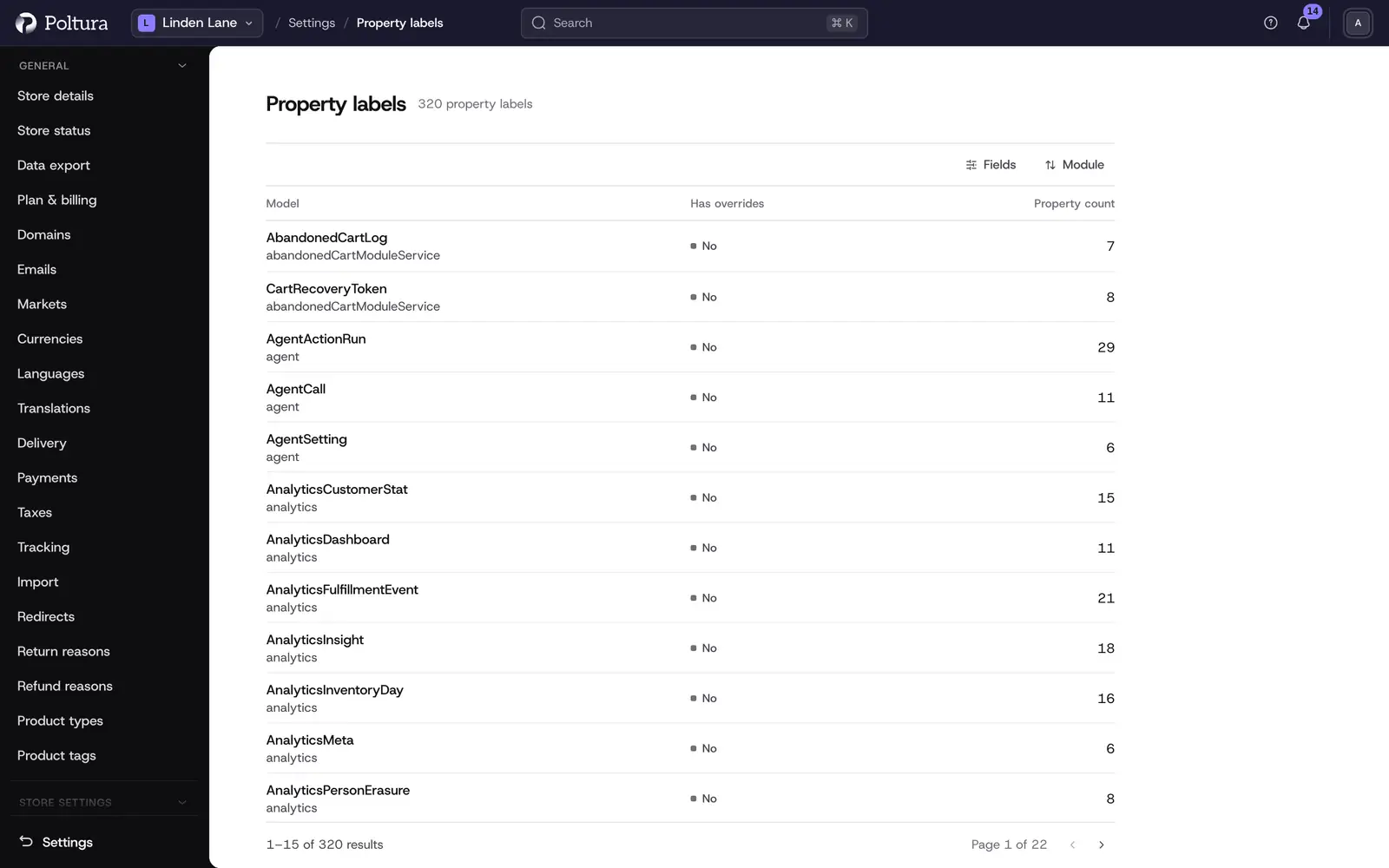
Each row is one record type of the store. The list is not fixed: it shows whatever record types your store has.
- Module: the part of the store the record type belongs to.
- Model: the record type.
- Property Count: how many properties it has.
- Has Overrides: Yes when at least one property has a label of yours, otherwise No.
The list has 15 rows per page and can be sorted by Module or Model. It has no search and nothing to create: you only edit what is there.
Set a label and a description
Open Settings and choose Property Labels in the Developer group.
Select the record type you want to change. The Edit property labels panel opens with one row per property.
Type your text in the Label cell of a property.
Optionally type an explanation in the Description cell.
Repeat for the other properties you want to rename.
Save. You return to the list, and the record type shows Yes under Has Overrides.
All your changes in the panel are saved together. Spaces at the start and end of a label are removed.
Reset a property to its default
Open the record type.
Clear the Label cell of the property.
Save.
The label is removed together with its description. When no property of a record type has a label any more, the list shows No under Has Overrides. There is no button that resets a whole record type at once: clear each label on its own row.
Good to know
- A label can be up to 200 characters long, a description up to 500.
- A description needs a label. If you type only a description and leave the label empty, nothing is saved for that row and you get no message about it.
- There is one label and one description per property. You cannot store a different label per language.
- Labels are shared: everyone who works in the store gets the same ones.
- If you close the panel with unsaved changes, the admin asks before it discards them.
- To remove only the description of a property and keep its label, clearing the description cell may not be enough: the old description can stay. Clear the label, save, then type the label again.
If something goes wrong
- "That value is too long." under every label cell. One label or one description in the panel is too long. The message is shown on every row, also when the long text is a description. Look for a label above 200 characters or a description above 500.
- "The store refused those values, so nothing was changed." Nothing was saved. Change fewer rows at a time and save again to find the row that is refused.
- "This store is not answering right now" after opening a record type from a link. The record type in the link may not exist in this store. Go back to the list and open it from there.
- "You do not have access to this store". Your role is missing store settings or products. Ask an owner to change it. See People and roles.