This page appears only when developer mode is switched on.
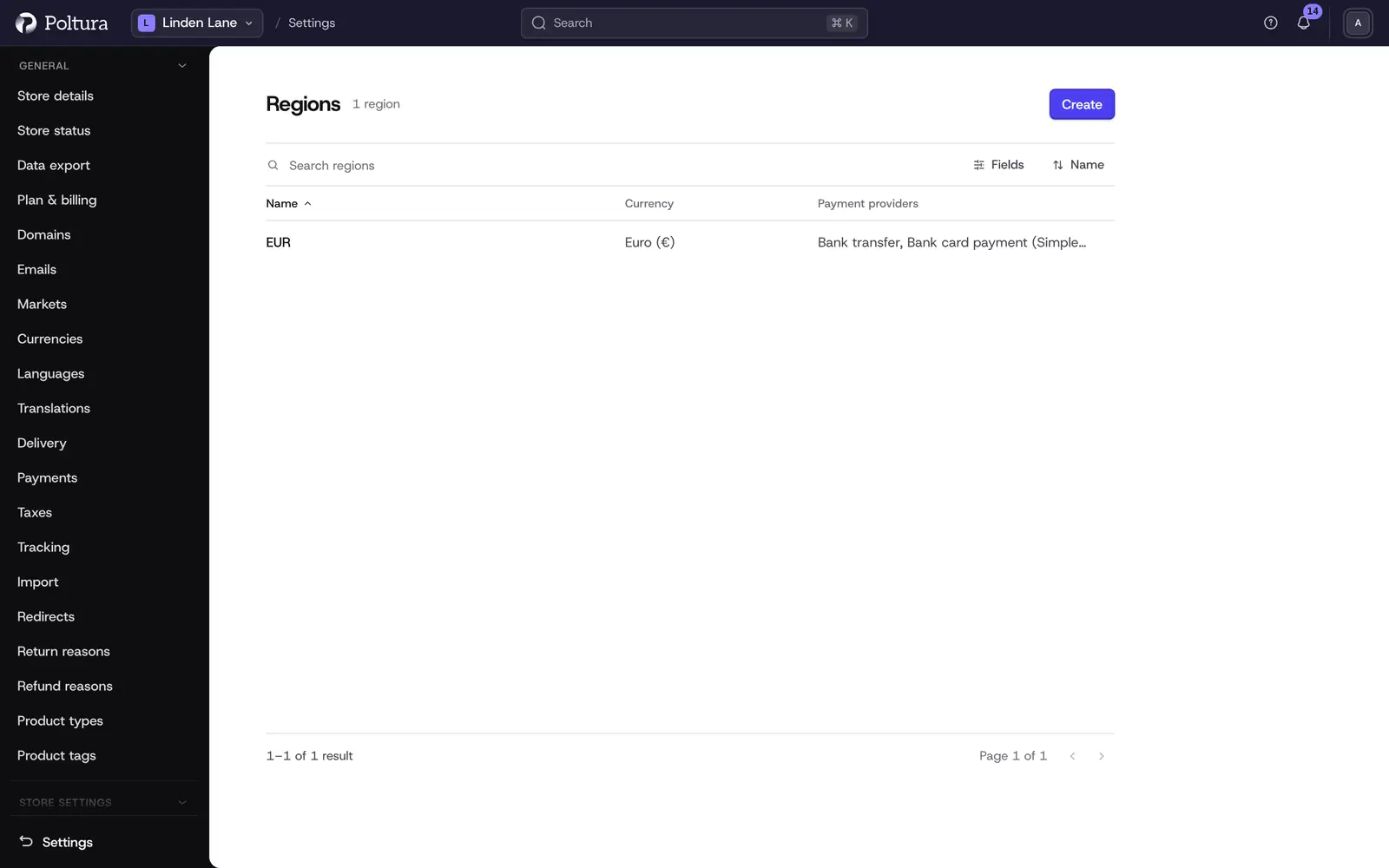
A region is the record that fixes the currency of a cart. Your store keeps one region per store currency. Each region is named after its currency, has no countries and has every payment method that can charge that currency. Where you ship is decided by the countries in your markets, not by regions. The store keeps these regions up to date itself. If you change their countries or payment providers here, the store puts them back the next time it updates them.
For everyday work, stay with Markets and Payments.
Before you start
You need a role that includes store settings, such as Owner, Administrator or Store manager.
Create a region
Open Settings and choose Regions in the Developer group.
Select Create.
Type a Name and choose a Currency. Only the currencies of your store are offered.
Choose the Payment providers customers of this region can pay with. You may leave it empty for now.
Leave Automatic taxes ticked if tax should be calculated at checkout.
Tick Tax inclusive pricing if the prices in this region already contain tax.
Save. The page of the new region opens with no countries.
The region sells nowhere until you add a country to it. Creating a region here does not add a currency to the store and does not create tax rates: add the currency in Store details first, and set the tax under Taxes.
Add countries to a region
Open the region.
In the Countries section select Add countries.
Search if you need to, tick the countries and save.
The countries are listed on the region page.
A country belongs to one region at a time. A country that another region already covers cannot be added here: remove it there first.
Remove a country from a region
Open the region.
In the Countries section select the remove action on the country's row.
Tick Yes, remove this country from the region.
Select Remove country.
The country then belongs to no region and can be added to any other. You are not stopped from removing the last country: the region stays, empty, with its settings.
Edit a region
Open the region and select Edit region, or select the pencil beside the value you want to change.
Change the name, the currency, the payment providers or the two tax switches.
Save.
Countries are not in this form. They are added and removed on the region page.
Keep your own data on a region
Open the region and select Edit custom data. Each row is a key and a value that your integrations can read. Rows without a key are not saved. A value of true or false is stored as a yes or no value, a value made only of digits as a number, anything else as text.
Delete a region
Open the region.
In the Delete this region section select Delete region.
Type the name of the region to confirm.
Select Delete region. You return to the list.
Good to know
- The list shows Name, Currency, Countries and Payment providers, 20 regions per page, ordered by name.
- A region with no payment provider cannot take payments. The region page says so in the Payment providers row.
- Two people editing the same region at the same time overwrite each other. The last save wins.
- The country picker of a new location and of a new tax region offers only countries that are in one of your regions.
- Most labels on these pages are in English, also when the admin language is Hungarian.
If something goes wrong
- "Another region in this store already covers one of those countries, so nothing was changed." Remove the country from the other region first.
- "That option is not one this store offers." on Currency. The store does not support that currency yet. Add it in Store details.
- "This field is required." on a Currency field you cannot open. The currencies of the store could not be loaded. Reload the page and try again.
- "Payment providers could not be loaded, so they cannot be changed right now." Close the form without saving and try again later.
- "That region could not be found". It was deleted or belongs to another store.