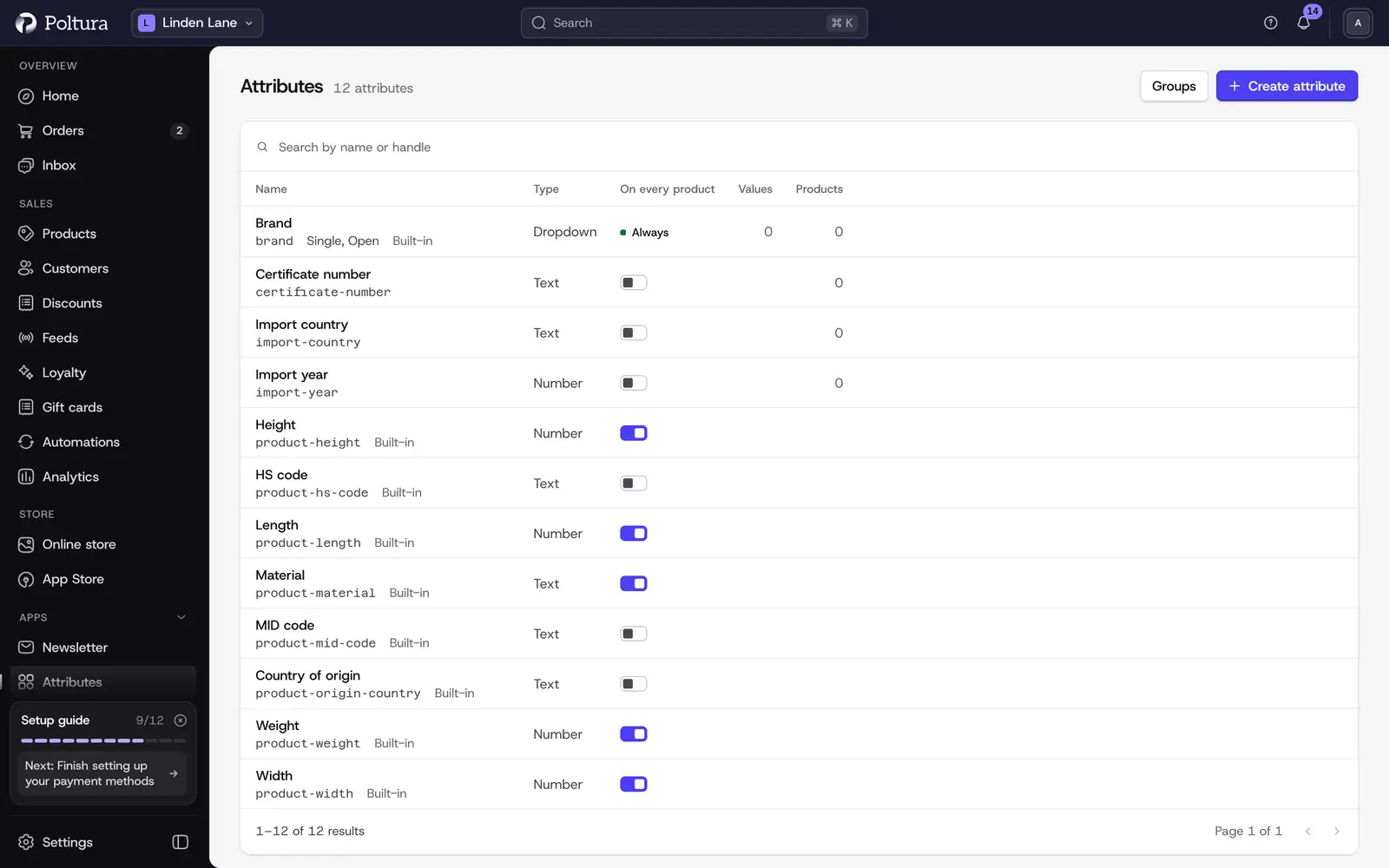
Attributes describe your products in a structured way: brand, material, platform, screen size. Customers see them as specifications on the product page, and they can filter product lists by them. You define an attribute once and then fill in its value on each product.
Before you start
Attributes is a row in the Apps group of the sidebar. If you do not see it, switch it on under Sidebar. You can also reach it from any product through Manage attributes in the Attributes section.
Create an attribute
Open Attributes and select Create attribute.
Enter the Name, for example Platform, and a Handle, for example platform. Both are required. A Description is optional.
Choose the Type:
- Dropdown: pick from a list of values you define.
- Color: a list of named colors, each with its own swatch.
- Text: free text, typed on each product.
- Number: a number typed on each product. You can add a Unit of up to 16 characters, such as cm, which is shown after the number.
For a dropdown or color attribute, choose the Selection Mode. Single allows one value per product, Multiple allows several.
For a dropdown attribute, choose the Entry Type. Preset means values can only be picked from the list. Open means a new value can be typed on a product and is added to the list.
Switch on Show on every product if the attribute should be listed on every product's page, even before it has a value.
Select Create. The attribute appears in the list.
Add values to an attribute
Dropdown and color attributes need a list of values.
Open the attribute from the list.
In Values, select Add Value.
Enter the Value, for example PC. For a color attribute, also pick the Color or type its hex code, for example #1a73e8.
Select Add. The value is listed and can be chosen on products.
Text and number attributes have no list. Their values are typed on each product.
Change an attribute
Open the attribute. The About section shows its handle, description, type, selection mode and entry type. Select Edit next to a setting to change it.
- Edit Type: a dropdown can become a color list and back. Its values stay. A color list adds a swatch to each one.
- Edit Selection Mode and Edit Entry Type switch between Single and Multiple, and between Preset and Open.
- Edit Unit changes the unit of a number attribute. Leave it empty for no unit.
- Show on every product can be switched on and off here too.
Choose which attributes every product shows
The On every product section of the list holds the attributes that are listed on every product's page.
Open Attributes and find On every product.
Under Add an attribute, choose an attribute and select Add.
To take one out again, select Remove next to it.
Any other attribute shows up on a product once its category uses it as a filter, or once the product has a value for it.
Fill in attributes on a product
Open a product and find Attributes in the side column. Change a value in its row, or select an Add chip to bring in an attribute that has no value yet. Changes are saved automatically. See Edit a product.
Use attributes as filters
Filters are assigned per category, so each category page offers only the filters that fit it. Open a category, find Filters, choose the attributes under Assign filterable attributes and select Save filters. See Categories.
How the filters look in your store is set in the theme. See Customizer.
Delete an attribute
Open the attribute and select Delete.
In Delete Attribute, confirm with Delete Attribute.
Good to know
- Seven attributes are built in and marked Built-in: Height, Width, Length, Weight, MID code, HS code and Country of origin. Their values are stored on the product itself and are used for shipping and customs.
- Attribute names and values can be translated when your store has several languages. See Translations.
- Options such as Size and Color that create versions of a product are a different thing. See Variants and options.
- Klea can create attributes and link them to products for you. See Klea, the assistant.
If something goes wrong
- "Name and handle are required." Fill in both fields before you select Create.
- "Enter a number, for example 12.5." A number attribute only accepts numbers. Put the unit into the attribute's Unit, not into the value.
- "Attributes are not available right now." Reload the product page. Until then, Edit dimensions and customs details still lets you edit the built-in measurements.