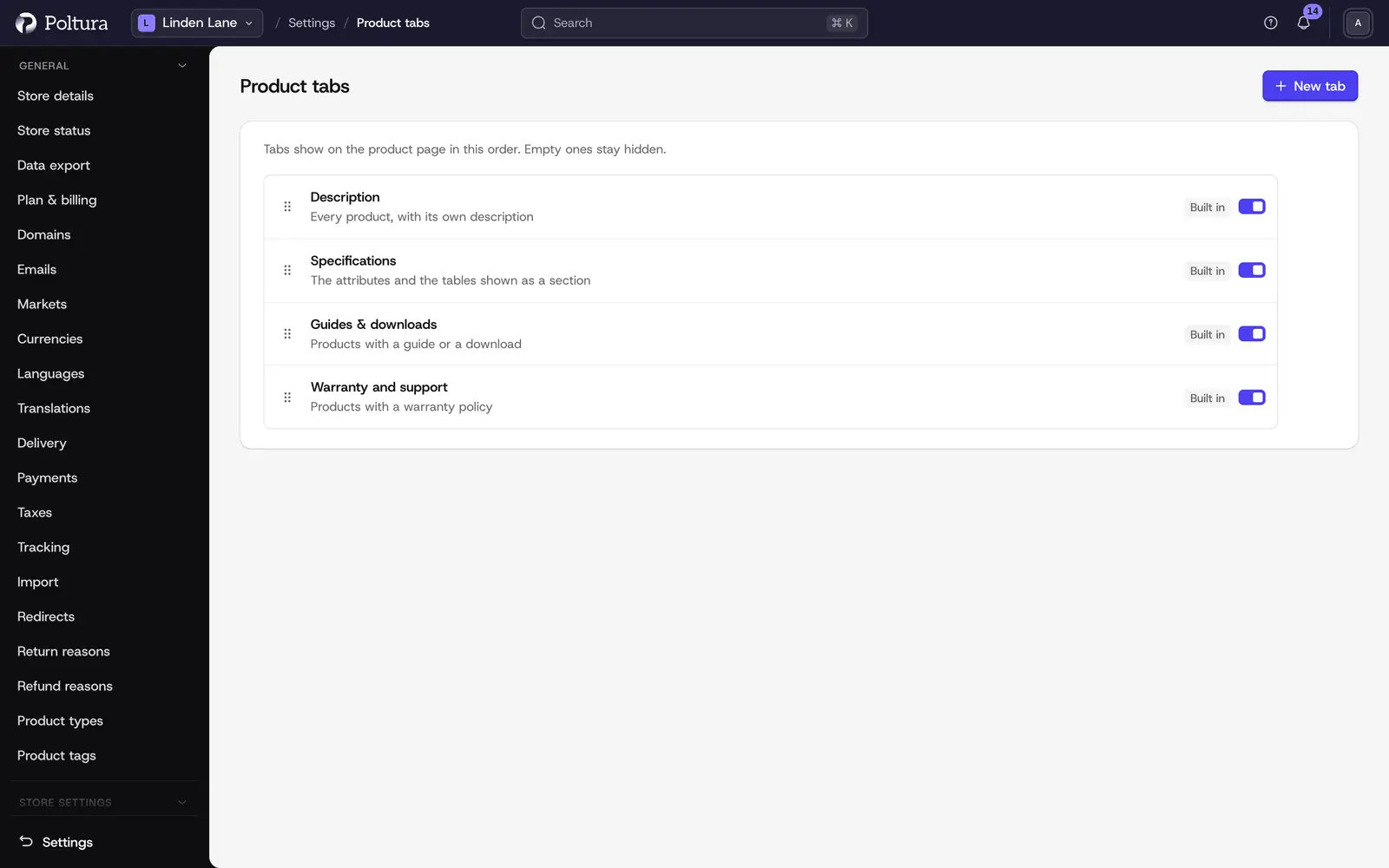
The tabs on a product page come in the same order on every product. You set that order on Settings → Product tabs. A tab with nothing in it hides itself, so you never have to delete one just because a product has no content for it.
Three kinds of tab
- Built in: Description, Specifications, Guides & downloads, Warranty and support. The product's own data fills them. You set their name, languages and place. They cannot be deleted, only switched off.
- Table: when you tick As a tab on a table, the table gets its own tab. Its title is the table's label, and you can rename it here. Which products show it is set on the table's page.
- Own: any text tab, such as shipping and returns or material and care. You write it and choose which products show it.
The order and the switch
Drag a tab into place by its handle. You can also move it with the keyboard: focus the handle, press Space, move with the arrow keys, and press Space to drop it. The order saves at once.
The switch turns a tab on or off for the whole store. A switched-off tab keeps its place in the list, but no product shows it.
A new text tab
Open Settings → Product tabs and choose New tab.
Enter the Tab name and write the text in Content. You can use images, lists and emphasis.
Under Where it shows, tick On every product, or add categories, brands, product types or single products. A category covers its subcategories.
Choose Create tab.
Select a row to open its tab. For built-in and table tabs you can set the name per language; left empty, shoppers see the default title. You can remove your own tab with Delete tab, and it disappears from every product.
Different on one product
On a product's page, the Product tabs row lists the store's tabs in the order shoppers see them, and Manage tabs opens Settings → Product tabs:
- Hide hides a tab on that one product. Show brings it back.
- On a text tab, Own text on this product lets you write other text for that product. The card marks it Own text; Edit changes it and Back to the shared text restores the store's text.
- Tabs that are not meant for the product or are switched off are collapsed under the "tabs not shown" line.
Translation
On the language tabs you translate the tab name and the text of your own tabs. When a language is missing, shoppers see the base language.