A collection is a hand-picked group of products, such as "Summer picks" or "Staff favorites". A product sits in the categories that describe what it is. It can also be in any number of collections that you put together for a campaign, a season or a theme.
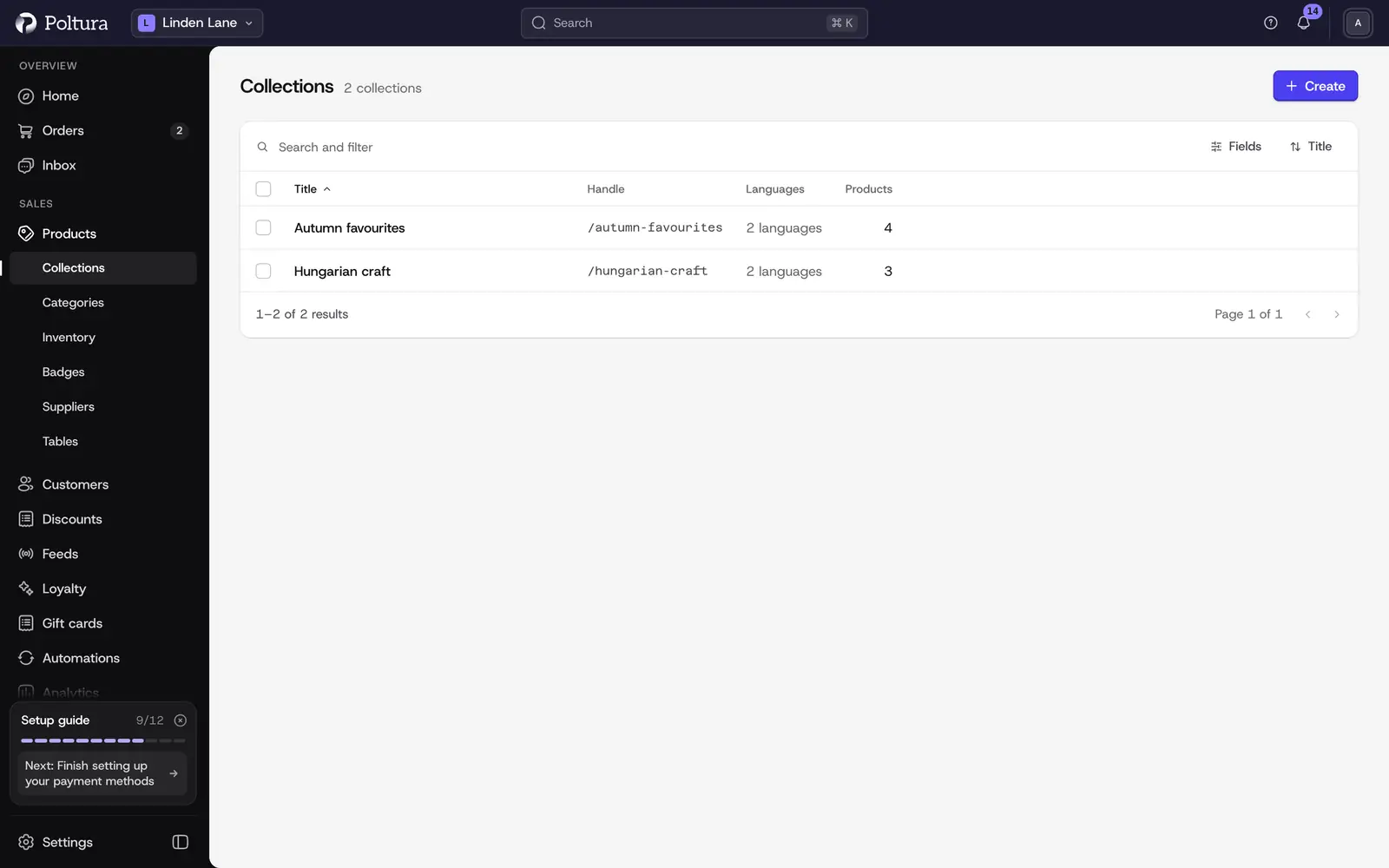
Create a collection
Open Products in the sidebar and select Collections.
Select Create.
In Create Collection, enter the Title.
Optionally enter a Handle. It is used in the address of the collection in your store. If you leave it empty, it is generated from the title.
Select Save. The page of the new collection opens.
Add products to a collection
Open the collection and select Add products.
Use Search to find the products and tick the ones to add. Products that are already in the collection are shown ticked and cannot be changed here.
Select Save. The products appear in the Products section of the collection.
You can also work from the product: open a product, find Product organization and choose the collections under Collections. See Edit a product.
Remove a product from a collection
Open the collection and find the product in the Products section.
Open the menu at the end of the row and select Remove.
Confirm. The product leaves the collection. The product itself is not deleted.
Rename a collection
Open the collection and select Edit.
In Edit Collection, change the Title or the Handle.
Select Save.
Delete a collection
Open the collection and select Delete.
Read the warning under Are you sure? and select Delete. You return to the list of collections.
Good to know
- A product can belong to several collections. Collection pages, filters, search, bundles and delivery rules use every one of them.
- A discount rule that targets a collection only matches a product's first collection. Check this when you build discounts on collections.
- A collection has a title and a handle. It has no image and no description field.
- The list of collections can be searched and sorted, and shows how many products each collection holds.
- When your store has several languages, a collection can be translated with the language switcher on the collection page. The Translations column of the list shows which languages are done. See Translations.
- Where a collection shows up in your store depends on your theme and menus. See Menus and Customizer.