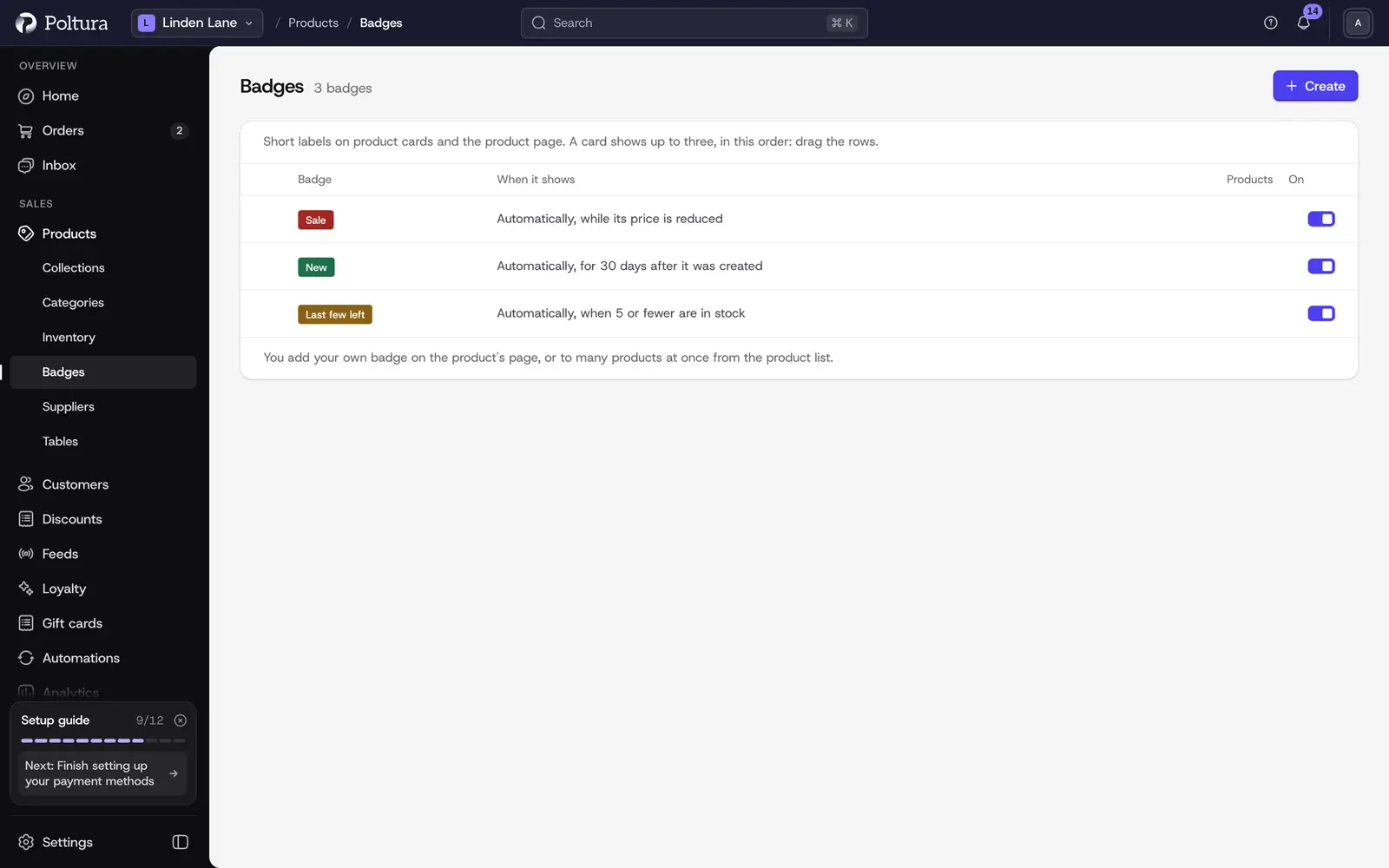
A badge is a short label on the product picture on cards, and above the title on the product page. A card shows up to three, in the order set on the Badges page. The product page shows all of them.
Automatic badges
Three badges put themselves on products. You can rename, recolor or switch off each:
- New: for 30 days after the product was created. Open the badge to change the number of days. For an imported product the old shop's date counts, so a moved catalog does not show every product as new.
- Sale: while the product's price is reduced, that is, a sale price list sells it for less.
- Last few left: when tracked stock is 5 or fewer but not sold out. Change the limit in the badge.
Create your own badge
Open Products → Badges and choose Create.
Type the Label, for example "Favorite" or "Handmade". You set other languages on the Translations page.
Pick a Colour. The theme's colors take one click and change with the theme's color scheme. The last circle picks your own color.
With your own color, the Text colour is black or white automatically, whichever reads better. A text color you set yourself needs a contrast of at least 4.5:1.
Save. The badge appears in the list.
Put a badge on products
- On one product: open the product and pick your own badges in its Badges section. Below it you see which automatic badges show on it right now.
- On many products at once: select the products in the product list, then choose Badges (J) on the selection bar. Pick the badge and choose to add it or remove it.
Order and switching off
Drag the rows on the Badges page to set which badge comes first. The row's switch turns a badge off: no product shows it, but your own badges stay on their products, so you can switch it back on later.