Every version of a product has its own prices, one per store currency. You enter the price in your store currency. Prices in your other currencies are either converted from it for you or entered by hand, depending on how each currency is set up under Currencies.
Before you start
- The price columns come from your store's currencies. Add them there first.
- Whether the amounts you enter include tax is set per currency under Currencies. Converted currencies follow your store currency.
Edit the prices of all versions
Open the product and find Versions.
Open the section menu and select Edit prices.
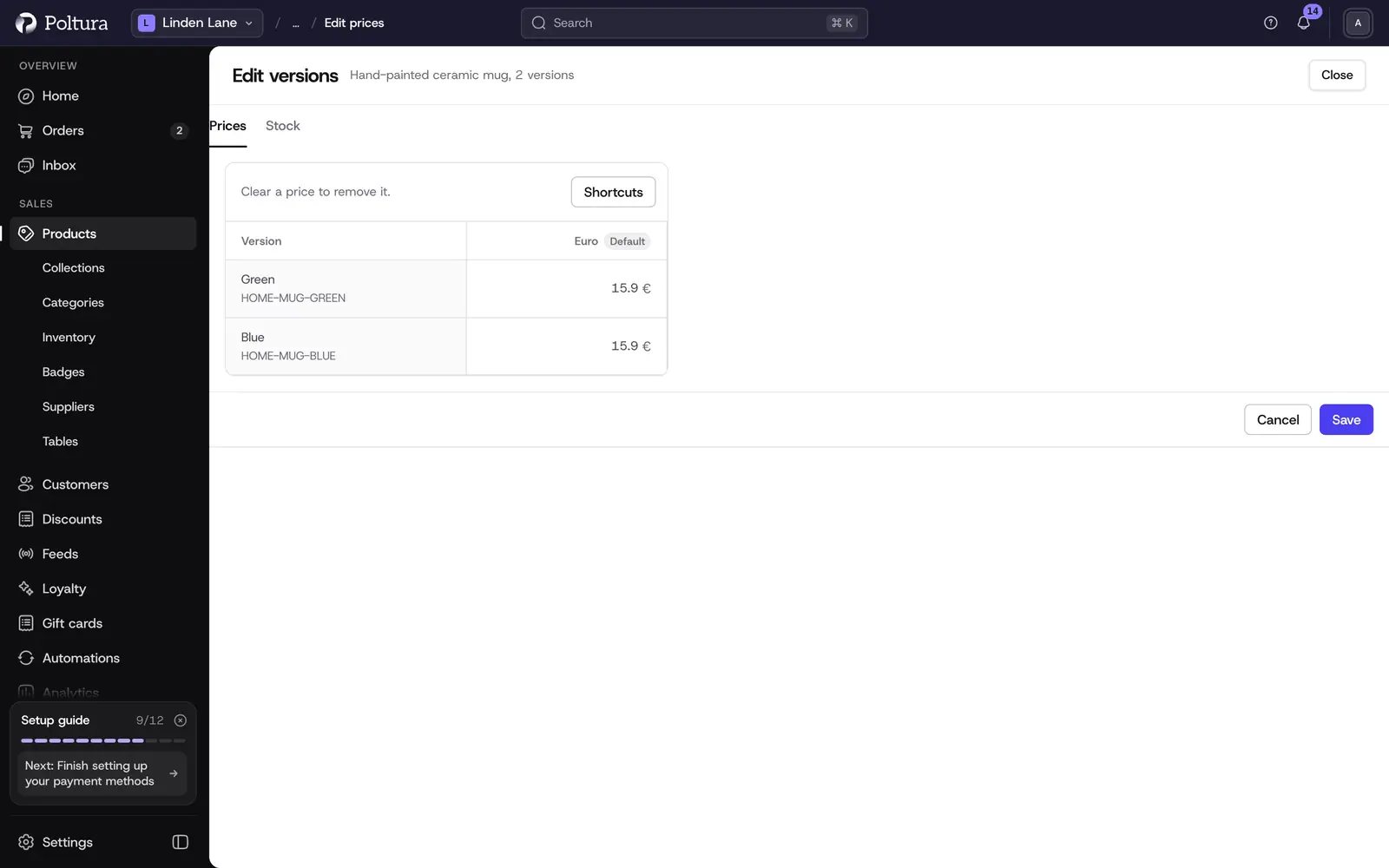
The grid shows one row per version and one column per store currency. Type the amount into each cell. A converted price cannot be typed into: select Set … price on it to replace it with your own.
To remove a price, clear its cell. A cleared price in a converted currency is converted again.
Select Save. You return to the product page.
Amounts are entered in the currency's own units, for example 4990 for 4,990 Ft and 12.50 for 12.50 EUR.
Edit the prices of one version
Open the product and select the version in the Versions table.
In the Prices section of the version page, select Edit.
Change the amounts and select Save. The Prices section lists the new amounts by currency.
Under Other currencies the version page shows each price in your other currencies as converted or set by hand. How to fix one converted price is described in Markets.
Set prices while creating
- On a new product page, the Pricing card holds the price of a product with one version. If you add options, each version gets its own price row in the Versions table instead. See Create a product.
- When you add a version to an existing product, enter its prices on the Prices tab. See Variants and options.
Good to know
- A price you set by hand in a converted currency always wins over conversion, until you clear it.
- Importing prices from a file saves every amount as set by hand, converted ones too. See Import and export.
- Prices scoped by other rules, such as customer price lists, are not shown as separate cells. The version page tells you how many such prices exist. Price lists are managed in developer mode, see Price lists.
- Temporary reductions are better done with Discounts than by changing the base price.
- There are no quantity breaks or tiered prices in the admin.
- To change prices of many products at once, use Import and export.
If something goes wrong
- A currency column is missing. The currency is not one of your store's currencies yet. Add it under Currencies.
- A converted price is empty. Prices are converted in the evening, and shortly after you change a store-currency price. Select Convert prices now under Currencies to do it at once.
- The product shows no price in the store. The version has no price in the currency the shopper pays in. Open Edit prices and fill in that currency's column, or switch the currency to converted.