A pre-order sells a product that is not released yet: a new book, a game, a limited drop or a seasonal item. The shopper sees when it is expected, buys it now, and gets a place in a queue. When the stock arrives, the earliest buyers get the first units.
A pre-order is not the same as a backorder:
- A backorder (Continue selling when out of stock on a variant) sells an existing product past its stock, with no date, no limit and no order among the waiting buyers.
- A pre-order sells against a stated date, up to a quantity you expect to receive, and serves the buyers in the order they bought.
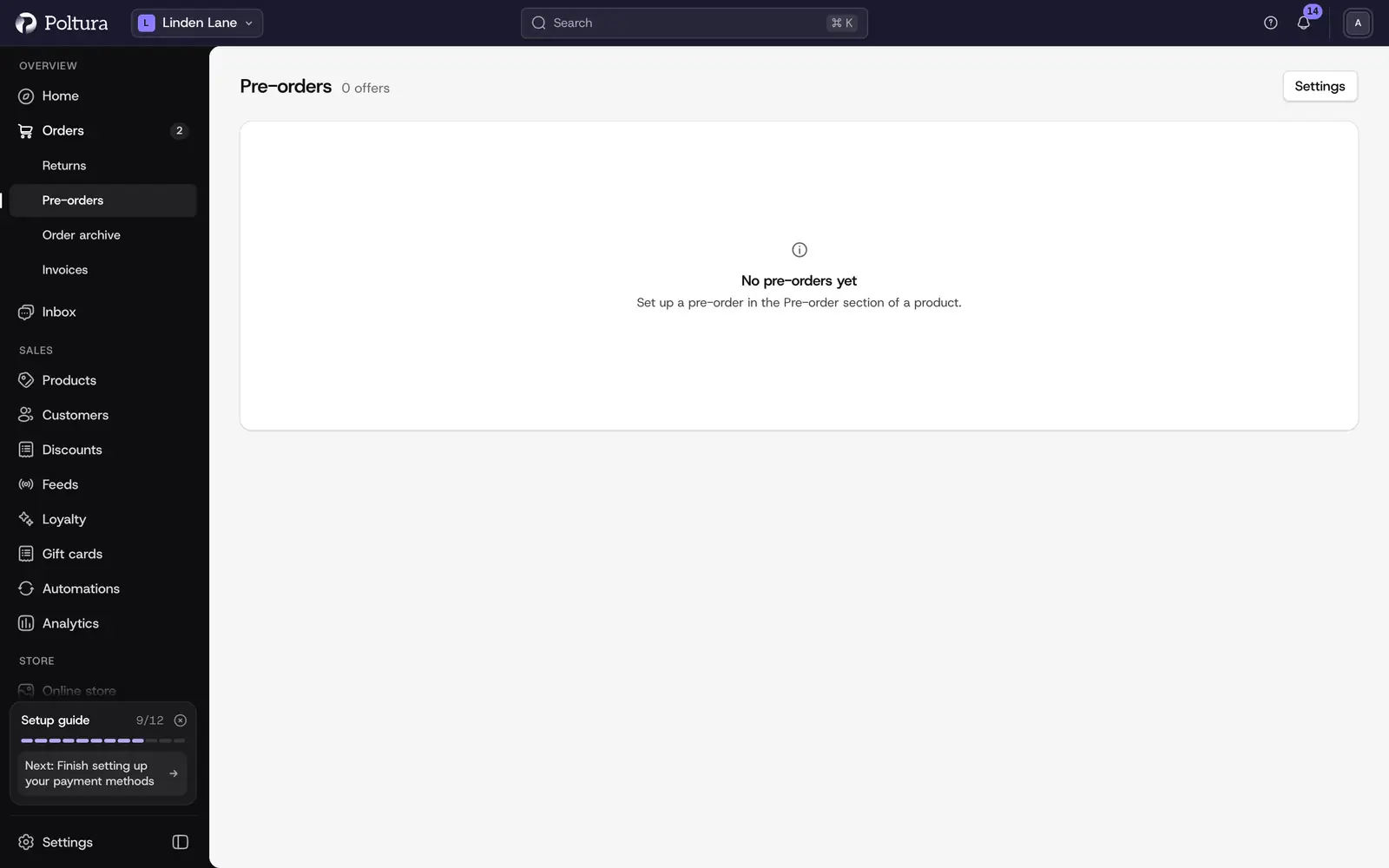
Pre-orders are set up per variant, in the Pre-order section of the product page. The Pre-orders page in the sidebar lists every offer and its queue.
Before you start
- Pre-orders are part of the Plus and Pro plans. See Plans below.
- The variant must track its quantity. A variant with Track quantity off cannot be pre-ordered, because without stock tracking there is no queue. See Variants and options.
- The variant must use one stock item. Kits made of several stock items, downloads and gift cards cannot be pre-ordered. License keys can, see Pre-order game keys.
- Choose the location that will receive the stock. It needs a stock level for the item, and it must serve every sales channel that sells the product. See Stock per location.
Set up a pre-order
Open the product and find the Pre-order section. Select Set up.
Under Opens, choose when buyers can start ordering: Now, On a date, or By hand, when you press Open yourself.
Under Release, choose when the product starts selling as normal: On a date or By hand, when you press Release yourself.
If the release is by hand, enter the Expected date and how exact it is: a Day, a Month or a Quarter. With a release date, the expected date is the release date.
Enter a Cap: how many units you expect to receive. When the cap is sold, the product shows as sold out.
Optionally enter a Per-customer limit. It counts every order of the same customer account or email address.
Choose the Location that will receive the stock.
Leave May ship before release on if you may send units as soon as they arrive. Switch it off to keep everything until the release date.
Choose the Payment: Charge in full when ordered or Authorise when ordered, charge when ready to ship. See Payment.
Optionally write a Message for each language, up to 280 characters. It is shown under the date.
Choose the variants the pre-order applies to. All variants are selected by default.
Check the preview of the line shoppers will see, such as "Pre-order, Expected 20 November 2026", and select Save.
After saving, the offer has one of these states:
- Draft: no opening date and not opened yet. Nothing changes in the store until you select Open.
- Scheduled: it opens on the date. Until then the product shows Coming soon.
- Open: shoppers can pre-order it.
Later the offer can be Full (the cap is sold), Paused (by you), Released and finally Closed, when every pre-order has been shipped or canceled.
Dates are in the time zone of your store. A date without a time means midnight. The release must be after the opening. A date more than a year away is allowed, but Google Shopping shows the product as out of stock until the date is within a year.
Payment
Each offer takes the money in one of two ways. The default comes from your settings. You cannot change it once the offer has orders.
- Charge in full when ordered: the payment is taken right after the order is placed. This works with any release date.
- Authorise when ordered, charge when ready to ship: the amount is only reserved on the buyer's card at checkout. It is charged when every unit of the buyer's pre-order has stock. Use it when the release is close.
A card authorization does not last forever. The pre-order form shows how long it lasts with your payment methods:
| Payment method | Authorization lasts |
|---|---|
| Stripe | 7 days |
| Revolut, Teya | 7 days |
| SimplePay | 21 days, with two-step payment on |
| PayPal | 29 days |
| Barion | The buyer is debited at once; the payment is finished when the stock arrives |
When an authorization is about to run out before the stock arrives, the rule in your settings applies. By default the payment is charged 24 hours before it would expire. The line keeps its place and is now paid. That is why the checkout tells the buyer: "We charge your card when we fulfil your pre-order, or after N days at the latest." You can instead let the authorization lapse and email the buyer a link to pay again.
A few more payment rules:
- An offer that authorizes is always bought on its own: one pre-order per order, nothing else in the cart.
- Bank transfer works in both ways. The line waits for the money before it gets stock. Record the transfer with Capture payment.
- Cash on delivery is offered for pre-orders only when you allow it in the settings.
- Klarna and PayU are not offered for pre-orders. The checkout hides methods that cannot be used and marks them "Not available for pre-orders".
What buyers see
| Offer | Button | Line under the price |
|---|---|---|
| Open | Pre-order | "Expected 20 November 2026" and your note |
| Scheduled | Coming soon, disabled | "Pre-orders open 1 November" |
| Full | Sold out, disabled | "Pre-order sold out" |
| Paused | Unavailable | — |
| Released | Add to cart, from stock | — |
- A theme can also show "Only 12 left to pre-order". Switch it on in the theme settings of the product page in the Customizer. The button texts can be changed there too.
- The cart, the checkout, the order confirmation page and the confirmation email show "Pre-order, expected …" on every pre-ordered line, whatever the theme.
- When a cart has items with different dates, the checkout says that the items ship as they become available: one order, several parcels.
- The payment step says whether the buyer is charged now or when the pre-order is ready to ship.
- The order page in the buyer's account and the guest order page show each line as Waiting for stock, Being prepared, Shipped or Cancelled.
- On coming soon and sold-out products, buyers can ask for an email. See Notify me.
- Product feeds tell Google Shopping and the price comparison sites that the product is on pre-order, with the date.
The queue and stock
Every pre-ordered line gets a place in the queue in the order the purchases were completed. The cap is reserved when the buyer goes to the payment page, so nobody pays for a unit beyond the cap.
When stock arrives at the offer's location, add it under Inventory as usual. The store then gives the units to the waiting lines in queue order. This is called allocation.
- First come, first served. The earliest lines get stock first. A line can get part of its quantity first and the rest later.
- Unpaid lines keep their place. A line whose payment has not arrived yet, such as an unpaid bank transfer, keeps its position but takes no stock. Once it is paid, it takes the next free units.
- Given units stay. A unit given to a line is never moved to another line, even when an earlier line pays later. If you lower the stock below what has been given, the latest lines lose their units first and you get a notification.
- Regular buyers cannot jump the queue. After release, the product sells to new buyers only from the stock that is left once every waiting pre-order is covered.
To see a queue, open Pre-orders in the sidebar and choose an offer. The queue lists the position, order number, customer, quantity, allocated quantity, payment, state and the date the buyer was promised. The timeline under it records every change.
- Select Allocate now to hand out stock straight away instead of waiting for the next automatic run.
- Select Export CSV to download the queue.
Ship pre-orders
You ship a pre-order like any order. See Fulfill and ship. The order page shows each pre-ordered line with its queue position, state, allocated quantity and promised date.
Only units that have been allocated can ship, and only from the offer's location. When Fulfill items opens, quantities without stock are grayed out with the reason. A line also cannot ship when:
- May ship before release is off and the offer is not released yet;
- the offer authorizes payments and the payment has not been charged yet. This happens by itself once the line has all its stock.
If you have to send a line out of turn, select Ship anyway. The shipment is recorded in the offer's timeline. The units it uses come off the latest lines in the queue.
Change the date
Open the offer on the Pre-orders page, or select Edit in the product's Pre-order section.
Change the release date or the expected date and select Save.
If the offer has orders, a confirmation shows how many customers will be told the new date. When the new date is later than the date a customer was promised, they must be told. When it is earlier, telling them is optional.
Confirm. The customers get an email with the old and the new date and their right to cancel.
To send the date email again, use Notify waiting customers of a new date on the queue.
Cancel pre-orders and refund
You decide every refund. Nothing is refunded automatically.
Open the offer's queue on the Pre-orders page.
Select the lines and choose Cancel selected, or choose Cancel unallocated after #N to cancel every line after a position that has no stock yet.
The lines are canceled and taken off their orders. An order with nothing else in it is canceled.
The refund opens with the line amounts filled in. Check it and confirm. See Refund a payment.
The customer gets an email with the reason and the refund. A line that was only authorized and never charged is not refunded: the authorization is released instead.
When a customer cancels. A consumer may cancel a pre-order at any time until it arrives. The order page in their account and the guest order page offer Cancel pre-order. You get a notification with Cancel and refund, and a reminder after 7 days. The refund is due within 14 days of the request. After delivery the normal return and withdrawal rules apply. Business buyers with a company account do not get the button.
Other cancellations:
- Canceling a whole order cancels its pre-order lines and frees their places.
- Lines paid by bank transfer that are never paid are canceled after 8 days. You can change this in the settings.
Release
On the release date, or when you select Release, the product starts selling as normal from the stock that is left after the queue.
The release does not check the stock. If the queue is not covered yet, the lines keep waiting and you get a notification such as "12 pre-orders for X have no stock". You can then:
- wait for the stock, and select Allocate now when it arrives;
- change the date, which tells the customers;
- cancel the lines without stock, latest first, with Cancel unallocated after #N.
The offer closes by itself once every line has been shipped or canceled. Select Pause to stop new pre-orders for a while and Resume to continue.
Pre-order game keys
A product delivered as license keys, such as a game or software key, can be pre-ordered too. Products delivered as downloads cannot be pre-ordered yet.
You set it up the same way, without a location and without May ship before release: keys are never stock you ship.
- Keys go out on release day, earliest pre-order first. Your own keys come first. When they do not cover the whole queue, the rest comes from your key supplier app.
- Your own keys wait for the release. They are never handed out early, even when they are already in your key stock.
- Supplier keys are bought early. As soon as a pre-order is paid and has passed fraud review, the key is bought from the supplier for every line your own keys do not cover. The supplier delivers it when it releases the product. A purchase waiting at the supplier keeps waiting: it does not run out like an ordinary key request.
- Keys reach buyers the way the product delivers. The order page shows when the key is expected. A buyer who asked for immediate delivery at checkout gets the key on release day, in the account and, if the product delivers by email, in the email too. Anyone else gets an email on release day and reveals the key on the order page, confirming the immediate delivery there.
- The product page counts down in the delivery box during the last week before a scheduled release.
- Late keys raise an alert. If a key is still missing a day after the release, you get an alert.
- The queue shows keys. Instead of allocated stock, each line shows how many keys were delivered and how many are waiting, and the offer shows the totals.
- Authorized payments are charged on release. With Authorise when ordered, the card is charged on the release day, and the keys go out right after.
- Canceling. A buyer can cancel a pre-order until its key is delivered. After that, the withdrawal rules for digital content apply. When you cancel a line, its key requests stop. A key already bought from the supplier is not lost: when the supplier delivers it, it goes into your own key stock as available.
Pre-order settings
Open Settings and choose Pre-orders under Store settings.
Change the settings you need and select Save.
Checkout
- Mixed carts: whether pre-orders may share a cart with other items. Allow (default), Only with the same pre-order, or One pre-order item only. An offer that authorizes payments always behaves as Only with the same pre-order.
- Cash on delivery: allow it for carts with pre-orders. Off by default.
- Default per-customer limit: filled in on new offers. Empty by default.
- Require a cap: an offer cannot open without a cap. Off by default.
Payment
- Default payment: filled in on new offers. Charge in full when ordered by default.
- When an authorisation is about to expire: Charge it (default), or Ask the customer to pay again, which lets the authorization lapse and emails a payment link.
- Act this many hours before expiry: 24 by default.
- Days to pay again: how long the place is kept for a customer asked to pay again. 7 by default. After that the line is canceled.
Queue
- Cancel unpaid lines after: 8 days by default. If you switch it off, unpaid lines keep holding stock that regular buyers cannot buy.
- Email when a pre-order is being prepared: sends the customer a "Your pre-order is being prepared" email when their line gets all its stock. Off by default.
The texts of the pre-order emails can be edited like any other email. See Emails.
Plans
Pre-orders are part of the Plus and Pro plans. Plus allows up to 50 offers open at the same time; Pro has no fixed limit. On other plans the Pre-order section and the settings show which plan unlocks them. See Plan and billing.
If you move to a plan without pre-orders, nothing is canceled. Open and released offers keep serving the orders they already have, no new offer can open, and scheduled offers go back to draft.
Legal notes
- The date is a promise. Consumers must know the delivery date before they buy, so every pre-order shows an expected date or window. If you choose no date at all, you must confirm a warning: without an agreed date the law expects delivery within 30 days of each order.
- Customers may withdraw. A consumer may cancel until the goods arrive, and for 14 days after delivery. The refund is due within 14 days.
- The price is fixed. The price on the order is the price of the contract. A later price change or discount does not touch existing pre-orders. To give a pre-order discount, create an ordinary discount for the product.
- Moving the date later means telling every customer the new date and that they may cancel. The store does this when you confirm the change.
This page describes what the product does. It is not legal advice.
Good to know
- A variant has one running offer at a time.
- A bundle that contains a variant on pre-order cannot be bought until the variant is released.
- Marketplace orders cannot reserve a variant with a running offer.
- An order edit, an exchange or a claim cannot add a variant with a running offer. Lowering its quantity is allowed.
- You cannot lower the cap below what is already sold. Raising it reopens a full offer.
- An offer with orders cannot be deleted. Pause it, or let it close once every line is shipped or canceled.
- You get notifications when an offer opens, sells out, is released, and when lines get their stock.
If something goes wrong
- "Continue selling when out of stock" cannot be switched. A running pre-order holds it. It is released when the queue is served.
- The offer does not open. Check that the variant tracks its quantity, that the location has a stock level for it, and that a cap is set if your settings require one.
- "This pre-order is not ready to ship yet." The line has no stock yet, you are shipping from another location, the offer is not released and may not ship before release, or the payment has not been charged yet.
- A buyer sees "This item can no longer be pre-ordered." The cap is sold, or the offer was paused or released while they were in checkout.
- A buyer sees "Pre-orders are bought separately." Your Mixed carts setting, or an offer that authorizes payments, does not allow other items in the same cart.