Create discount asks what kind of discount you want and then walks you through setting it up. This page explains the seven kinds and how to set up each one.
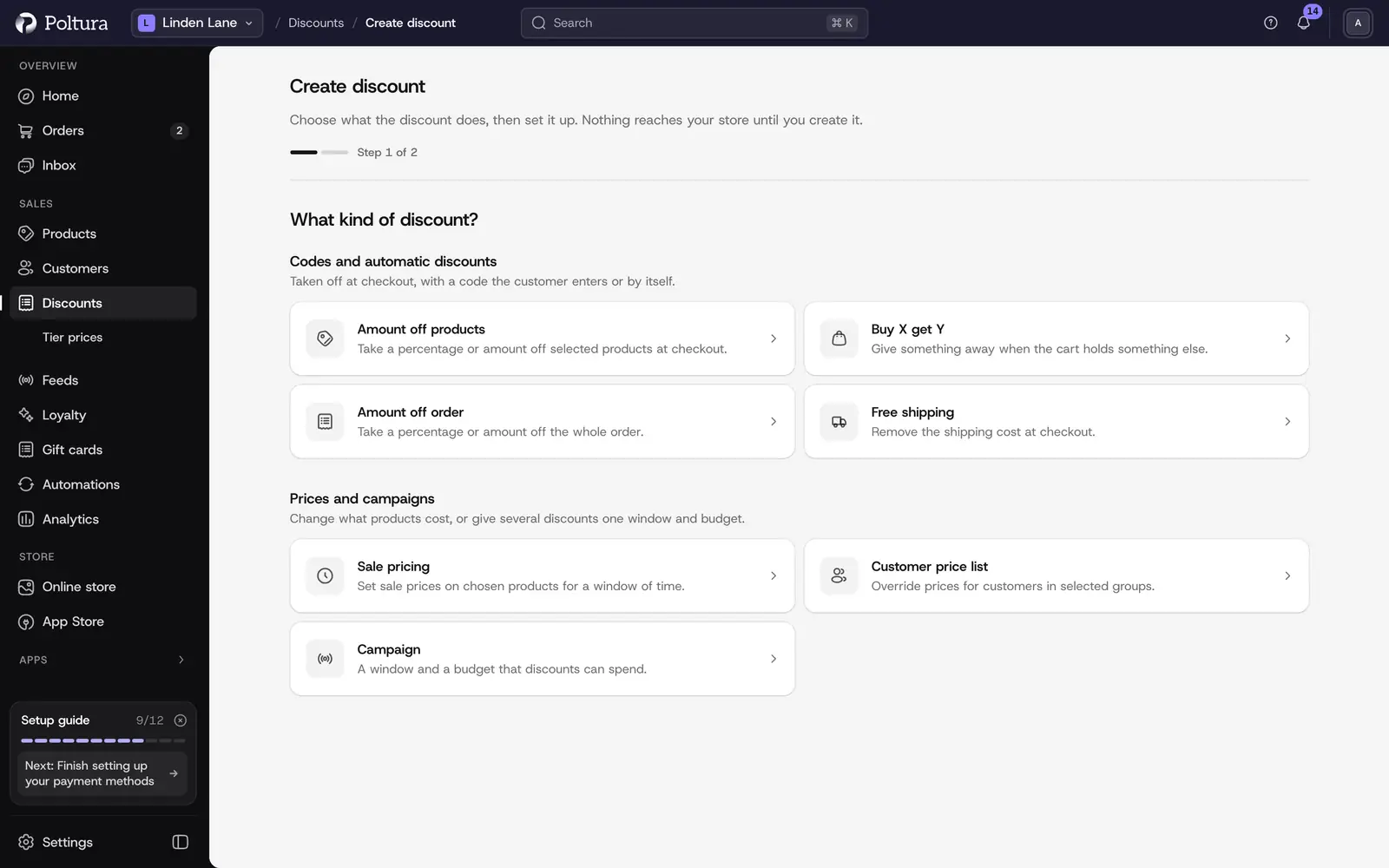
Choose the kind
Open Discounts and select Create discount.
Choose one of the options:
- Amount off products: a percentage or an amount off selected products at checkout.
- Buy X get Y: give something away when the cart holds something else.
- Amount off order: a percentage or an amount off the whole order.
- Free shipping: remove the shipping cost at checkout.
- Sale pricing: sale prices on chosen products for a window of time.
- Customer price list: different prices for the customers of chosen segments.
- Campaign: a window and a budget that discounts can spend.
A code, an automatic discount, sale pricing and a customer price list continue on the same page. A campaign opens its own editor. Continue with the matching section below.
Create a discount code or an automatic discount
Amount off products, Amount off order and Free shipping continue on the same page with step 2, Set it up. The kind you chose decides what the discount comes off: products, the whole order or the shipping. You cannot change it after the discount is created. To pick another kind, select Back.
Under Method, choose Discount code when customers must enter a code, or Automatic discount when the discount should apply by itself.
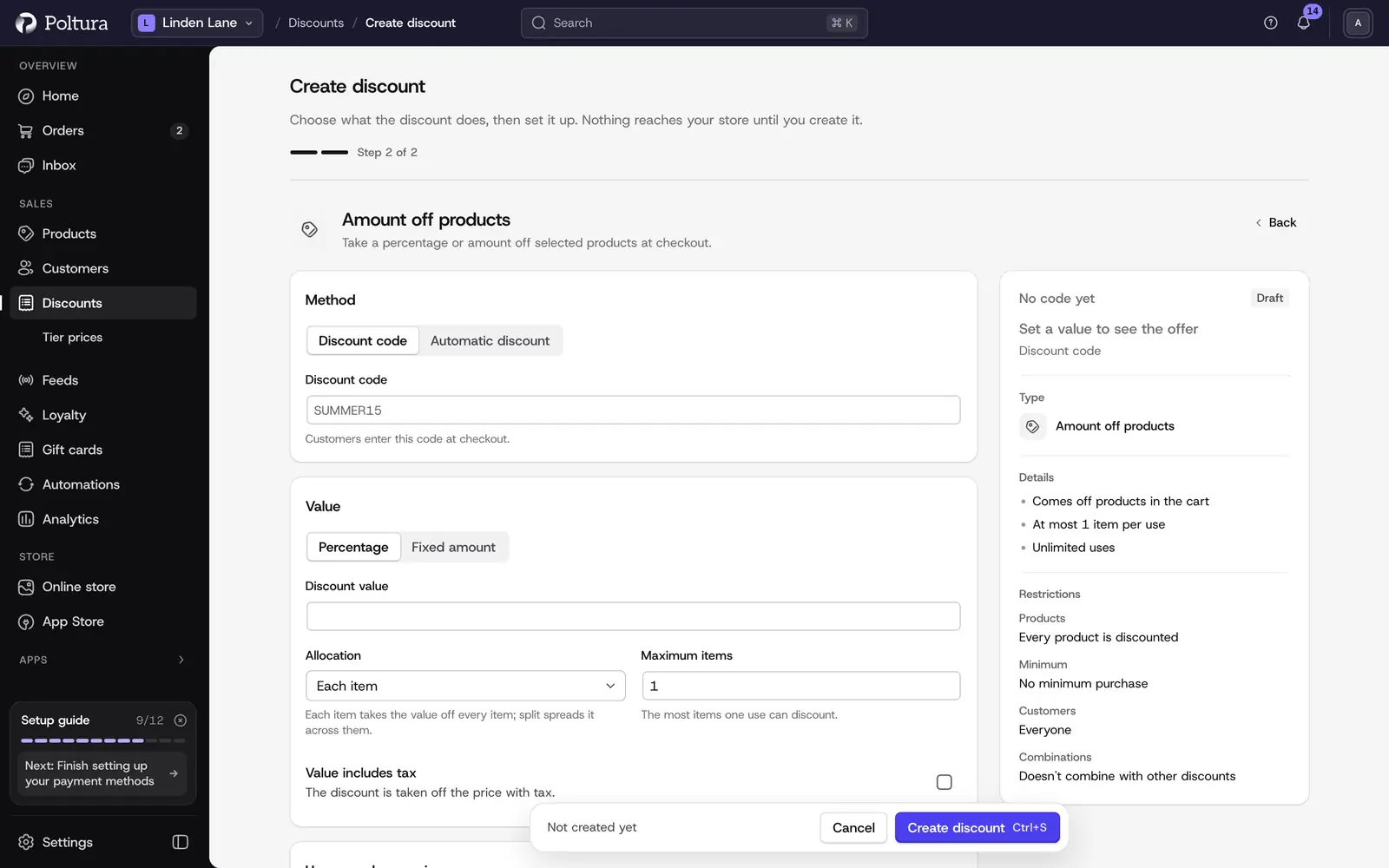
The summary on the right updates as you fill in the form. Type the Discount code, for example
SUMMER15. For an automatic discount the same field is the Title customers see in their cart.Under Value, choose Percentage or Fixed amount and type the Discount value. A fixed amount also needs a Currency.
For products and shipping, set the Allocation and the Maximum items: Each item takes the value off every item, Split across items spreads it across them, Once per cart applies it to a limited number of items.
Optionally fill in the Usage limit, the number of orders that may use the code in total, and choose a Campaign. Automatic discounts have no usage limit.
Choose the Status. A new discount is a Draft; choose Active to let customers use it straight away.
Set the restrictions in the cards below. See Coupon restrictions.
Check the Summary beside the form (below it on a phone), then select Create discount. The promotion page opens with the details you entered.
Free shipping starts at 100 percent off the shipping, so you only need to name the code.
Create a Buy X get Y discount
On Create discount, choose Buy X get Y.
Choose what needs to be in the cart to unlock the discount, for example a product or a category.
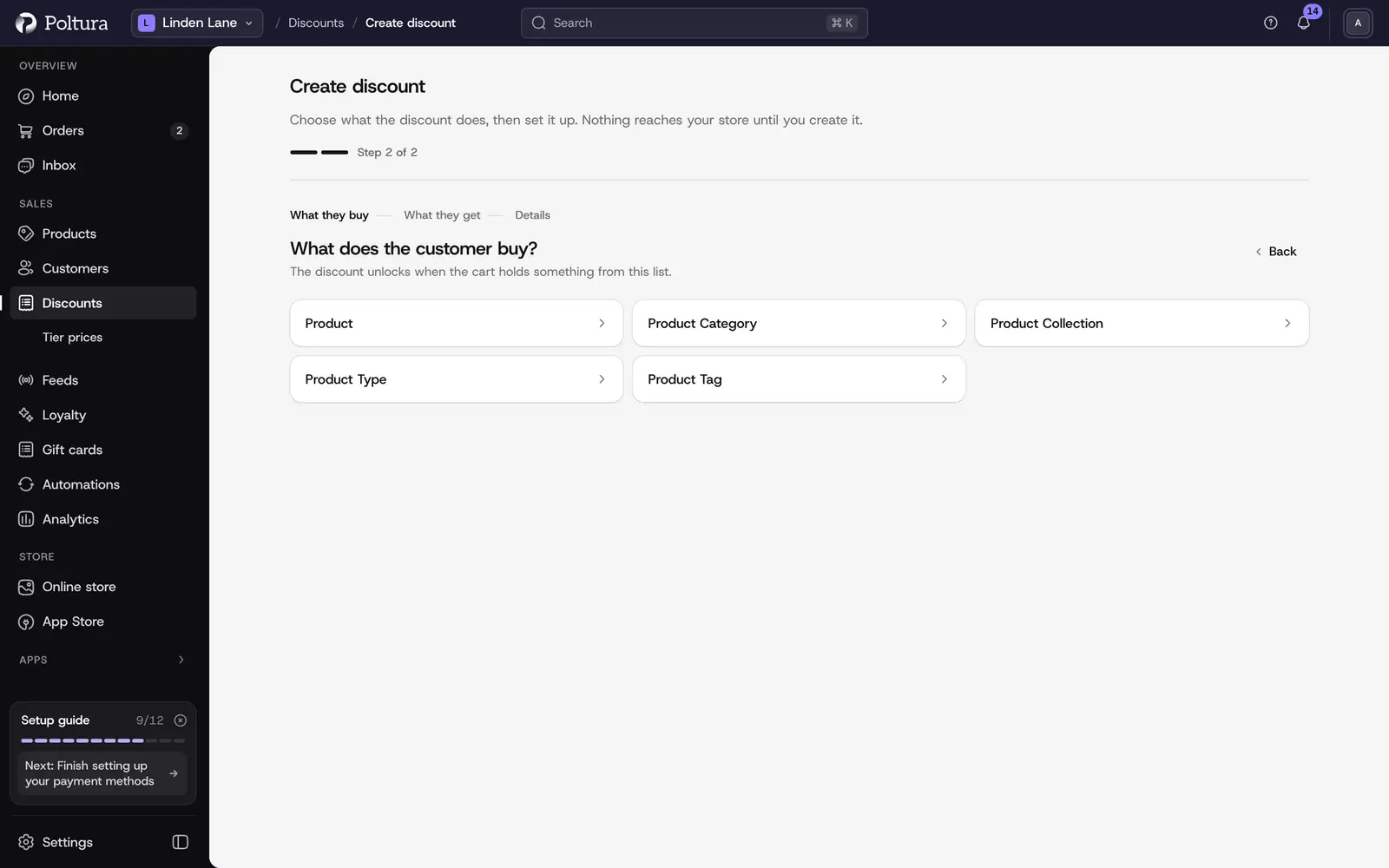
Choose what the discount comes off.
On the form, fill in the Method and the code as for any other discount.
Under Buy X get Y, search for what the customer buys and what they get, and pick each one from the list. Every pick shows as a chip you can remove. Set a Quantity for each half. The Summary names what you picked.
Set the value. For a free item, use Percentage with
100.Select Create discount. The promotion page lists the buy rule and the get rule.
Both rules have to be set while you create the discount. The store refuses a Buy X get Y discount without them.
Create sale pricing or a customer price list
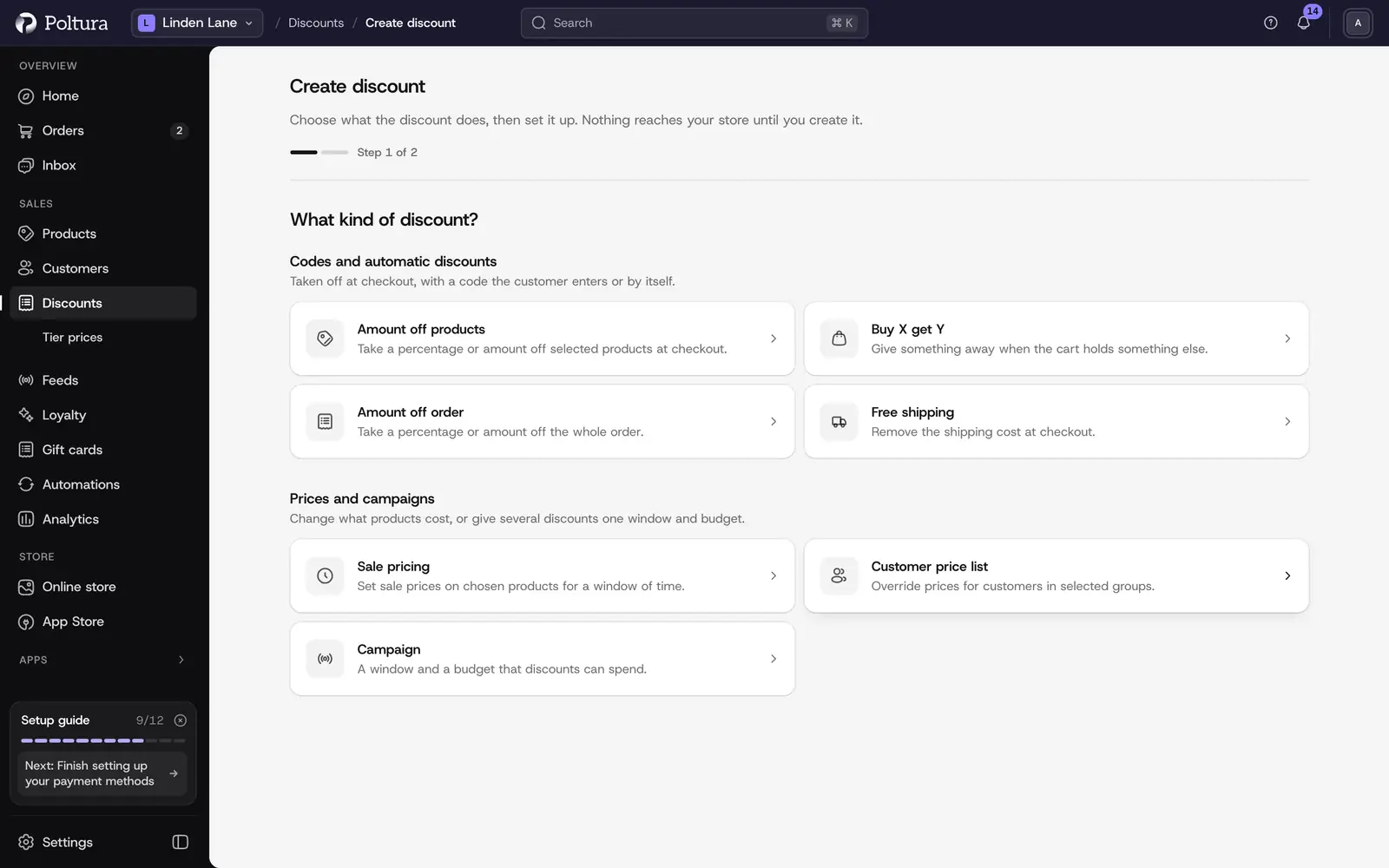
Both continue on the same page with step 2, Set it up. The kind you chose sets the price list type: sale pricing is a Sale list, a customer price list an Override list. To change it, select Back and choose the other kind. On Tier prices, New price list opens the same page with only these two kinds to choose from.
Under Details, type a Title and a Description. Both are required.
Under Customers, choose the customer group (segment) the prices are for. On a customer price list this card comes right after Details. On sale pricing it is optional. Without a group, every customer sees the sale prices.
Under Schedule, optionally set the Start date and the End date. Leave both empty for a list with no time window. Times are in the store's time zone.
Under Status, choose Active or Draft.
Check the Summary beside the form, then select Create price list. The price list opens.
Select Add products, pick a product, type its prices in the grid and save. Repeat for every product.
Products join the list one at a time, each when you save a price for it. See Price lists.
Create a campaign
Type a Name and an Identifier. The identifier must be unique in the store.
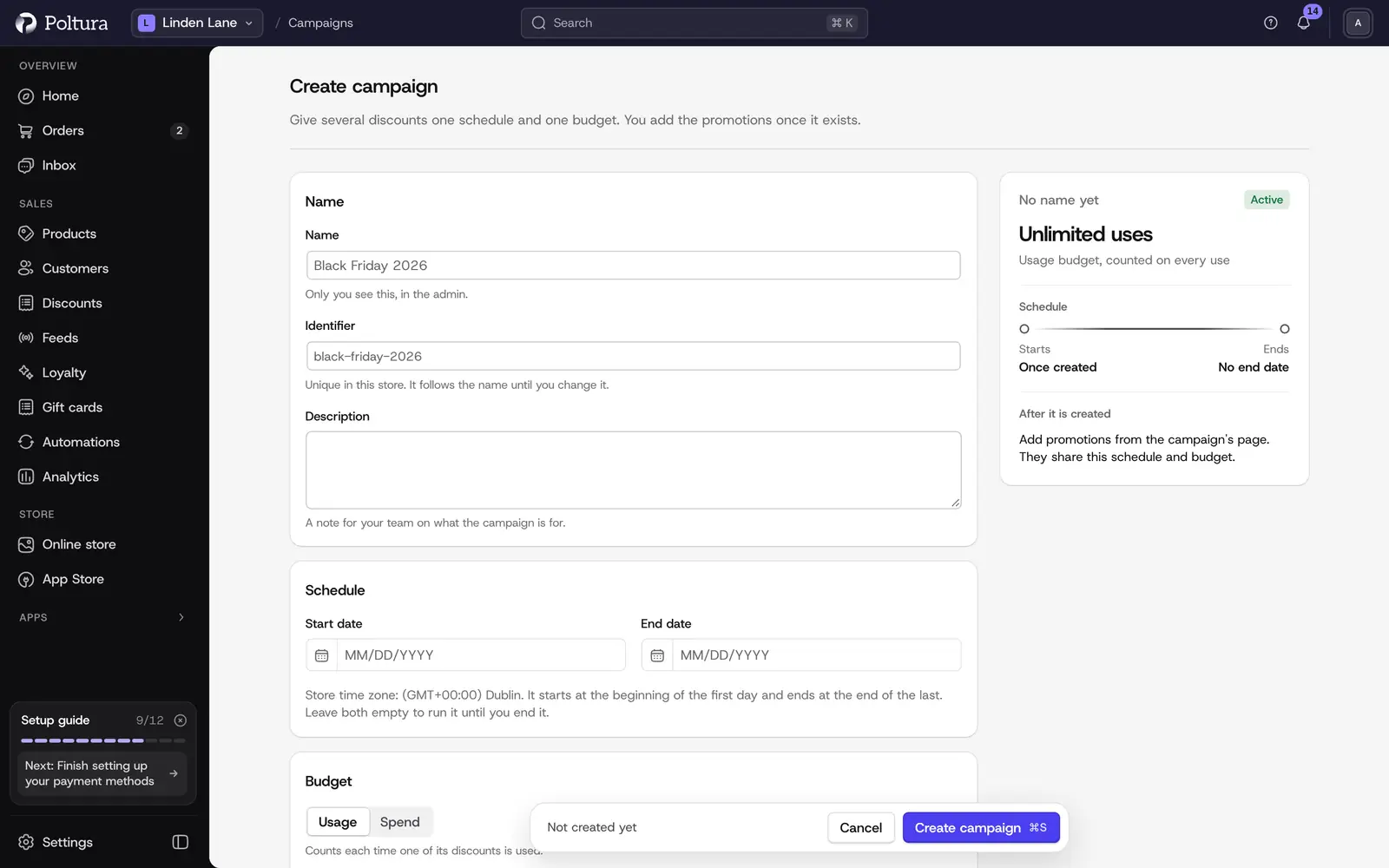
Optionally add a Description, a Start date and an End date. A campaign runs from the start of the first day to the end of the last.
Under Budget, choose Usage to limit the number of uses, or Spend to limit the total discounted amount. A spend budget needs a Currency.
Optionally choose under Count per whether the limit counts per customer or per email address.
Type the Budget limit, or leave it empty for no limit.
Save, then add discounts to the campaign. See Campaigns.
Good to know
- A discount with the Automatic method cannot carry a usage limit.
- The budget type, its currency and what it counts per are fixed once a campaign exists. Only the limit can be changed later.
- Sale prices show as reduced prices on the storefront. Customer price lists only show to signed-in customers of the chosen segments.
- Some field hints on these forms appear in English.
- The assistant cannot create discounts for you.
If something goes wrong
- The store refuses the code. The code is already used by another discount, or a required field is empty. Check the fields marked with an error.
- A fixed amount discount does nothing. It has no Currency, or the cart is in another currency.
- The discount does not appear at checkout. Its status is still Draft. Open it, select Edit and set it to Active.