This page appears only when developer mode is switched on. See Developer mode.
A promotion is the record behind a discount code or an automatic discount. In developer mode the Discounts entry of the sidebar opens the promotions list instead of the combined list, and the combined list moves under it as a child entry called Discounts, next to Campaigns.
You do not need developer mode to create or edit a code: the same promotion pages open from the combined Discounts list. Developer mode adds the full list, the step-by-step creator and the raw condition editor.
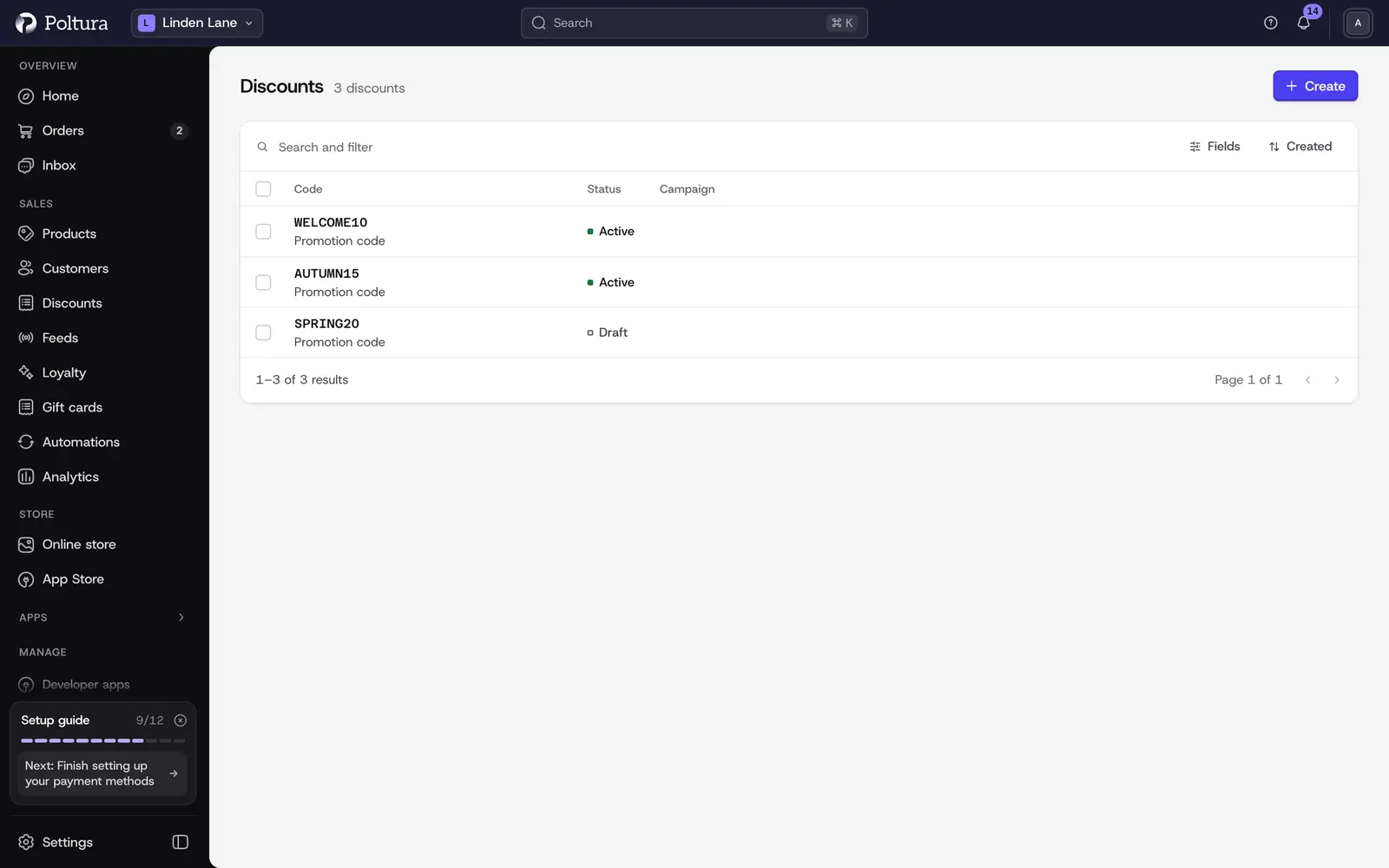
Read the list
The list holds only promotions, without campaigns and price lists. Its columns are Code, with the method under it, Status and Campaign. You can search it, sort it and filter it by date, and it is not limited to the latest 50 entries.
Create a promotion
Open Discounts in the sidebar and select Create.
On the Type step, choose the Promotion type: Standard for a percentage or an amount off the order, its items or its shipping, or Buy Get for a Buy X get Y promotion. Select Continue.
For Buy Get, choose what needs to be in the cart and what the promotion is applied to.
Fill in the Details step. The fields are described on Create a discount.
Save. The promotion page opens.
Read a promotion page
- The strip under the header: Type, Value, Campaign, Rules, Status and Created.
- Promotion Details: Method, Type, Value, Currency, Allocation, Maximum Quantity and Usage, with an Edit link.
- Who can use this code?: the usage conditions.
- What items will the promotion be applied to?: the item conditions. A Buy X get Y promotion also has What needs to be in the cart to unlock the promotion?
- Restrictions: the rule cards, with Edit restrictions. See Coupon restrictions.
- Campaign: the campaign the promotion is budgeted under, with Go to campaign.
Edit the conditions
Conditions are the store's own rules on a promotion: an attribute, an operator and one or more values.
Open the promotion.
Select Edit on the condition block you want to change.
Select Add condition, choose the attribute, the Operator and the values.
Save. The block lists the new condition.
Put a promotion in a campaign
Open the promotion.
In the Campaign block, select Edit.
On Edit Campaign, choose the campaign. Choosing nothing takes the promotion out of its campaign.
Save. The block shows the campaign's name, identifier and budget.
Delete a promotion
Open the promotion, select Delete, type the code to confirm and delete.
Good to know
- What a promotion applies to (items, the order or shipping) is fixed when it is created.
- A promotion can be in one campaign at a time.
- Promotions that the store manages for loyalty reward codes and product gift cards stay out of this list.
- Several texts on these pages appear in English.