A segment is a named group of customers, such as wholesale partners, VIP buyers or staff. You put customers into a segment by hand, and then use the segment to give them their own prices or to limit a discount code to them.
Some screens still use the older name "customer group". It means the same thing as segment.
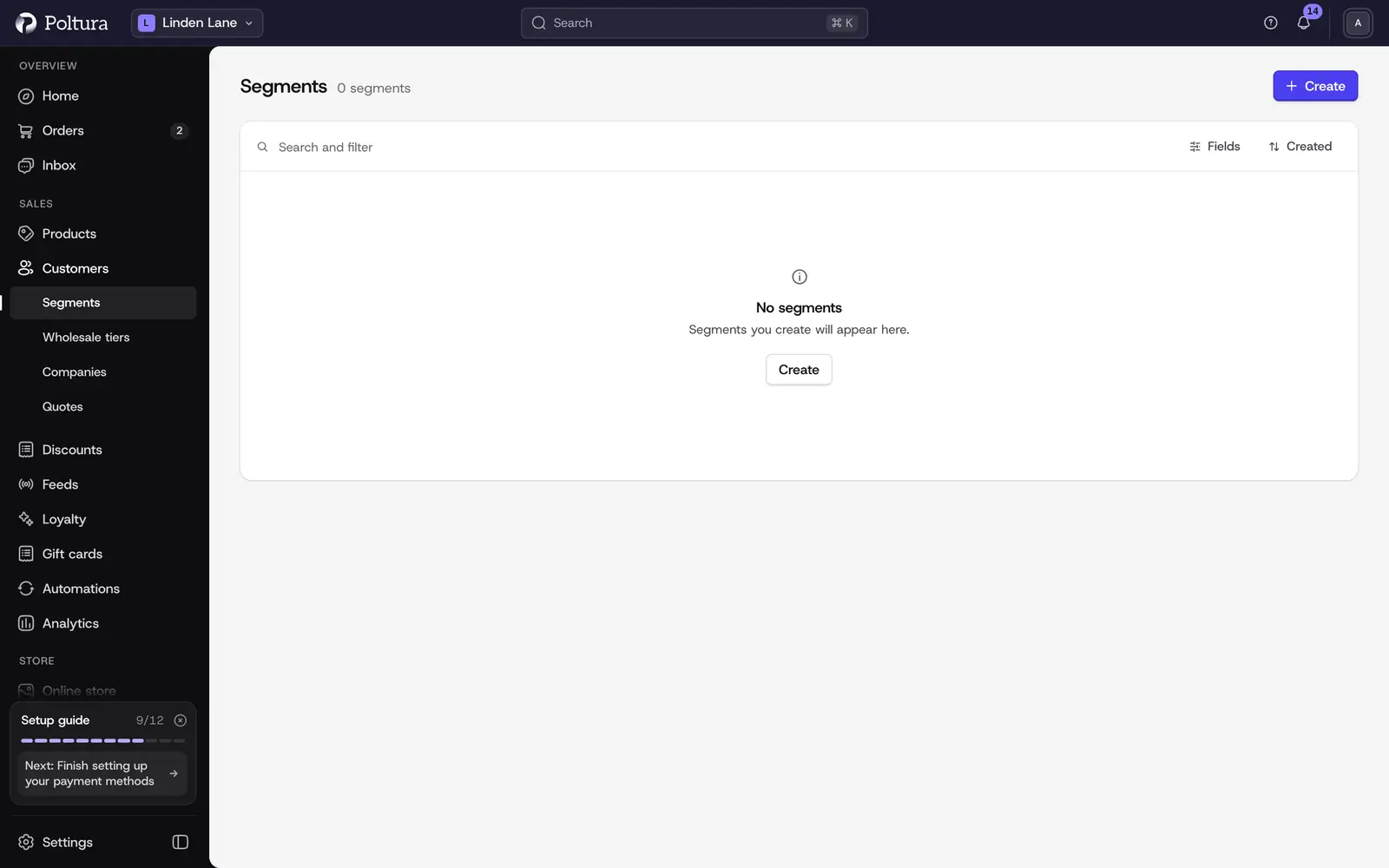
What a segment is used for
- Customer price lists: a price list can override prices for the customers of chosen segments. See Create a discount and Price lists.
- Discount codes: the Customers restriction of a code can allow only certain segments, or everyone except them. See Coupon restrictions.
Create a segment
Open Customers and choose Segments.
Select Create.
On Create Customer Group, type a Name, for example "Wholesale".
Save. The new segment opens, with no customers in it yet.
Add customers to a segment
Open the segment.
In the Customers block, open the menu and choose Add.
Search for the customer and select them.
Save. The customer appears in the Customers block with name, email, status and date.
You add one customer per save, and everyone already in the segment stays. To add one customer to several segments, it is quicker to work from the customer's page: see Customer details.
Remove a customer from a segment
Open the segment.
In the Customers block, open the menu on the customer's row and choose Remove.
Confirm. The customer leaves the segment but stays a customer of the store.
Rename a segment
Open the segment and select Edit.
On Edit Customer Group, change the Name.
Save. Price lists and discounts that use the segment keep working under the new name.
Delete a segment
Open the segment and select Delete.
On Delete Customer Group, type the name of the segment to confirm.
Select Delete. The customers themselves are not deleted.
Good to know
- Membership is manual. A segment does not fill itself by rules such as "spent more than a given amount".
- A customer can be in several segments at once.
- Guests belong to no segment. A discount limited to a segment therefore only works for signed-in customers.
- The segment list shows the Name, the number of Customers, Created and Updated. You can search and sort it, and filter by date.
- Each segment has a Custom data block for your own key and value pairs.
If something goes wrong
- A customer in the segment does not see their special price. They must be signed in on the storefront, and the price list has to be Active and inside its dates. See Price lists.
- No customer comes up when you search in the add panel. The store has no matching customer yet. See Customers.
- This group doesn't have customers. The segment is empty. Add customers as described above.