A wholesale tier turns a segment into a group of business buyers with their own terms. The members of a tier can see different prices, pay without VAT shown on top, have a minimum order, and use only the payment and shipping methods you allow. Companies that buy as one account sit on a tier too: see Business accounts.
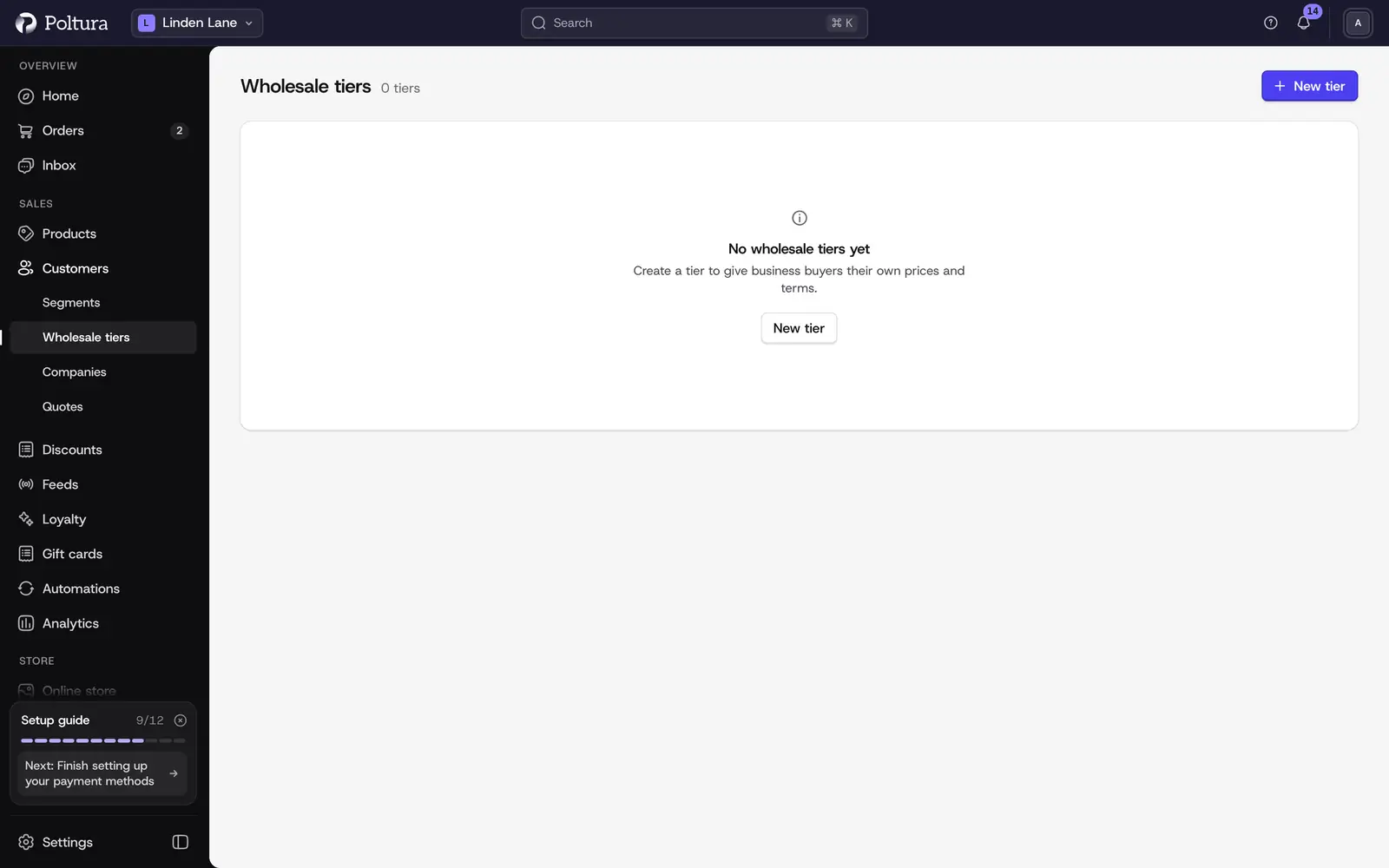
The Wholesale tiers page lists every tier. For each one it shows Prices shown (Gross, VAT included, Net + VAT or Net only), Joining (You approve or Automatic), the number of Members and how many are Waiting for approval. The page is empty until you make your first tier.
Make a segment a tier
Open Customers, choose Segments and open the segment.
In the Wholesale tier block, select Make this a wholesale tier.
Set the terms in Wholesale terms (below) and save.
The segment keeps all its members. Select Edit terms to change the terms later.
Terms
- Minimum order in a currency: an order below it cannot be placed. It is counted on the products after discounts and before shipping, the way the tier shows prices: including VAT for a gross tier, without VAT for a net tier. The cart tells the buyer how much is missing. A company can have its own minimum that replaces the tier's: see Business accounts.
- Approve members manually: new members wait until you approve them.
- Buyers can apply: shoppers can ask to join at registration or from their account. Without this, you add members yourself.
- Application questions: what an applicant must answer. Each question has a Question text, an Answer type (Short answer, Long answer, Number or Website address) and a Required switch.
- Only some payment methods and Only some shipping methods: limit what members can choose at checkout. Leave them off to allow everything.
- Quantity breaks apply: lower prices from a quantity, set with the tier prices.
Applications
Applications from shoppers who want to join appear under Applications waiting on the page, with the customer, the date and their answers.
Open an application.
Select Approve to move the customer into this tier, or Reject. When you reject, write the Reason: the customer sees it.
Approving moves the customer out of any other wholesale tier, because a customer belongs to one tier. The customer gets an email with your decision. A decided application cannot be decided again.
Tier prices
Under Tier prices you choose how the members' prices are set under Pricing:
- Percent off the base price: one Percent off for the whole catalog. Select Apply to all products now to recalculate, and the page shows when it was Last applied. You can add quantity breaks, such as 10% off from 50 pieces.
- Fixed prices per product: you set a price for each product. Select Edit tier prices to open the list.
Switching from fixed prices to a percentage replaces the fixed prices, and you confirm first.
Turn a tier off
Select Turn off wholesale tier on the segment and confirm. The segment stays a segment with all its members, and its terms stop applying at checkout. Fixed tier prices are paused and come back if you make it a tier again. Prices that came from a percentage are removed.
Quantity rules
Quantity rules limit how many pieces of a product version a shopper can order. They are set per product version, not per tier, and they apply to every buyer. Open the version of a product, find Quantity rules and select Edit quantity rules:
- Minimum: the smallest quantity.
- Maximum: the largest quantity. With a step, it has to be one of the allowed quantities.
- Sold in multiples of: the step. It counts from the minimum, so a minimum of 6 with steps of 6 allows 6, 12 and 18. Without a minimum it counts from zero.
A line under the fields spells out what shoppers can buy. Apply to all versions sets the same rule on every version of the product. The rule is checked on the total of a version across all cart lines. A cart that breaks a rule is refused with a message. Quick order changes a quantity to one that fits and says so.
Products for some tiers only
On a product, the Who can see and buy card decides who sees it and who can buy it. Who sees it is Everyone, Only selected wholesale tiers or Only people with the link. A product shown to selected tiers is hidden from everyone else, and never reaches feeds, the sitemap or link previews. Only people with the link hides it from store lists, search and the sitemap, but the link still works. Who can buy it is Everyone who sees it or Only selected wholesale tiers. The card comes with wholesale in your plan.
Who sees prices
Whether visitors see prices at all, or only buyers in an approved tier, is set on the Customer accounts page.