Shoppers can buy as guests or create an account on your storefront. An account lets them follow their orders, download invoices, keep addresses and collect rewards. This page explains what the storefront offers, which parts you can change and how to help a customer who cannot get in.
Registration and sign-in are always available on the storefront. You manage the resulting customers on the Customers page, and who sees prices and who may enter the store under Prices and store access.
How customers sign in
The storefront sign-in page offers three ways in:
- Email and password. The customer registers with first name, last name, email address and a password, and accepts your terms and privacy policy. A forgotten password is reset through a link sent by email.
- Magic link. The customer types their email address and receives a sign-in link. No password is needed.
- Social account. A button per provider that you have set up, such as Discord, Facebook, Google or Twitch.
Sign-in, registration and password reset forms are protected by a bot check.
Add social sign-in
Each provider is an app. Its button shows on the sign-in page only while the app is installed and on, and both its ID and its secret are saved.
Open the App Store and choose the app: Discord login, Facebook login, Google login or Twitch login.
Create an application in the provider's developer console, register the redirect URI shown in the app's setup guide there, and copy its ID and its secret into the app's settings.
Save, turn the app on if it is off, then open your storefront's sign-in page. The provider's button is now listed under the email form.
The exact fields and where to find them are described on each app's page.
What customers can do in their account
A signed-in customer has an account area with:
- Orders: order history with status filters and the details of each order, including its documents (pro-forma, advance, final invoices and invoices) and, for digital products, keys and downloads.
- Addresses: personal or company addresses for shipping and billing.
- Returns: starting a return from an order and following it. See Returns.
- Rewards: loyalty credits, rewards to redeem and reward codes. See Loyalty.
- Settings: personal details, changing the email address, changing the password through a secure email link, and the marketing email preference.
Prices and store access
Open Settings → Customer accounts to decide how shoppers see your store before they sign in.
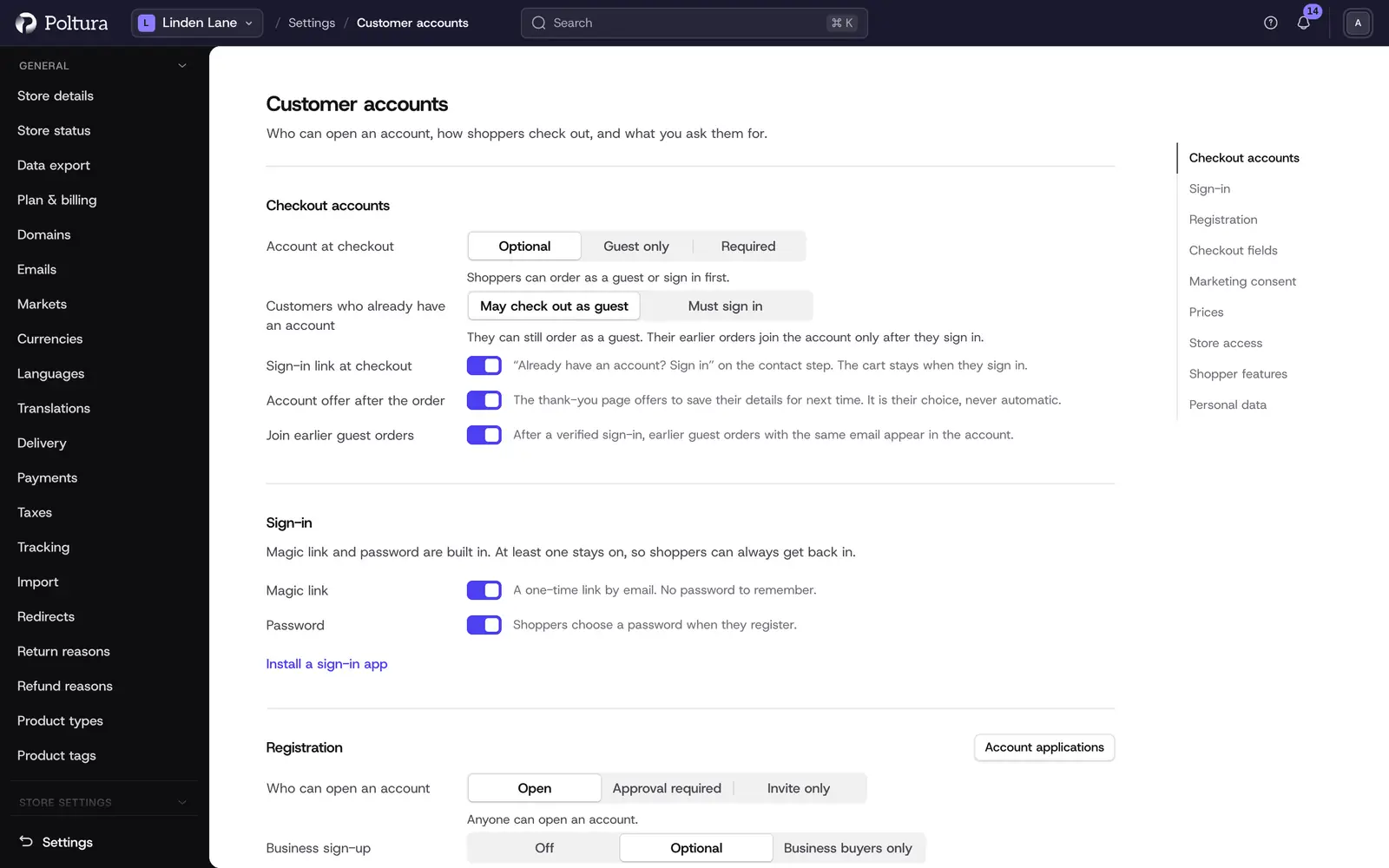
- Who sees prices: Everyone, Signed-in customers or Approved wholesale buyers. Everyone else sees products without a price or an add to cart button.
- Only signed-in customers can enter: visitors see a sign-in page instead of the store, and search engines stop indexing it.
- Business sign-up, in the Business buyers block: Off (shoppers sign up as consumers, and checkout still takes company details for invoices), Optional (shoppers can choose "I buy for a business" and add their company details) or Business buyers only (every account is a business account, and only signed-in business buyers can order). Company accounts with several buyers come with the Business accounts app, linked from the same block.
Select Save. Without wholesale in your plan, only the default settings can be saved. Approved wholesale buyers are the members of a wholesale tier.
Guests and registered customers
- A shopper who orders without signing in is recorded as a Guest in the admin. A shopper with an account is Registered.
- When someone registers with an email address that already belongs to an account, the store sends a security link to that address. The accounts are linked only after the link is used.
- A guest who later registers with the same email address and verifies it becomes a registered customer and keeps the earlier orders.
- A registered customer who orders while signed out gets a separate guest record for those orders.
Help a customer who cannot sign in
Open Customers and search for the customer's email address.
Check the Account column. Guest means there is no account for this address yet: ask them to register.
If the account is Registered, ask them to use the forgotten password link or the magic link on the sign-in page.
If no email arrives, look the message up in the sent emails list. See Emails.
Good to know
- You cannot set or see a customer's password, and you cannot sign in as a customer.
- The email address of a registered customer is changed by the customer, not in the admin.
- A customer can delete their own account on the storefront. It runs after a confirmation email and a 10 day waiting period. See Personal data requests.
- The wording of the sign-in and account pages belongs to the theme. See Storefront wording.
- The emails sent for sign-in links and password resets are theme emails. See Themes.
If something goes wrong
- A social button is missing from the sign-in page. The app is off or not installed, or its ID and secret are not both saved. Open the app in the App Store, turn it on and fill in both values.
- "This login method is currently unavailable." The provider refused the sign-in. Check the app's settings, and that the redirect URI registered in the provider's console matches the one in the app's setup guide.
- The sign-in link no longer works. A magic link can be used once and expires. The customer requests a new one.
- A customer sees two order histories. They ordered both signed in and as a guest. The guest orders sit on a separate customer record. You can move an order with Transfer ownership: see Edit an order.