The Facebook login app adds a Facebook button to the sign-in and registration pages of your storefront. A customer who selects it signs in on Facebook and comes back to your shop signed in, without a password of their own. If no customer has that email address yet, an account is created.
The app works on every plan and in every country. It is one of four sign-in apps, next to Discord login, Google login and Twitch login.
Before you start
- A Facebook account with access to Meta for Developers (developers.facebook.com/apps). You register your shop there as an application, and Facebook gives you an ID and a secret for it.
- The web address of your storefront, for example your own domain from Domains.
Set up Facebook login
In Meta for Developers, create an app and add the Facebook Login product to it.
In Poltura, open the App Store and open Facebook login. New stores have the app installed already. If you see Install, select it first. See App Store. The setup guide on the page shows the redirect URI you register in the next step.
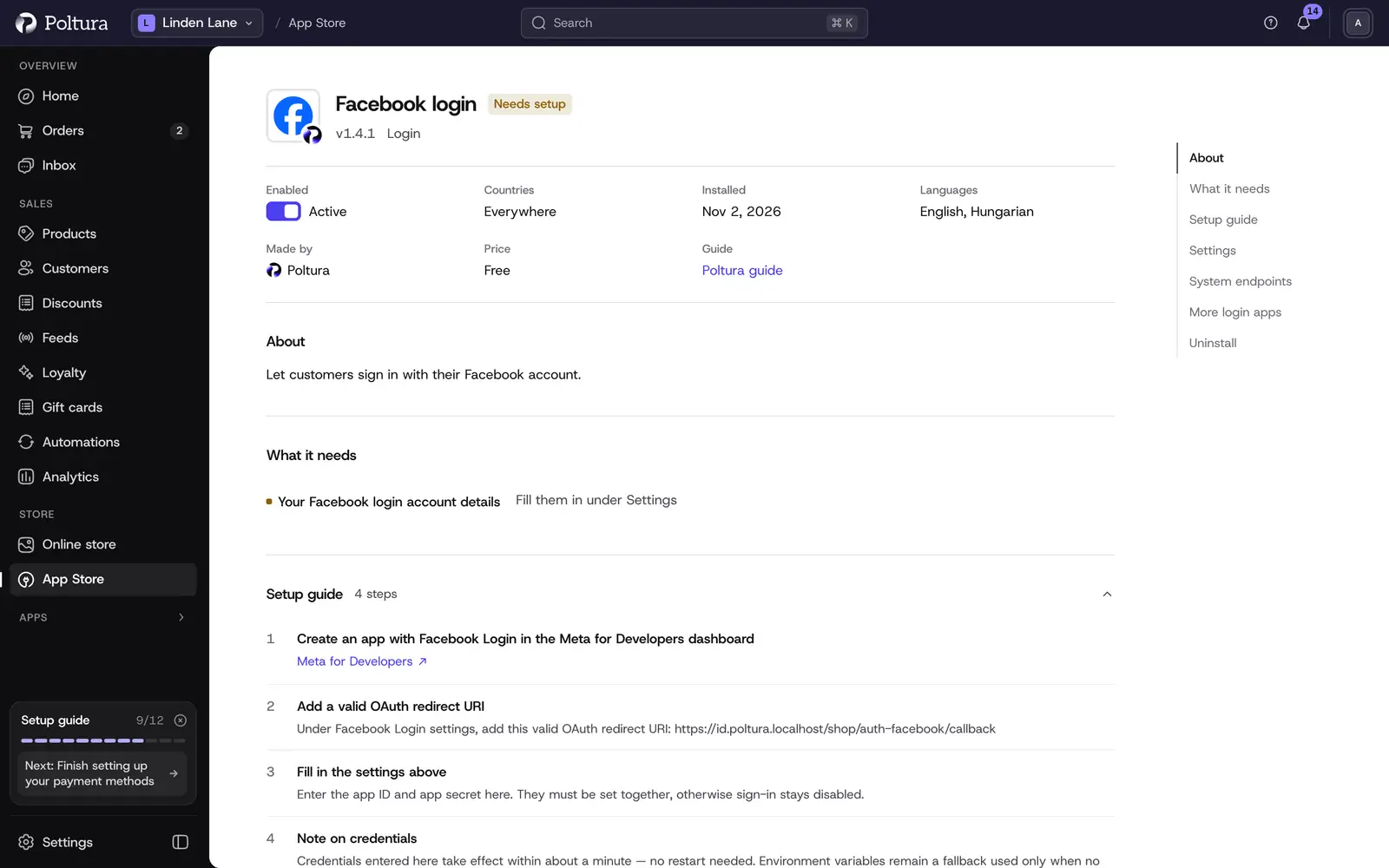
Needs setup means the client ID and secret are not saved yet. The fields are under Settings, further down. Copy the redirect URI from the app's setup guide and add it as a valid OAuth redirect URI in the Facebook Login settings.
Copy the app ID and the app secret from the app's basic settings.
Under Settings, fill in these two fields: App ID and App secret.
Select Save. If the app is off, select Turn on.
Wait about a minute, then open the sign-in page of your storefront. The Facebook button is below the sign-in form. Select it and sign in to check that you return to the shop signed in.
Settings
- App ID (required): the app ID from the Meta for Developers dashboard.
- App secret (required): the app secret. It is kept encrypted and never shown again once saved. After saving you only see that a value is saved, and you can replace it.
App ID and App secret must be set together. Until both are saved, the Facebook button stays off your storefront. Saved values take effect within about a minute.
What shoppers see on your storefront
While the app is on and both values are saved, the sign-in page and the registration page show a button with the Facebook logo under the form, together with the buttons of your other sign-in apps. Poltura asks Facebook for the customer's public profile and email address. The first and last name of a new customer come from the Facebook profile.
When a customer account with the same email address already exists, the customer first confirms the link between the two through a link sent by email. More about customer sign-in is in Customer accounts and sign-in.
If something goes wrong
- Facebook shows a redirect error. The address the storefront sent is not registered with Facebook. Compare it with the redirect URI in the app's setup guide character by character.
- Sign-in comes back with an error after Facebook. The secret is wrong or was regenerated on Facebook. Enter the current one and save.
- A customer cannot sign in although the button works for others. Their Facebook account shares no email address, for example because it was registered with a phone number or the customer did not allow it. Poltura needs the email to find or create the customer account.
- Only you can sign in, your customers cannot. A Meta app that is not live yet lets in only the people who have a role on it. Switch the app to live mode in Meta for Developers.
- The button is not on the sign-in page. The app is off or not installed, or App ID and App secret are not both saved. Turn the app on in the App Store, see App Store, and fill in both values under Settings.