IGDB is a public database of video games. The IGDB app finds your game products in it, physical and digital alike. Then it fills in game details, artwork, ratings and popularity. It is for stores that sell games. The app only adds to your catalog and plays no part at checkout.
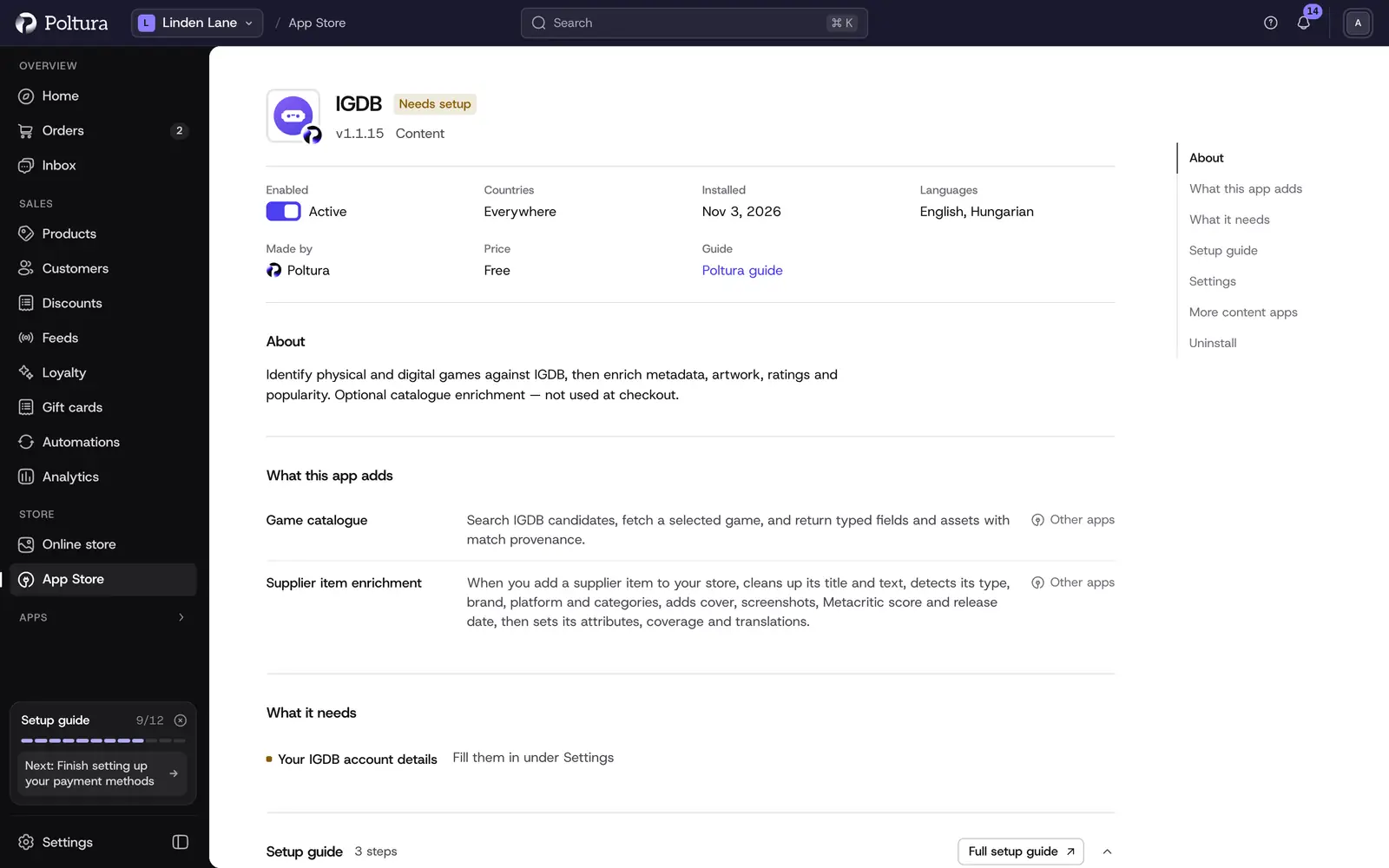
Before you start
- IGDB signs in through Twitch. Create an application in the Twitch developer console (
https://dev.twitch.tv/console/apps) and copy its Client ID and Client Secret. - Optional: a SteamGridDB API key for covers and screenshots, and a RAWG API key for Metacritic scores.
Set up IGDB
Open App Store in the sidebar and choose IGDB.
Select Install. See App Store.
Under Settings, fill in Twitch client ID and Twitch client secret, then select Save.
Select Check the credentials. The credentials work. confirms them.
Select Turn on.
Open IGDB in the Apps group of the sidebar. The page title shows Connected.
Saving the credentials does not change any product. IGDB is only asked when a product is matched.
Settings
The fields are in the app's Settings in the App Store. The first four can also be edited on the IGDB page, under Connection and Refresh policy.
- Twitch client ID: the Client ID of your Twitch application. Stored encrypted and never shown again after saving. Change it with Replace client ID.
- Twitch client secret: the Client Secret that belongs to it. Stored encrypted and never shown again. Change it with Replace client secret.
- Protect merchant-edited fields: on to begin with. Fields you have edited or protected stay as they are when IGDB data is refreshed, until you unlock them.
- Auto-confirm unique exact title matches (on the page: Auto-confirm unique exact titles): on to begin with. A match is confirmed on its own only when exactly one game has exactly the same title. The first search result is never accepted just because it is first.
- SteamGridDB API key: optional. Used for cover and screenshot artwork of imported games. Stored encrypted.
- RAWG API key: optional. Used for Metacritic scores of imported games. Stored encrypted.
On the IGDB page, Validate credentials tests the Twitch credentials and Save settings stores your changes.
Match a product to a game
Every product page has an IGDB panel.
Open the product from Products.
In the IGDB panel, check Title to match. Shorten it to the plain game title if the product name carries extras such as the platform or edition.
Select Search IGDB. The panel lists the games found under Candidates, each with a confidence value.
Choose the right game in Candidates and select Confirm this game. The panel now shows the IGDB game ID and the Matched title.
If the match is wrong, select Reject match and search again with a different title.
Keep your own text when data is refreshed
After a match, the panel shows a button for each field that IGDB can fill.
- Protect field keeps your own value in that field: a refresh from IGDB leaves it alone.
- Unlock field lets IGDB data overwrite the field again.
With Protect merchant-edited fields switched on, fields you edited by hand are treated the same way without pressing anything.
Review matches that are waiting
Under Matching review, the IGDB page lists the products whose match could not be confirmed on its own. Each row shows the Product, the Searched title and the Candidate. Open the product and confirm or reject the match in its IGDB panel. When nothing is waiting, the list says so.
Good to know
- The app works for physical and digital game products.
- Popularity from IGDB is refreshed regularly in the background.
- While the app is turned on, the product page shows the game's PEGI age mark and Metacritic score next to the title. The PEGI mark comes from the product's PEGI attribute; turn the app off and both disappear.
- Importing games for digital products is described under Digital products.
If something goes wrong
- The panel says "IGDB is not connected." The Twitch credentials are missing. Add them on the IGDB page or in the app's settings.
- "Validation failed". The Client ID and Client Secret do not belong together, or the secret was regenerated in the Twitch developer console. Copy both again.
- No candidates are found. Search with the plain game title, without platform, edition or region.
- A refresh overwrote your description. Switch Protect merchant-edited fields to Yes, or select Protect field for that field on the product.
- Covers or Metacritic scores are missing. Add the SteamGridDB API key or the RAWG API key in the app's settings.