The Pinterest app runs the Pinterest tag on your storefront. It also sends checkout steps and purchases from the server, through Pinterest's Conversions API. This way Pinterest ads count your sales even when a browser blocks the tag. Both run only for shoppers who accept marketing cookies.
The app installs on every plan and works in every country.
Before you start
- A Pinterest business account with an ad account and a Pinterest tag. You create the tag in Ads Manager under Conversions, Pinterest tag.
- The tag ID, which Ads Manager shows next to your tag. It is digits only.
- For the Conversions API: a conversion access token and your ad account ID. In Ads Manager go to Conversions, Conversions API, Set up API, pick Conversion access token and Generate new token. Pinterest shows the ad account ID next to the token.
Set up Pinterest
Open the App Store and open Pinterest. Select Install. See App Store.
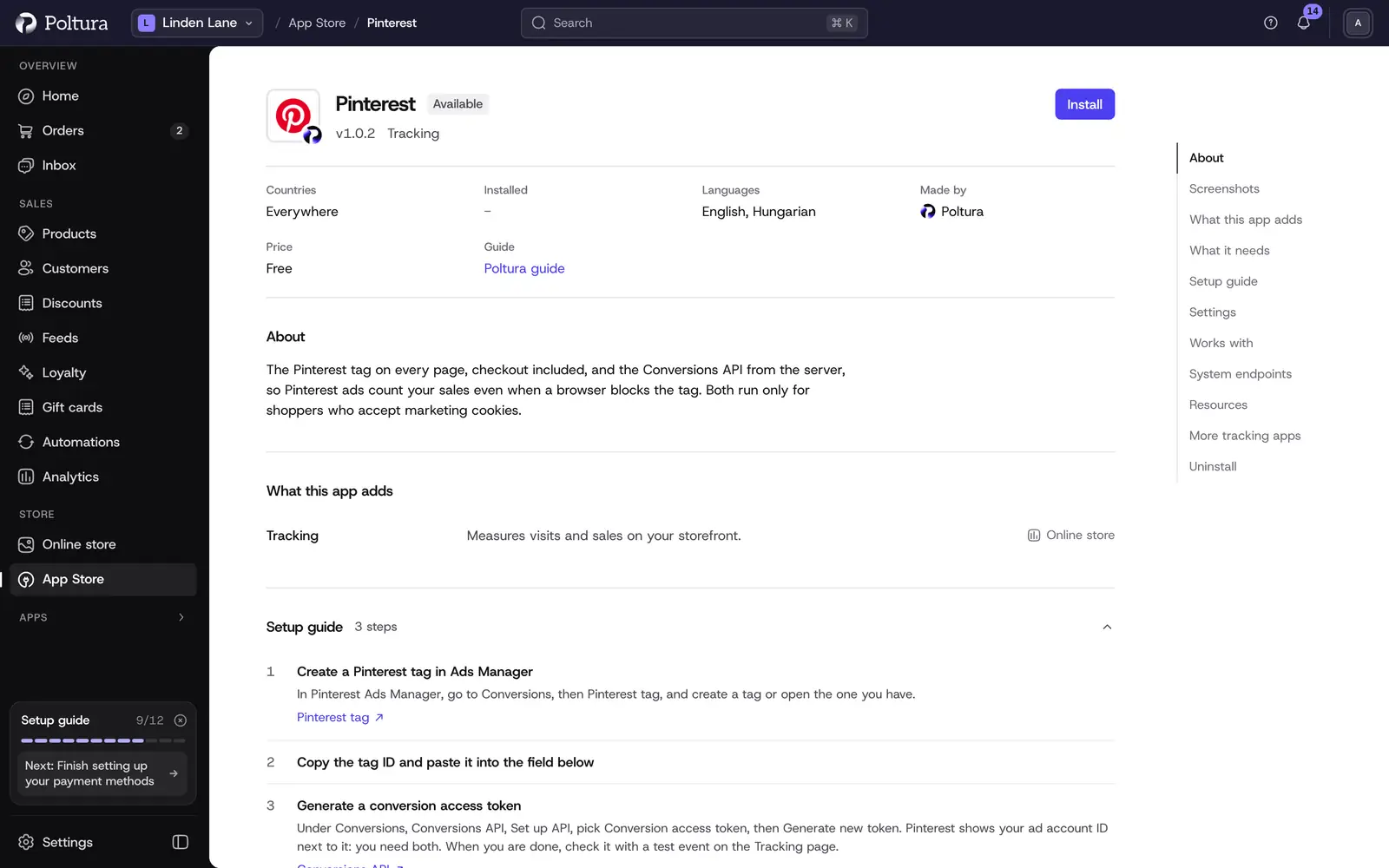
Pinterest in the App Store, before you install it. Under Settings, paste your tag ID into Tag ID, or the whole base code: the field finds the ID in it.
Paste the ad account ID into Ad account ID and the token into Conversion access token.
Select Save, and turn the app on if it is off. See App Store.
Check the connection on the Tracking page. See Check the setup.
Settings
- Tag ID: the ID of your Pinterest tag, or the base code holding it. Only the ID is saved. The tag stays off until it is set.
- Ad account ID: the ad account the server events belong to, digits only.
- Conversion access token: lets Poltura send checkout steps and purchases from the server too, so an order still counts when an ad blocker stops the tag. It is stored sealed and never reaches the storefront.
- Test mode: while it is on, server events go to Test events in Ads Manager and count as no conversion. Turn it off when you are done checking.
- Customer data for better matching: when the shopper accepts marketing cookies, checkout events also carry their email, phone number, name, city, postal code, country and customer ID as an irreversible code (SHA-256) (Enhanced match). Mention it in your privacy policy.
- Conversion value: the order total, or the products only, without shipping. Pinterest recommends the value of the products, before tax and shipping.
- Send events from the server: on by default. Needs the token and the ad account ID. With marketing consent, server events carry the shopper's Pinterest click ID, IP address and browser, so Pinterest can tie them to your ads.
The tag and the server send each event with the same event ID, so Pinterest keeps one copy of it.
What is sent
- Every page, as a page view.
- Product pages as
PageVisit, category pages asViewCategory, searches asSearch, and products added to the cart or the wishlist asAddToCartandAddToWishlist. - Checkout start as
InitiateCheckout, payment details asAddPaymentInfo, and an order asCheckoutwith its value, currency, order ID and products. - Sign-ups as
Signup, and contact forms and newsletter sign-ups asLead.
Products are named by their variant ID, the same ID your product feeds use. Amounts are in the cart's or order's own currency. The server sends add to cart, checkout start, payment details and the order, up to 48 hours after they happen, the window in which Pinterest keeps one copy of each.
Checkout and the order pages
The tag runs on every page, checkout and account pages included, under a security policy that lets it reach only Pinterest's own services. Enhanced match data reaches the tag only on the thank-you page; the server events carry it for the checkout steps. See Tracking.
What shoppers see on your storefront
Nothing changes on the page. The tag loads only after the shopper accepts marketing cookies; when they withdraw it, the tag stops sending and clears its own cookies. The cookie table lists Pinterest's cookies while a tag ID is set. See Cookie consent.
Check the setup
Open Settings, then Tracking, and use the buttons on the Pinterest card:
- Test connection checks that Pinterest accepts the token for the ad account.
- Send a test event sends one page visit as a test request. It shows up under Test events in Ads Manager and is never counted as a conversion.
If something goes wrong
- The tag does not fire. Check that the tag ID is set and the app is on, and that the shopper accepted marketing cookies. The Pinterest Tag Helper browser extension shows each event.
- Test connection says the token is not accepted. Generate a new conversion access token and paste it again, and check the ad account ID next to it.
- Server events are not sent. Check the token, the ad account ID and that the shopper accepted marketing cookies. The event log under Tracking says why each event was sent, skipped or refused.
- Pinterest counts events twice. A Pinterest tag also runs from your Google Tag Manager container. Turn one of them off, or send the data layer's
event_idas the tag's event ID. - Events land in Test events instead of your reports. Turn off Test mode.