The PayPal app puts PayPal's own button into the payment step of your checkout, so shoppers pay from their PayPal account without leaving your store for long. It is useful when you sell abroad, where many shoppers prefer PayPal. The app works on every plan.
Before you start
- You need a PayPal business account.
- You need a REST app in the PayPal developer dashboard at
https://developer.paypal.com. It gives you a client ID and a secret. PayPal explains this athttps://developer.paypal.com/api/rest/. - PayPal has separate sandbox and live credentials. Start with the sandbox ones.
Set up PayPal
Open Apps → App Store and open PayPal. New stores have it installed already. If yours does not, select Install. Installing works the same for every app, see App Store.
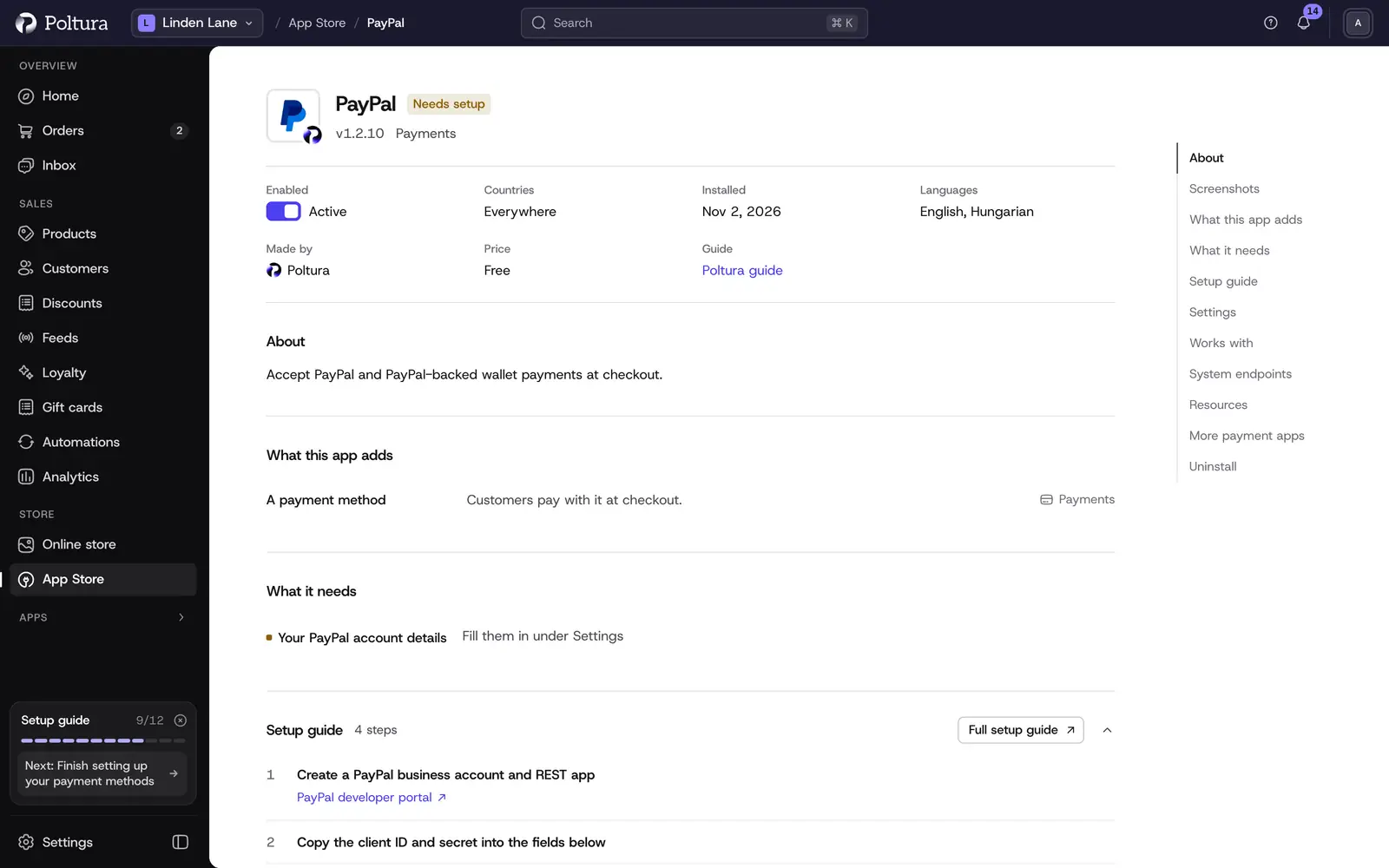
PayPal shows Needs setup until you fill in its settings. In the Settings section, enter the Client ID and the Client secret of your sandbox REST app and leave Sandbox mode ticked.
Select Save in the save bar.
Select Check the credentials. The message The credentials work. confirms that PayPal accepted them. The check also registers the payment webhook with PayPal, and Webhook ID changes to Provisioned.
Select Turn on. The status of the app changes to Active.
Open Settings → Payments. PayPal is listed under Payment methods with the status Ready.
Shoppers now see PayPal at checkout in every currency it can charge, on every domain. See Payments.
Place a test order and pay with a PayPal sandbox account.
To go live, enter the client ID and secret of your live REST app, untick Sandbox mode, save and check the credentials again.
Settings
- Client ID (required): the client ID of the REST app from your PayPal developer dashboard.
- Client secret (required): the secret of the same REST app. It is stored encrypted and is never shown again after you save it.
- Webhook ID: you do not fill this in. It identifies the webhook that Poltura registers with PayPal and is obtained when you check the credentials. It shows Provisioned or Not provisioned yet.
- Sandbox mode: when ticked, payments go to PayPal's test system. It is ticked on new installs. Untick it when you switch to live credentials.
What shoppers see at checkout
The payment step lists PayPal and shows the Pay with PayPal button. The shopper signs in to PayPal in PayPal's window, approves the payment and the order is placed. Paying by card inside the PayPal button is switched off: shoppers pay with their PayPal account.
Day to day
- PayPal authorizes the amount at checkout. It is charged when you capture the payment. Open the order and select Capture payment. The full amount is captured. See Payments and refunds.
- Refund a captured payment with Create Refund. Because partial refunds are not confirmed, check the result in your PayPal account after a partial refund. See Refund an order.
- Canceling an order that was not captured voids the authorization at PayPal.
If something goes wrong
- The credential check asks for the client ID and secret. One of the two fields is empty. Enter both and save first.
- The check says PayPal could not be reached, or returned no access token. The credentials do not match the selected system. Sandbox credentials only work with Sandbox mode ticked, live ones only with it unticked.
- Webhook ID stays on "Not provisioned yet". Run Check the credentials again after saving valid credentials.
- PayPal does not appear at checkout. Open Settings → Payments and check the status. Setup incomplete means a required field is missing, Off means the app is switched off.
- The shopper sees "PayPal encountered an error." They can try again or choose another payment method. If it happens to everybody, check the credentials again.