A connected app is an app made by an outside developer, not by Poltura. It runs on the developer's own servers and reaches your store only through the permissions you approve. The Connected apps page lists these apps for the store you are working in.
How a connected app differs from an App Store app
| App Store app | Connected app | |
|---|---|---|
| Made by | Poltura | An outside developer |
| Access to your store | Part of the platform | Only the permissions you approve |
| Managed under | App Store | Connected apps |
Every release of a connected app is reviewed by Poltura before a merchant can install it.
Open the list
Open App Store in the sidebar.
Select Connected apps at the top of the page.
The page Installed apps opens. Each row shows the app, its status and the actions Open app and Remove.
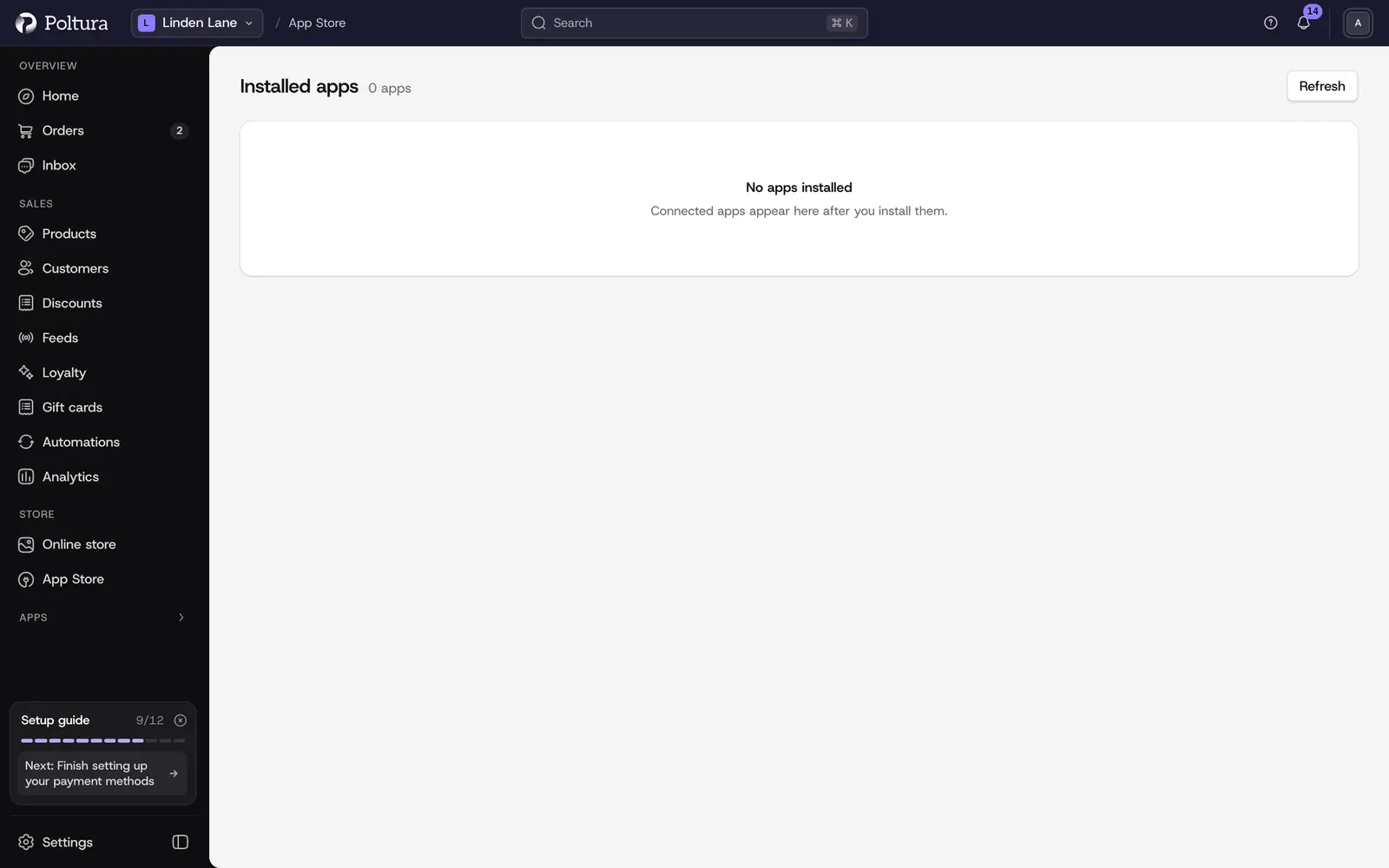
Until the platform for outside apps opens, the list reads No apps installed.
Select Refresh to load the list again.
| Status | Meaning |
|---|---|
| Preparing | The app is being set up for your store |
| Ready | The app is connected and can be opened |
| Removing | The app is being removed |
| Removed | The app no longer has access |
Approve an app's access
You connect an app from the developer's side. The app then sends you to a Poltura page that asks for your approval.
Read the title: it names the app that wants to connect and the store it asks access to.
Read Requested permissions. Each line says what the app could see or change, for example "See products in the catalog."
Check the address the page says you return to after approval.
Select Approve to connect the app, or Decline to refuse.
After approving, wait while the page reads Preparing access. It continues by itself, or offers Continue, and takes you back to the app.
The page approves exactly the request it shows. You cannot tick or untick single permissions: if you do not want to give one of them, select Decline.
When an app is updated to a new version, you are asked to approve again.
What an app can ask for
- Read: store name, language and currency; products; collections; orders (status, totals, items, shipping address); customers (name, email, phone, tags); inventory levels.
- Change: product title, description, handle and status, but not prices or stock; collection title and handle; order tags and note, but not status, payment or fulfillment; customer tags, but not the account status.
- App data: read and save the app's own storage for your store.
Check what an app may access
Open Connected apps and select the app.
Read Granted permissions. If it reads No permissions granted, the app has no access to store data.
Under App page, the app shows its own screen, if it has one.
The page also shows when the app was last updated.
Use an app's pages
A connected app can add its own pages and panels to the admin:
- pages that open from the Apps part of the sidebar,
- an App settings page, where you change the app's settings and select Save or Discard,
- cards on the Home page under From your apps,
- panels on product, collection, order and customer pages.
These parts are shown by Poltura in a protected area: the app's code cannot read the rest of your admin.
Remove a connected app
Open Connected apps.
Select Remove on the row of the app, or open the app and select Remove there.
In the Remove app? dialog select Remove app.
The status changes to Removing and then the app leaves the list.
If you connect the app again later, you approve its permissions again. The new connection cannot read what the old one stored.
Good to know
- Connected apps are listed per store. Switch the store to see the apps of another one.
- An app that is still Preparing cannot be opened yet, and an app that is Removing can be neither opened nor removed again. The buttons are unavailable until it settles.
- The developer of an app builds and publishes it in a separate workspace. See Your own apps.
If something goes wrong
- "This request has expired". Start again from the application you came from.
- "This request cannot be approved". The app's version or your role does not allow the connection. Start a new request from the app. If your role is the reason, ask an administrator of the store.
- "Sign in to continue". Sign in, then return to the tab and continue. Nothing has been granted yet.
- "Apps are unavailable". The list could not be loaded. Nothing was changed. Select Refresh.
- "The app could not be removed. Please try again." Select Remove app again in a moment.
- "This app could not be shown." or "That app page could not be found". The app's page failed to load or no longer exists. Check the status of the app in the list.
- "These settings changed. Reload them before retrying." Someone else changed the app's settings. Reload the page and make your change again.