The Google app puts your products into Google Merchant Center, where Google uses them for free listings and Shopping ads. Google takes a feed for any market your store sells in, so you can add one feed per market.
The app installs on every plan and has no page of its own. You set it up in Feeds.
Products reach Google in one of two ways:
- Feed address: Google downloads a file from a private address every 24 hours. This works on every plan.
- Connected: Poltura sends your products straight to Merchant Center within minutes and shows Google's verdict on each product as an issue. This option appears only where Poltura has switched its Google connection on and your plan includes "Google Merchant Center connection". Until then every store uses the feed address. See Plan and billing.
Before you start
- A Google Merchant Center account for your shop.
- Each country you want to advertise in, added to one of your markets.
- A shipping option for that market. Google requires a shipping cost in Hungary and in most of the EU.
- A returns policy in your store. Google shows your return terms next to your products.
Set up Google
Open the App Store, find Google and select Install. See App Store.
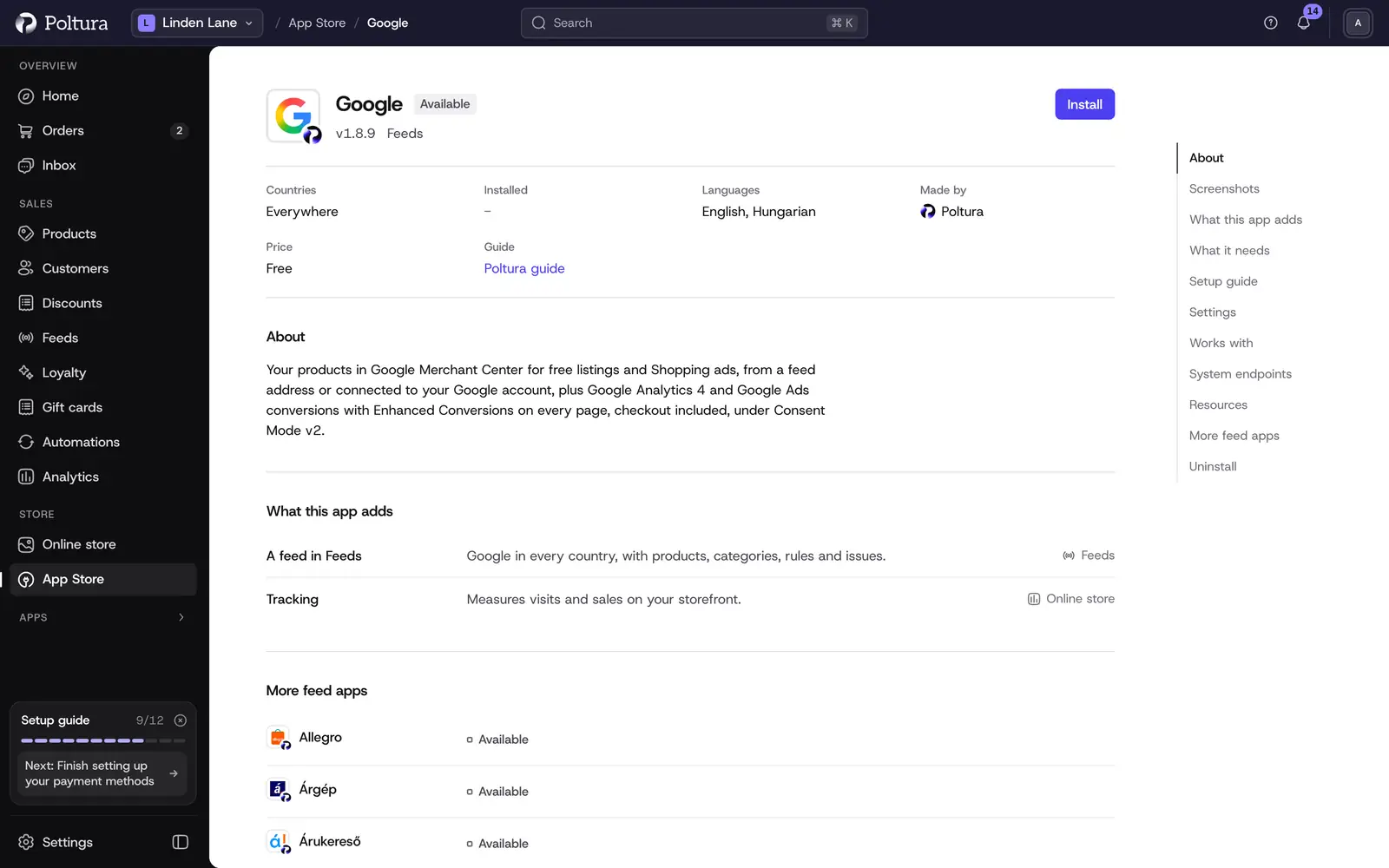
Besides the feed, the app adds the Google tag for Analytics and Ads. Open Feeds, select Add feed and choose Google under Ready to set up.
On Market, choose the market the feed is for.
On What we send, go through the checklist: shipping cost, returns policy, barcodes and Google categories. Then select Create the feed.
On Feed address, copy the address.
In Merchant Center, open Settings, then Data sources. Choose to add a product source, then Add products from a file.
Pick Enter a link to your file and paste the address. Set the country and language to the market of the feed.
Back in Poltura, select I have pasted it. Google fetches the file every 24 hours, so your products appear in Merchant Center after its first download.
If the connected option is available to you, the setup starts with a Connect step instead: sign in with the Google account that manages your Merchant Center, then select Go live after the checklist. The feed address stays one click away with Use a feed address.
The general steps of a feed are in Add and set up a feed.
Settings
A Google feed on a feed address has no settings of its own. A connected feed shows a Merchant Center section on its Settings tab:
- Google account: the Google account Poltura uses. Poltura may add and update your products in Merchant Center, read Google's verdict on each, and check your website, shipping and returns settings. One connection serves every Google feed of your store, and you can disconnect it once none of them sends products through it.
- Merchant Center ID: needed only if your Google account reaches several Merchant Center accounts. You find the number in Merchant Center next to your business name. Without it Poltura uses the account whose website is your store, or your only account.
The same tab shows how products reach Google, where you can switch between Feed address and Connected. Your rules, category matches and settings stay when you switch.
What is sent
- Google requires your shop price, so price rules do not apply to this feed.
- Google picks a category for every product itself. Matching your categories in Category mapping helps it place your products, and no product is refused without it.
- Products without a barcode are shown to fewer shoppers.
Google Analytics and Google Ads
The app's page also runs the Google tag (gtag.js) on your storefront, with no Tag Manager needed:
- GA4 measurement ID: the
G-ID of your GA4 web stream. You can paste the whole Google tag snippet instead; the field shows the ID it found, and only the ID is saved. - Google Ads conversion ID and the conversion labels: the
AW-number, or the snippet holding it, and the label of each conversion action you want to count: purchases, checkout starts and add to carts. - Measurement Protocol API secret: lets Poltura send purchases and refunds to GA4 from the server too, so an order counts even when an ad blocker stops the tag in the browser, and refunds reach your reports. Without it the Tracking page shows a note on the Google card.
- Enhanced Conversions: when the shopper accepts marketing cookies, the purchase conversion on the thank-you page carries their email and phone number as an irreversible code (SHA-256).
GA4 loads only after the shopper accepts analytics cookies, Google Ads only after marketing cookies (both earlier, cookieless, in advanced Consent Mode). The tag runs on every page, checkout included, under a security policy that lets it reach only Google, so GA4 sees every checkout step. See Tracking.
What shoppers see on your storefront
Nothing visible. The app adds no badge or text to your shop; with a measurement or conversion ID set, the Google tag runs in the background.
If something goes wrong
- No shipping cost. Add a shipping option for the market under Delivery, or set shipping in Merchant Center.
- Products do not appear in Merchant Center. Check the data source in Merchant Center: the link must be the address from the feed's Overview tab, with the country and language of the feed's market. The Overview lists every download.
- The price on Google differs from your shop. A sale started or ended after Google's last download. Wait for the next one.
- Google account is no longer connected (connected feeds). Open the feed's Settings tab and connect the account again.
- Choose your Merchant Center account. Your Google account reaches several accounts. Enter the Merchant Center ID of the one for this store.
- Your website is not claimed in Merchant Center. Verify and claim your store's address in Merchant Center under Business info.
- No return policy for this feed's country in Merchant Center. Add it in Merchant Center under Shipping and returns.
Other problems are covered in Feed issues.