You can fix an order after it was placed instead of canceling it and asking the customer to order again. Item changes go through an order edit that you confirm at the end. Addresses, the email address and the customer are changed from the Customer section.
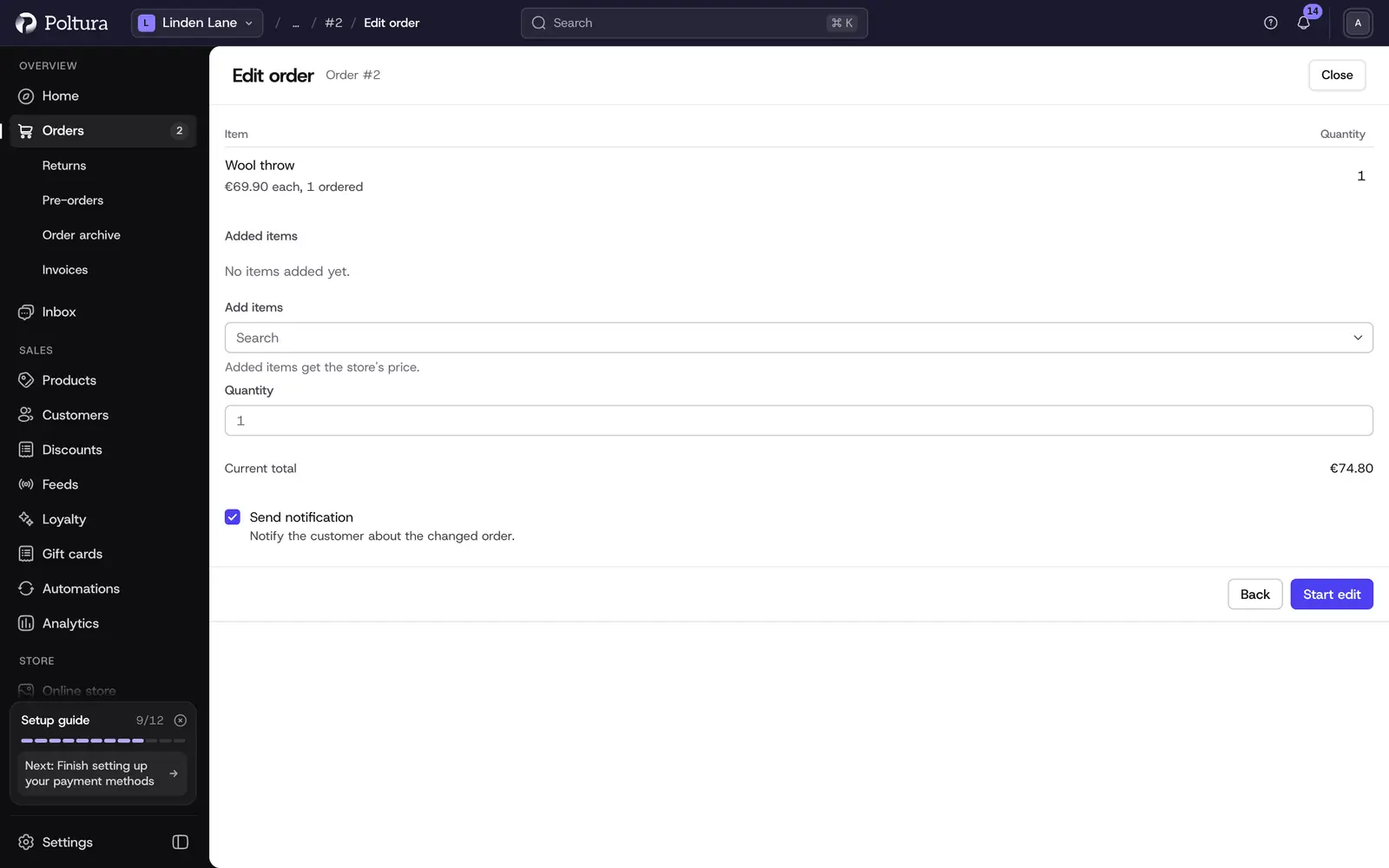
Change the items
An order edit is a draft until you confirm it. Nothing changes on the order before that.
Open the order and go to Summary.
Select Edit order, then Start edit.
Change the quantity of the items the order already has. Each row shows the unit price, how many were ordered and how many are already fulfilled.
To add a product, select Add items, search for the variant, set the Quantity and add it. Setting an added line to zero removes it again.
Check Current total and New total at the bottom.
Leave Send notification ticked to tell the customer. The customer gets an email with the updated items, the new total, and what is left to pay or to be refunded. Leave the box unticked to change the order without telling them.
Select Confirm Edit. To come back later, select Save as draft instead.
The order shows the new items and totals, and Activity records the edit.
After the edit, Outstanding amount in Summary shows the difference. If the customer owes more, collect it and use mark as paid. If the customer is owed money, use refund.
To drop an edit you started, open it again from the notice at the top of the order with Continue and select Discard.
Change the shipping address
Open the order and go to Customer.
Open the menu of the section and select Edit shipping address.
Correct the name, company, address, postal code, city or phone number.
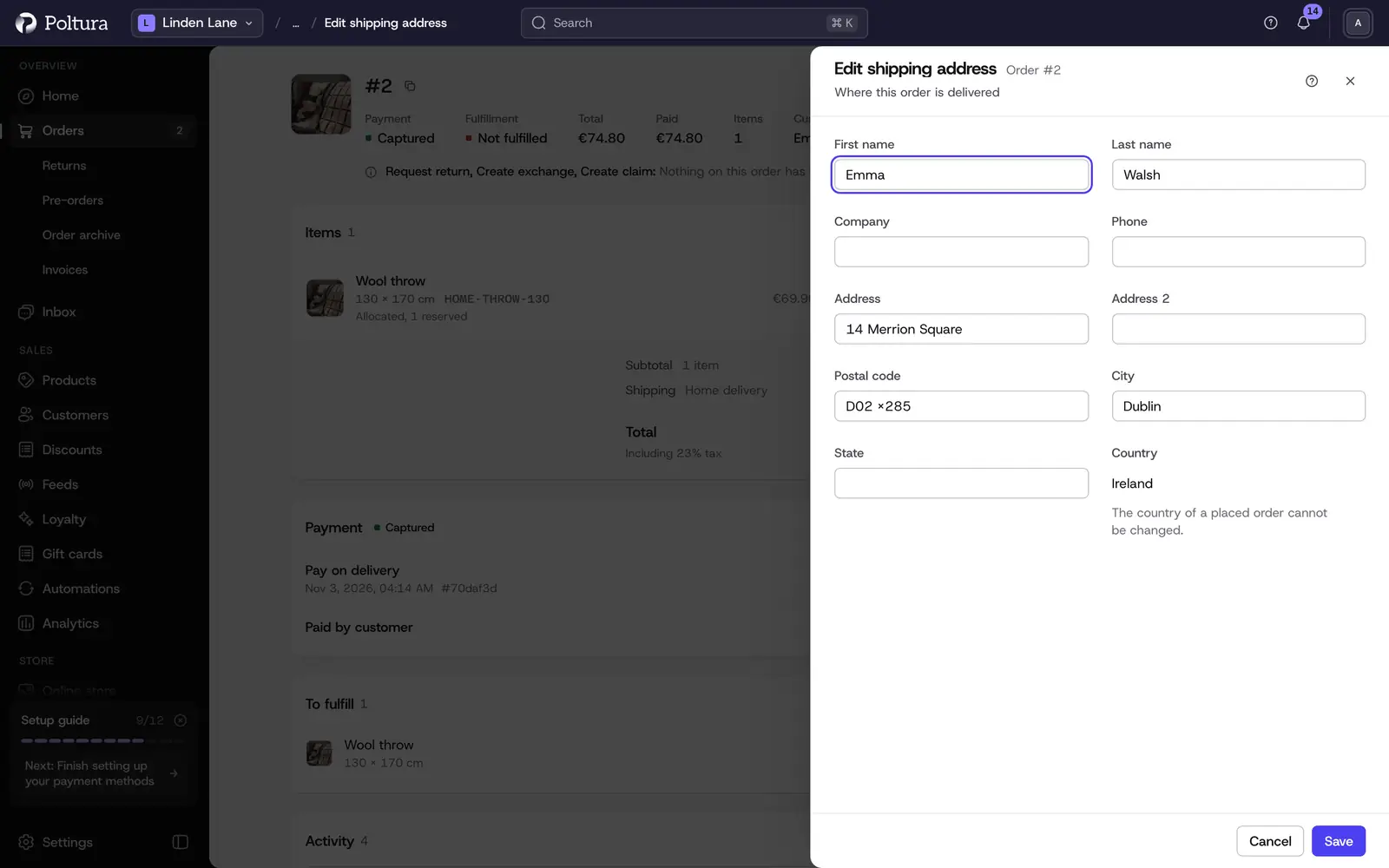
Save. The Customer section shows the new address and Activity records "Shipping address updated".
The country of an address cannot be changed on an order.
Change the billing address
Open the order and go to Customer.
Open the menu of the section and select Edit billing address.
Correct the fields.
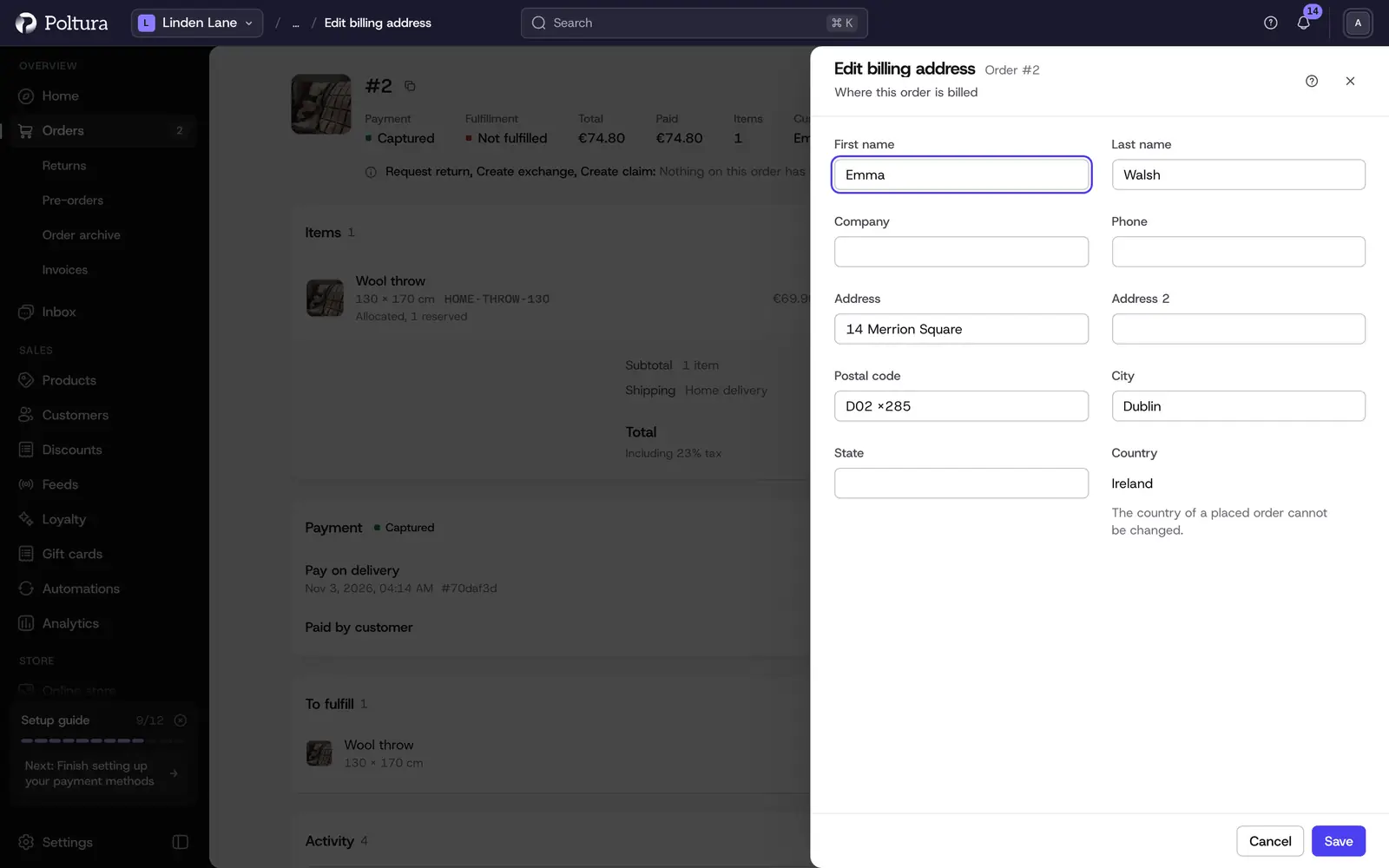
Save. The section shows the new billing address. When both addresses are the same, it shows Same as shipping address.
Change the email address
The order's email address is where order emails go.
Open the order and go to Customer.
Open the menu of the section and select Edit email.
Enter the new address.
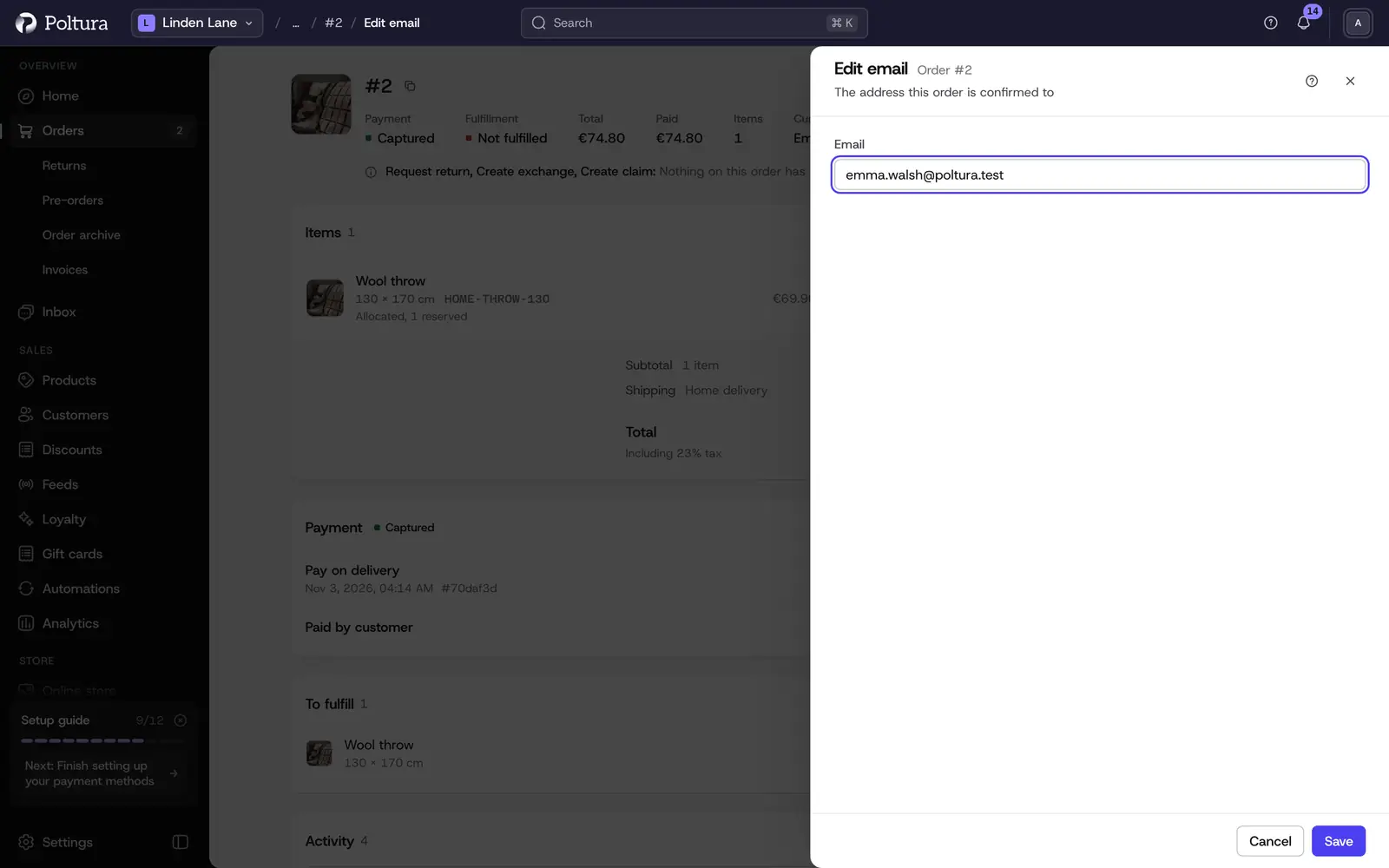
Save. The section shows the new address under Contact.
This changes the address on this order only, not on the customer's account.
Move the order to another customer
Open the order and go to Customer.
Select Transfer ownership.
Choose the Account type: Registered for a customer with an account, Guest for an email address without one.
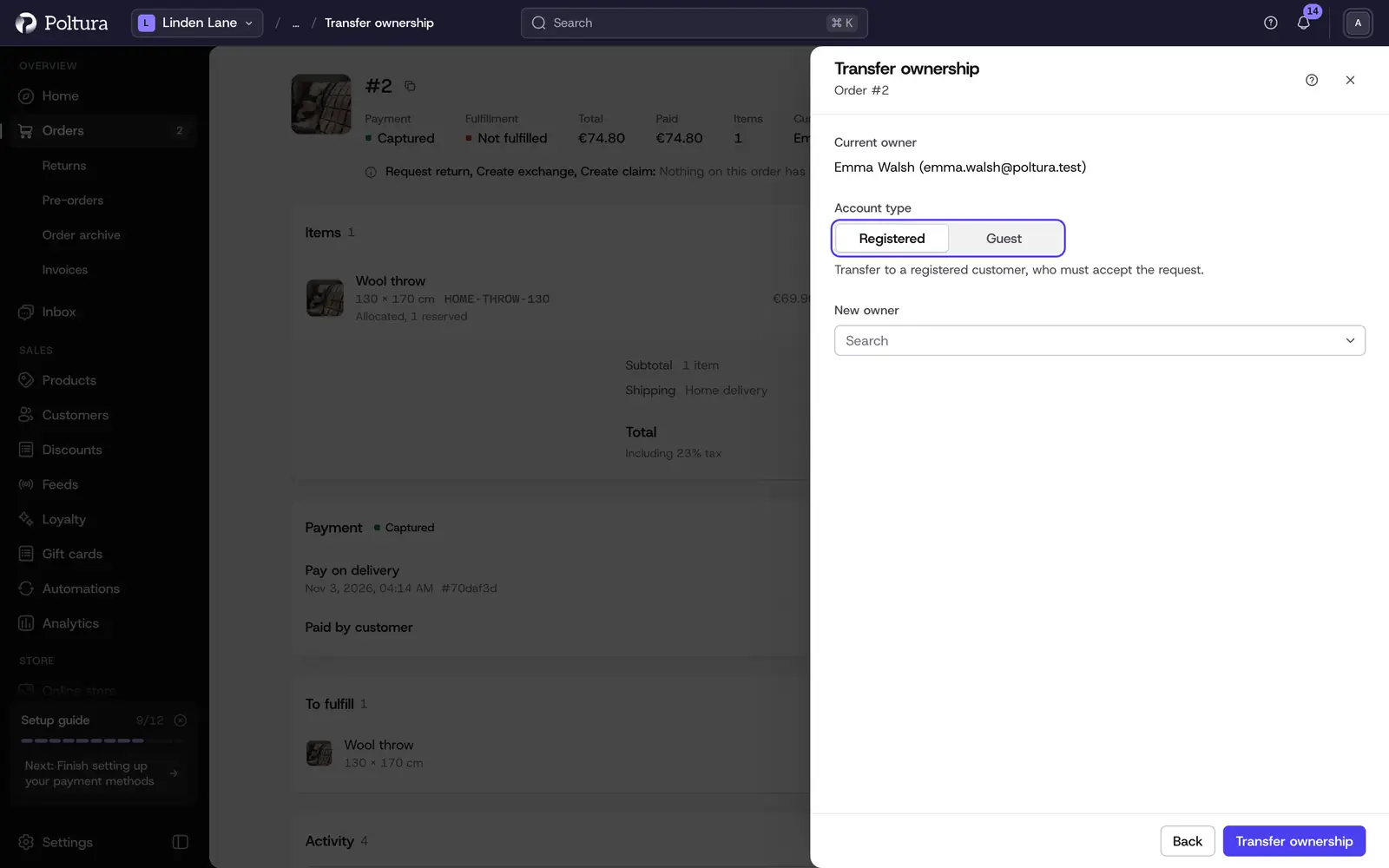
For a registered customer, search and pick the New owner. For a guest, enter the New owner email.
Select Transfer ownership.
What happens next depends on the account type:
- Registered: the new owner gets an email with a link and has to accept. Until then the order has not changed, the top of the page says a transfer is waiting, and the button reads Review transfer. Open it and select Cancel to take the request back.
- Guest: the order moves right away. If no customer exists with that email address, a guest customer is created.
Good to know
- Only one change can be open on an order at a time: an edit, a return, a claim, an exchange or a transfer. Finish or discard the open one first.
- You cannot lower a quantity below what is already fulfilled.
- A product can only be added if it has a price in the order's currency.
- Correct the shipping address before you create the fulfillment. A courier label that is already booked keeps the old address.
- A canceled order cannot be edited.
If something goes wrong
- Edit order is disabled. Another change is open on the order, or the order is canceled. The reason is written next to the button.
- "The store refused to add that variant." The variant has no price in the currency of the order. Add one under Prices.
- The new owner never accepted. Take the request back and transfer the order as Guest to their email address instead.