The Returns & exchanges section of an order lets your staff take items back directly on the order. There are three kinds:
- A return takes items back.
- A claim takes back an item that was faulty or wrong and settles it with a refund or a replacement.
- An exchange takes items back and sends other items out in their place.
Before you start
- Only fulfilled items can come back. An order with nothing fulfilled has nothing to return.
- Only one change can be open on an order at a time. Finish or discard an open edit, return, claim or exchange first.
- The reasons you can choose come from your list of return reasons.
Create a return
Open the order and go to Returns & exchanges.
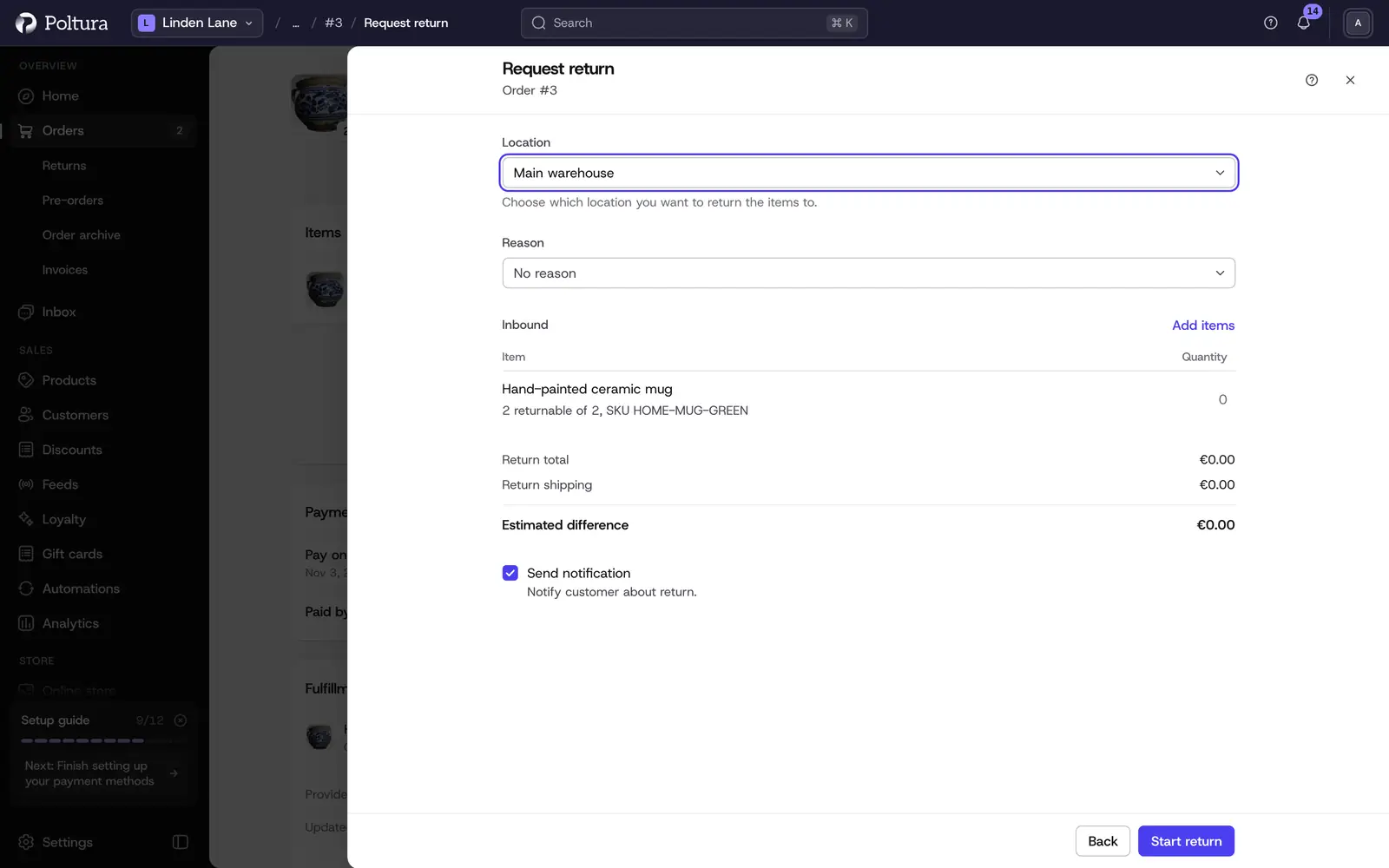
Select Request return, then Start return.
Choose the Location the items come back to.
Choose a Reason if you want to record one.
Pick the items and set how many of each come back.
To charge the customer for the way back, choose a Return shipping option. Leave Return shipping price empty to charge what the option costs, or enter another amount.
Check Return total and Estimated difference.
Leave Send notification ticked to tell the customer.
Select Request return. To finish later, select Save as draft. To drop it, select Discard.
The return is listed in Returns & exchanges with the Requested status.
Receive the returned items
When the parcel arrives, open the order and select Receive items in Summary or on the return's row.
Select Start receiving.
For each item enter how many arrived under Received and how many of them arrived damaged under Damaged.
Select Confirm Return.
The return shows Received. Items received in good condition are back in stock at the chosen location. Damaged items are not.
Nothing moves in stock until you confirm. If only a part arrived, the return shows Partially received and you can receive the rest later.
After receiving, Outstanding amount in Summary shows what the customer is owed. Pay it back with a refund.
Create a claim
Open the order and go to Returns & exchanges.
Select Create claim.
Choose the Claim type: Refund settles in money, Replacement sends the item again.
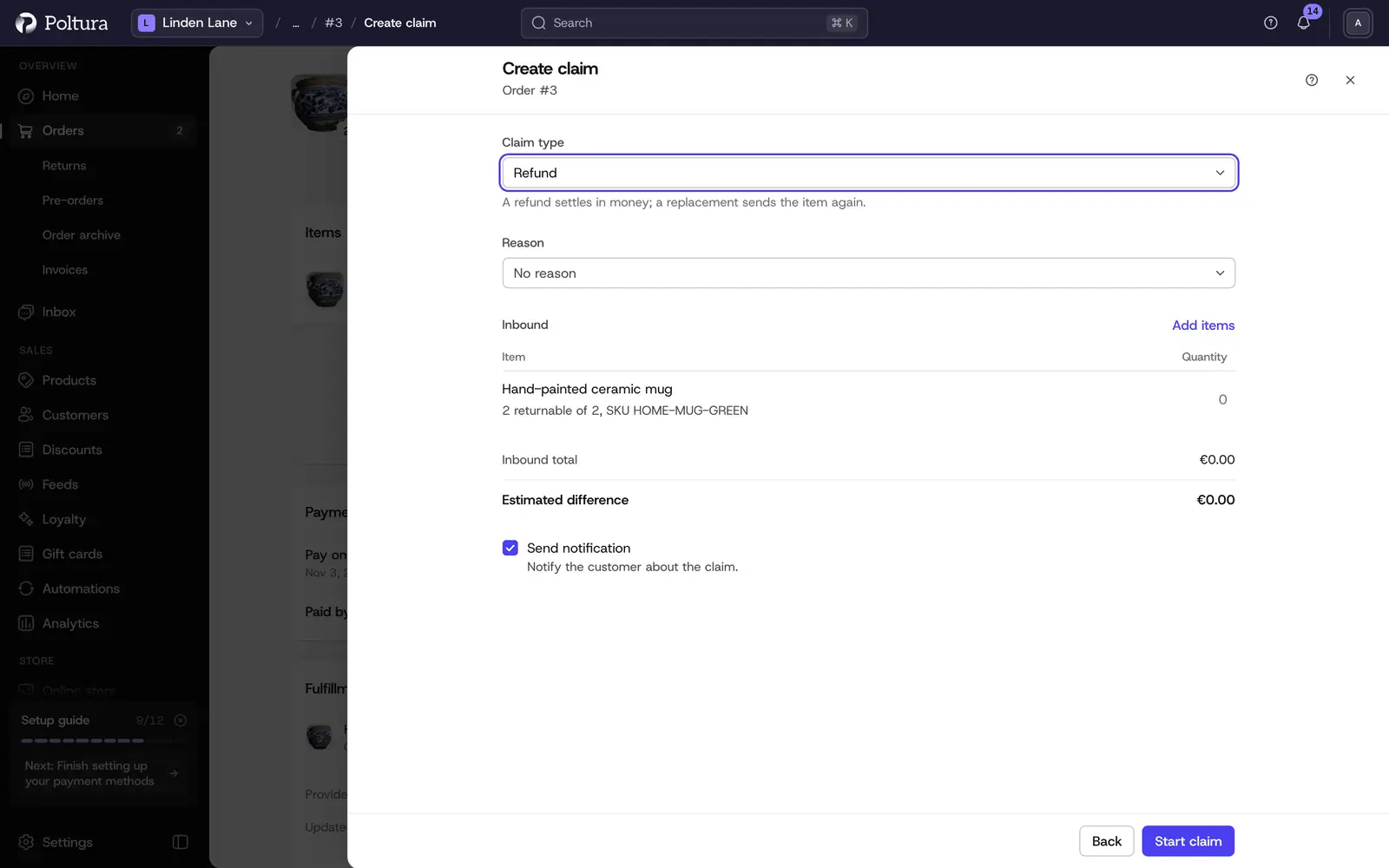
Select Start claim.
Choose a Reason and pick the items the claim is about.
For a replacement, select Add items under Outbound and choose what you send to the customer.
Check the totals and select Confirm Claim.
The claim is listed in Returns & exchanges.
Create an exchange
Open the order and go to Returns & exchanges.
Select Create exchange, then Start exchange.
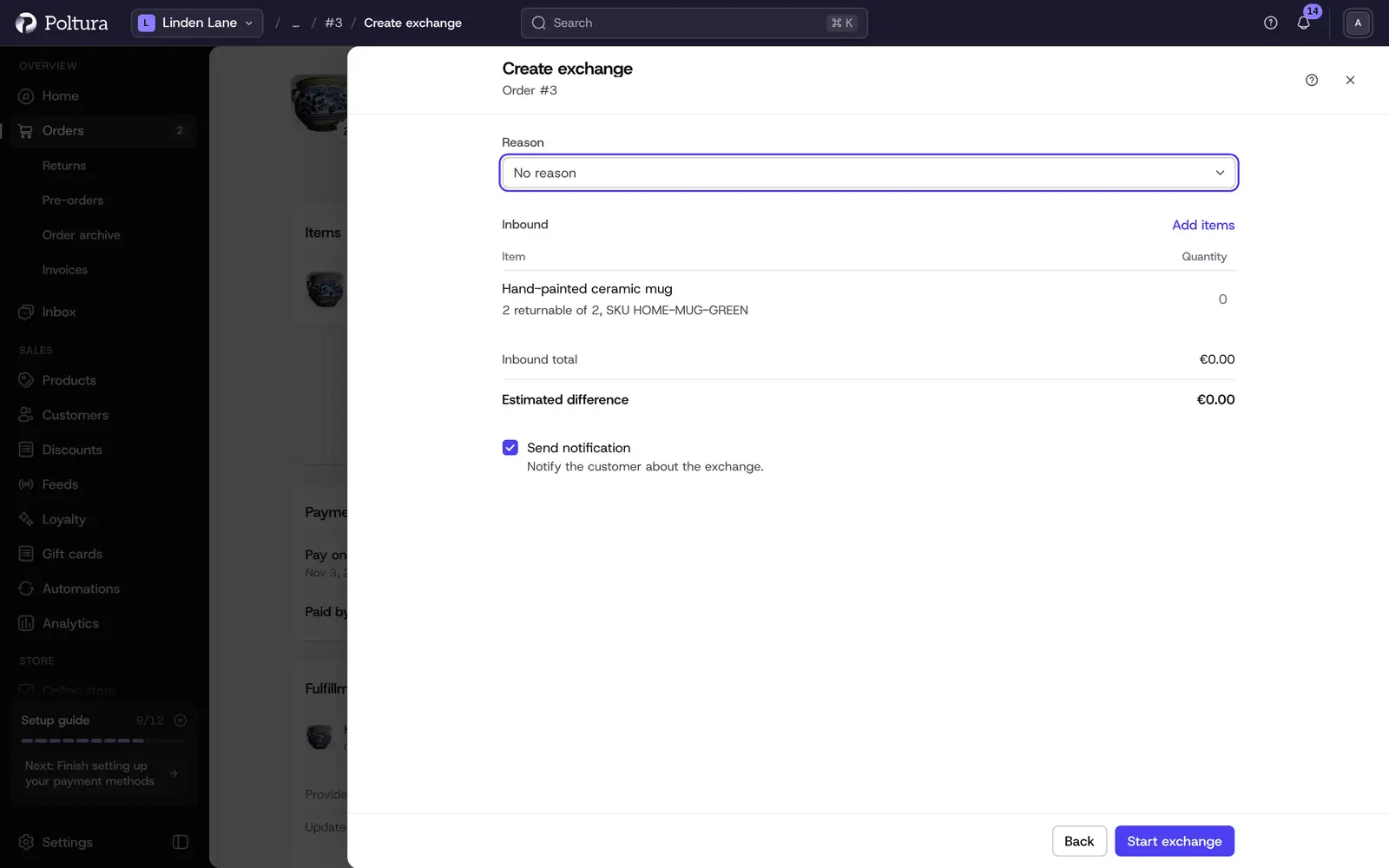
Choose a Reason and pick the items that come back.
Select Add items under Outbound and choose the items you send in their place. An exchange cannot be requested until something goes out.
Check Inbound total, Outbound total and Estimated difference.
Select Confirm Exchange.
The exchange is listed in Returns & exchanges. The items you send out appear under Unfulfilled Items, ready to be fulfilled.
Cancel a return, claim or exchange
Select Cancel on its row in Returns & exchanges and confirm. A return that has been received can no longer be canceled. A draft that was not requested yet is dropped with Discard on its own panel.
Good to know
- A confirmed return, claim or exchange cannot be undone, only canceled while nothing has been received.
- You cannot return more of an item than was fulfilled, less what is already on its way back.
- The reason menu lists up to 100 reasons.
- If no return shipping option exists, the panel says "No return shipping options found". Return shipping options are created under Locations and shipping, which is a developer mode page. A return works without one.
- Items that go back to a marketplace's warehouse add nothing to your own stock.
- Return labels are not created in Poltura.
If something goes wrong
- The three buttons are disabled. Another change is open on the order, nothing is fulfilled yet, or the order is canceled. The reason is written under the buttons.
- "That is more than this order has left." Lower the quantity.
- Confirm Exchange is disabled. Add at least one item under Outbound.