By default every order gets a plain serial number. On the Order numbers page you can give your orders a number of your own design, for example WEB-2026-00042. The number appears in the admin, in customer emails, on invoices, in courier references and in notifications.
This is useful when you move to Poltura from another system and want to continue your numbering, or when your accountant asks for a number that restarts every year.
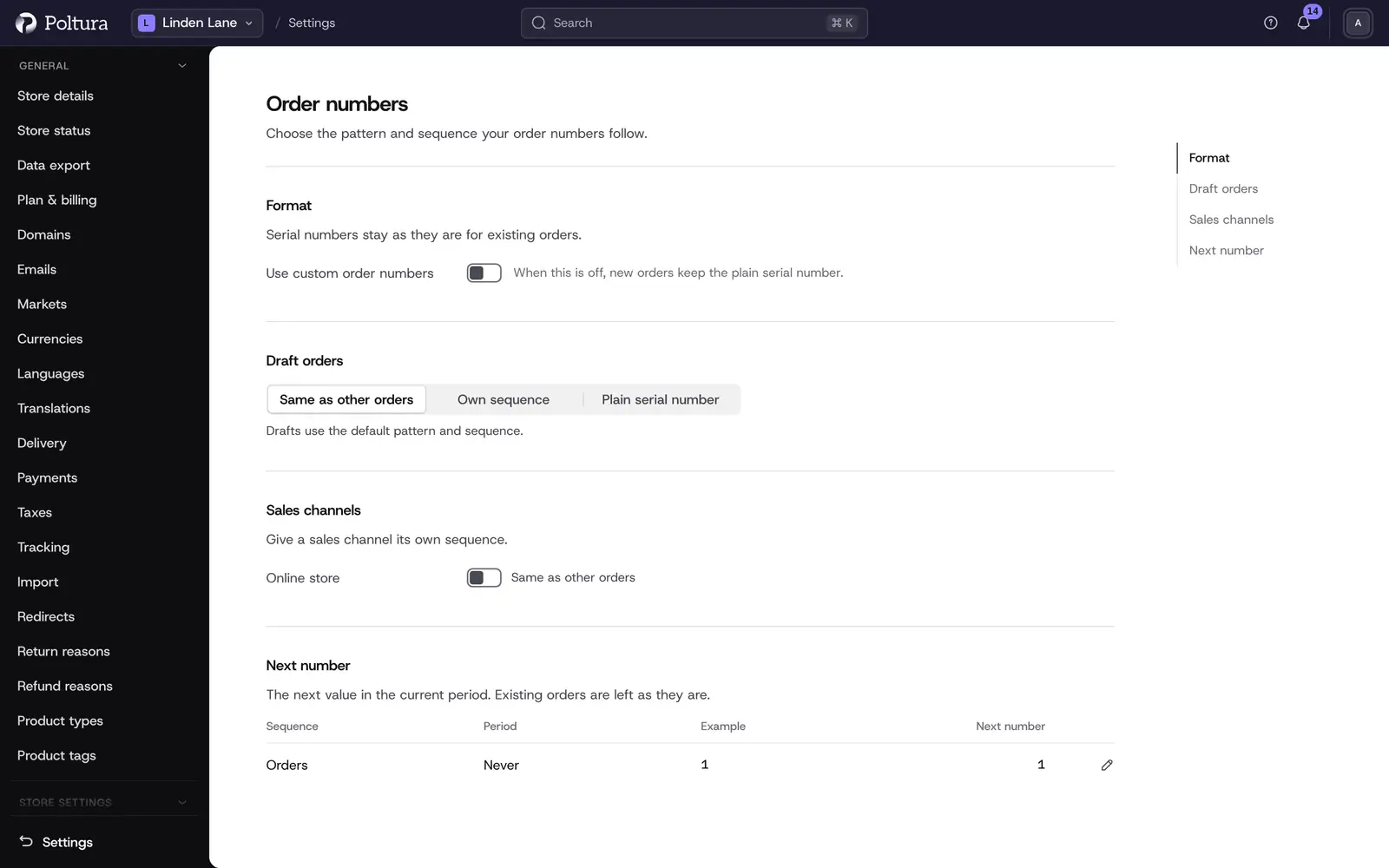
Set up custom order numbers
Open Settings and choose Order numbers under Store settings.
Switch on Use custom order numbers.
Enter the Pattern, for example
WEB-{yyyy}-{number}. See the tokens below.Set Padding: the minimum number of digits of the number. With 5, the number 42 is written as 00042. With 0 nothing is added.
Set Start: the first value of a fresh sequence.
Set Step: how much the number grows with each order.
Choose Reset: Never, Yearly, Monthly or Daily.
Choose the Timezone that the date tokens and the reset follow.
Check the Example to see what the next number looks like.
Select Save. The page confirms with Settings saved, and the next order gets a number in the new pattern.
Pattern tokens
The pattern is free text with tokens in curly brackets. Each token is replaced when the order is placed.
| Token | Replaced with |
|---|---|
{number} | The running number. It has to be in the pattern exactly once. |
{yyyy} | The year with four digits, for example 2026. |
{yy} | The year with two digits, for example 26. |
{mm} | The month with two digits. |
{dd} | The day with two digits. |
Examples: WEB-{yyyy}-{number}, {yy}{mm}-{number}, ORD{number}.
Draft orders
Under Draft orders choose how drafts are numbered:
- Same as other orders: drafts use the default pattern and sequence.
- Own sequence: drafts get their own pattern and sequence.
- Plain serial number: drafts keep the plain serial number.
A separate sequence for a sales channel
Under Sales channels you can give a sales channel its Own sequence with its own pattern. Orders from that channel then count separately from the rest. Use a different pattern for each sequence, for example a different prefix.
Set the next number
Under Next number you see the current Period and the next value in it.
Enter the number the next order should get under Next number.
Select Set.
The next order placed in this period gets that number.
Use this when you continue the numbering of a previous system.
Good to know
- Existing orders keep the number they have. A change only affects orders placed after you save.
- When Use custom order numbers is off, new orders get the plain serial number.
- A pattern can be at most 64 characters long.
- Padding is a whole number from 0 to 12, Start at least 1, Step from 1 to 1000.
- With a reset, the count starts again from Start at the beginning of each year, month or day in the chosen time zone. Put the matching date token in the pattern, for example
{yyyy}for a yearly reset, so that numbers stay unique. - A new sequence starts in the time zone of the store. See time zone.
- Returns have their own numbers. See Return numbers.
If something goes wrong
- "The pattern must contain {number} exactly once." Add
{number}to the pattern, or remove the second one. - "That token is not recognised." Only the five tokens above work. Check the spelling and the brackets.
- "The pattern has a character that is not allowed." Besides tokens, a pattern can hold unaccented letters, digits, spaces and the characters
-,_,/,.and#. - "Two sequences share the same pattern." Give the sales channel or the draft sequence a different pattern.
- "This counter no longer exists." A new period has started. Reload the page and set the number again.