Every return has a number that you and the customer use to refer to it. By default it is a plain number that starts with R-. On the Return numbers page you can choose your own pattern, for example RET-2026-0042, or tie the number to the order, for example 1055-R1.
The number appears in the returns list, on the return and in the emails the customer gets.
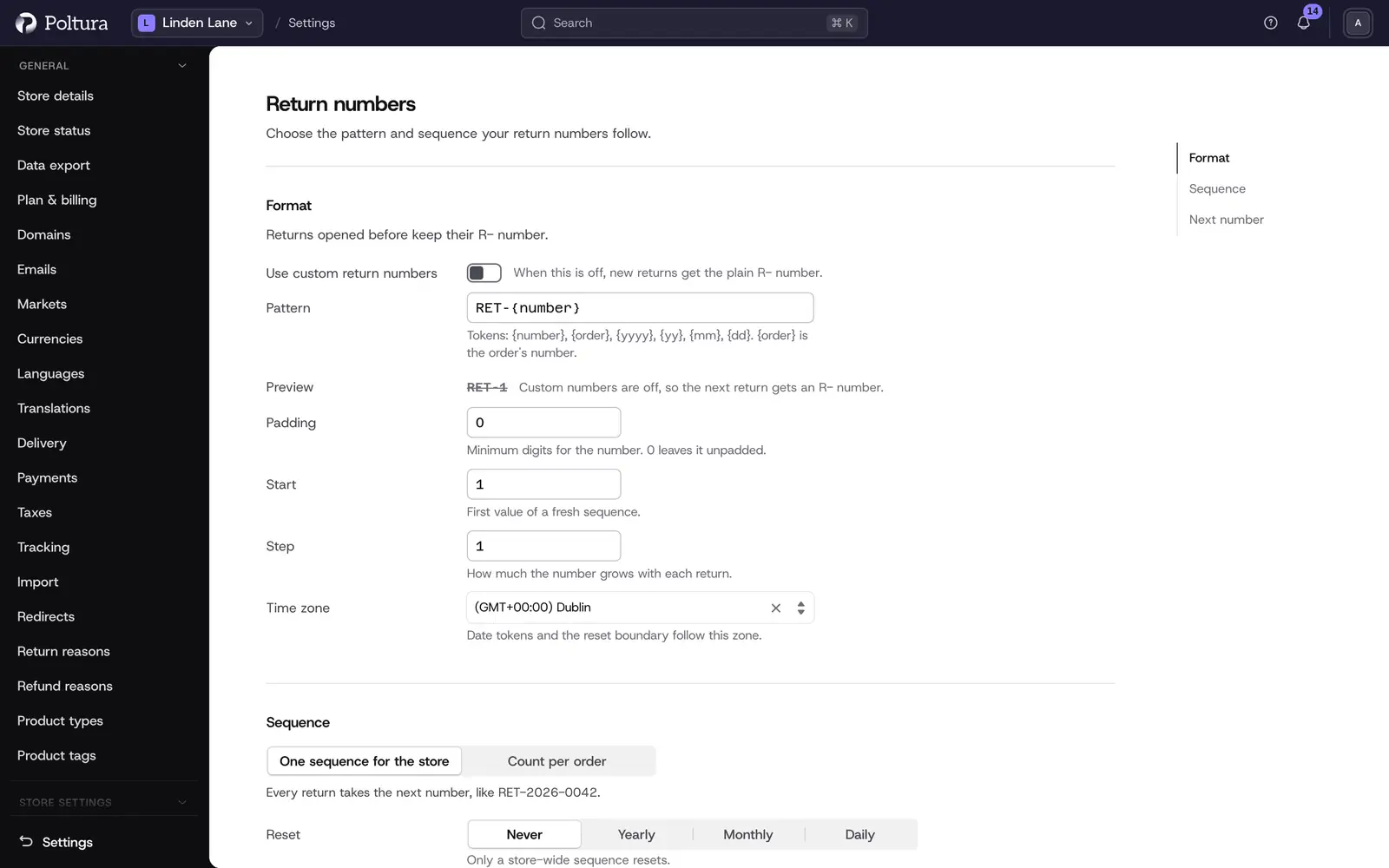
Set up custom return numbers
Open Settings and choose Return numbers under Store settings.
Switch on Use custom return numbers.
Enter the Pattern, for example
RET-{yyyy}-{number}. See the tokens below.Under Sequence, choose One sequence for the store or Count per order.
Set Padding: the minimum number of digits of the number. With 4, the number 42 is written as 0042.
Set Start, the first value of a fresh sequence, and Step, how much the number grows with each return.
For a store-wide sequence choose Reset: Never, Yearly, Monthly or Daily.
Choose the Time zone that the date tokens and the reset follow.
Check the Preview. It shows the number of the next return.
Select Save. The page confirms with Return numbers saved.
Pattern tokens
| Token | Replaced with |
|---|---|
{number} | The running number. It has to be in the pattern exactly once. |
{order} | The number of the order the return belongs to. |
{yyyy}, {yy} | The year with four or two digits. |
{mm}, {dd} | The month and the day with two digits. |
One sequence or a count per order
- One sequence for the store: every return takes the next number, like
RET-2026-0042. You can set the next number and a reset. - Count per order: each order numbers its own returns from Start. The pattern has to contain
{order}, like{order}-R{number}. The first return of order 1055 is then1055-R1. There is no store-wide counter and no reset.
Set the next number
This works with a store-wide sequence.
Under Next number, find the current Period.
Enter the number the next return should get.
Select Set. The page confirms with Next number set.
Good to know
- Returns opened before you switched custom numbers on keep their
R-number. Search in the returns list finds both kinds. - When Use custom return numbers is off, new returns get the plain
R-number. - A number that is already in use is skipped, so two returns never share one.
- If a number cannot be given for any reason, the return is still created and shows its
R-number. - A sequence that resets needs the date tokens of its period in the pattern:
{yyyy}for yearly, the year and{mm}for monthly, and the day as well for daily. - A pattern can be at most 64 characters long. Padding is a whole number from 0 to 12, Start at least 1, Step from 1 to 1000.
- A store that never saved a pattern is offered the store's own time zone. See time zone.
- Orders have their own numbering. See Order numbers.
If something goes wrong
- "The pattern must contain {number} exactly once." Add
{number}, or remove the second one. - "A per-order sequence needs {order} in the pattern." Add
{order}to the pattern or choose One sequence for the store. - "A sequence that resets needs its period's date tokens." Add the date token, for example
{yyyy}, or set Reset to Never. - "That token is not recognised." Only the tokens in the table work. Check the spelling and the brackets.
- "Fix the pattern to see a preview." The pattern has an error. The message under the field says which.