The page of an order holds everything about one purchase: what was bought, what was paid, what was shipped, who the customer is and what happened so far. Every action on an order starts here.
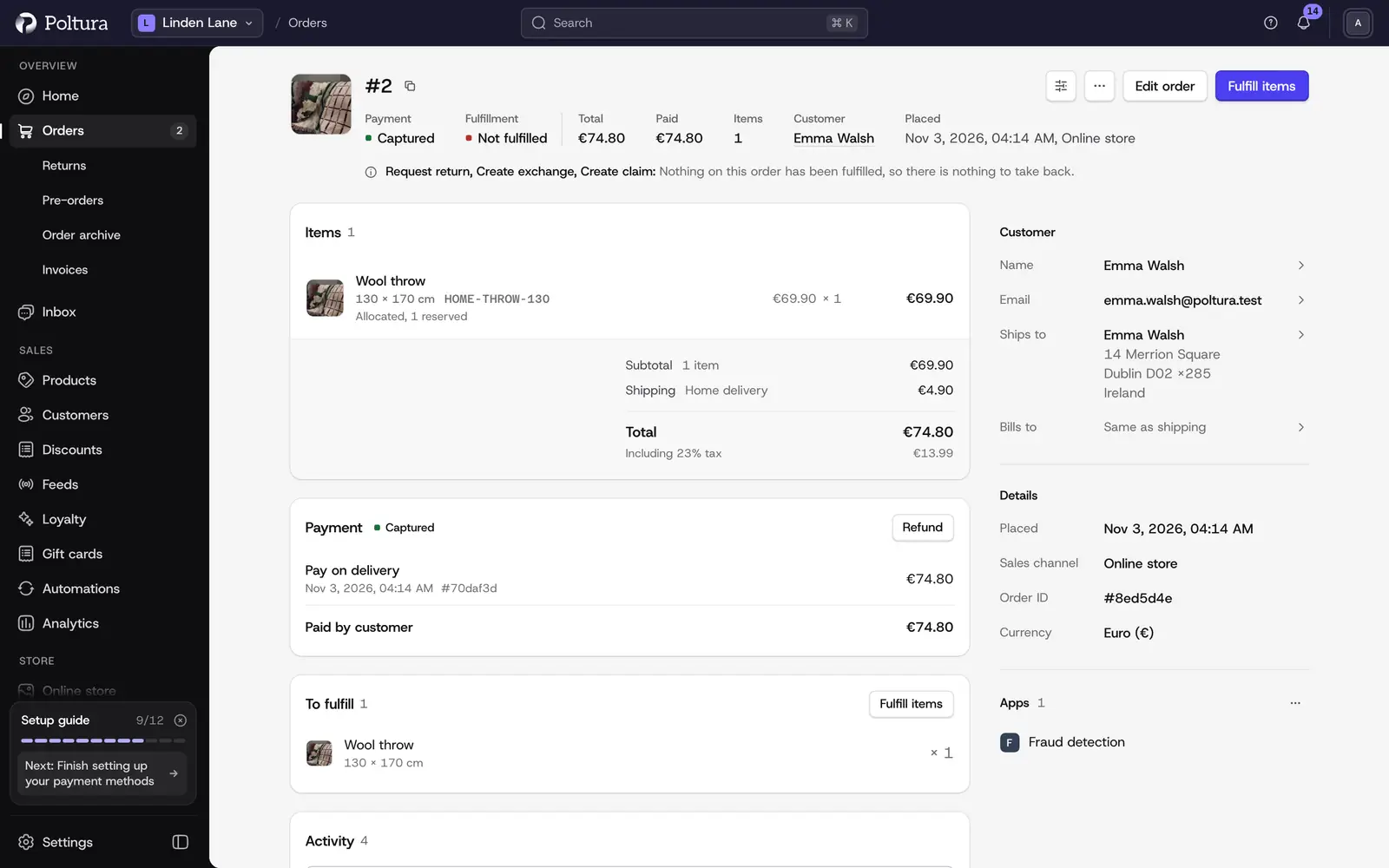
Open an order
Open Orders.
Click the order, then press
Enter, or open it from the preview beside the list.The page opens with the order number as its title.
What the page shows
The header carries the order number with a copy button, when the order was placed and on which sales channel, and the status pills: the payment status, the fulfillment status and, for a canceled order, Canceled.
Under the header a strip sums up the order: Order Total, Items, Paid Total, Outstanding amount and Customer. An outstanding amount above zero is highlighted, because the customer still owes it.
The sections below:
- Summary: the items with quantities and prices, then Item Subtotal, Shipping Subtotal, Tax Total, Order Total, Discount Total with the codes used, Total After Discount, Paid Total and Outstanding amount. The buttons to edit the order, receive returned items and mark the order as paid are here.
- Payments: each payment with its provider, status and amount, the refunds made from it, and Total paid by customer. See Payments and refunds.
- Fulfillment: Unfulfilled Items that still wait to be sent, and one block per fulfillment with its items, provider and tracking. See Fulfill and ship.
- Customer: name, email, phone, company, shipping address and billing address, each with a copy button. A customer without an account is marked Guest. See Edit an order.
- Returns & exchanges: the returns, claims and exchanges of the order. See Returns, claims and exchanges on an order.
- Details: Placed, Sales Channel, Order ID and currency.
- Emails: the emails sent about this order. See Emails.
- Activity: the history of the order with your team's comments. See Comments and mentions.
Installed apps add their own panels, for example invoices, courier parcels or a fraud review.
Statuses
- Payment: Not paid, Awaiting, Authorized, Partially authorized, Captured, Partially captured, Partially refunded, Refunded, Canceled, Requires action.
- Fulfillment: Not fulfilled, Partially fulfilled, Fulfilled, Partially shipped, Shipped, Partially delivered, Delivered, Canceled. An order sent out by a marketplace from its own warehouse shows Shipped by the marketplace.
A change that is open
A return, claim, exchange, order edit or transfer that was started but not finished shows as a notice at the top of the page with a Continue button. Only one such change can be open at a time. Until you finish or discard it, the buttons that would start another one are disabled and say why.
Cancel an order
Open the order.
Cancel every fulfillment first, if there are any. See cancel a fulfillment.
Select Cancel order in the header.
Type the order number into the field to confirm.
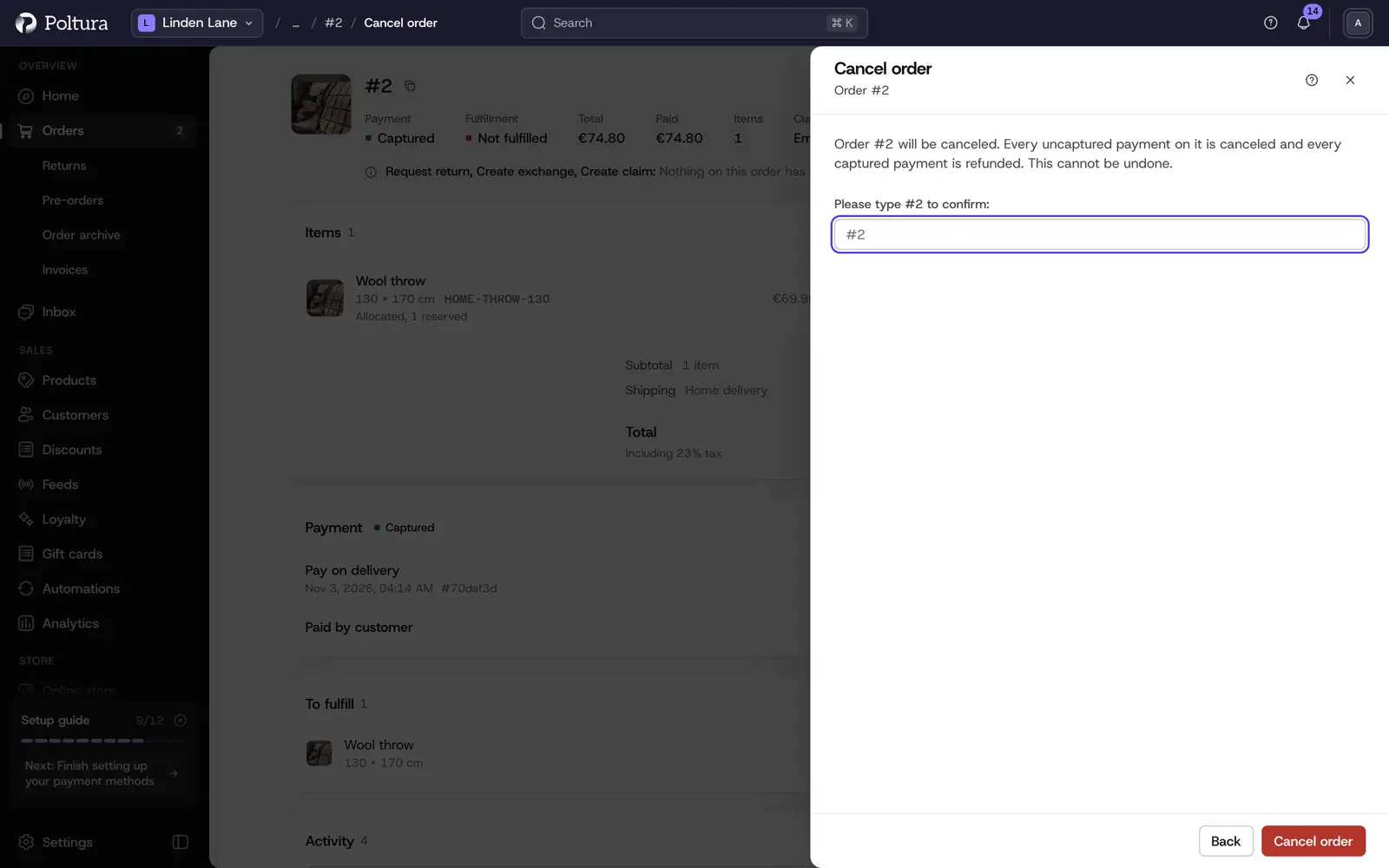
Select Cancel order. The order now shows the Canceled status.
Edit the order's custom data
Custom data is a list of key and value pairs stored on the order. Integrations use it, for example to keep the order's reference from another system. Customers do not see it.
Open the order.
Open the menu of the Customer section and select Metadata.
In Edit custom data, type a Key and a Value in the empty row, or change an existing row. Select Add row for another row and Delete row to remove one.
Select Save. The panel closes and the order page is shown again.
A row with no key is ignored, and removing a row deletes its key when you save. Rows marked API hold lists or objects and can only be edited through the API. An order holds up to 500 rows.
Arrange the page
Open an order and select the layout button in the header.
Drag the sections into the order you want, or hide the ones you do not use.
Keep the layout for yourself, or choose Save for everyone to make it the default for the team.
The header and the summary strip always stay on top.
Good to know
- The page updates on its own when the order changes, for example when a payment arrives.
- A disabled button always has its reason written next to it.
- A completed order cannot be canceled. Use a return to refund or exchange it.
If something goes wrong
- "That order could not be found". The order belongs to another store or was removed. Check the store switcher at the top.
- Cancel order is disabled. The order still has a fulfillment that is not canceled, or it is already canceled or completed.