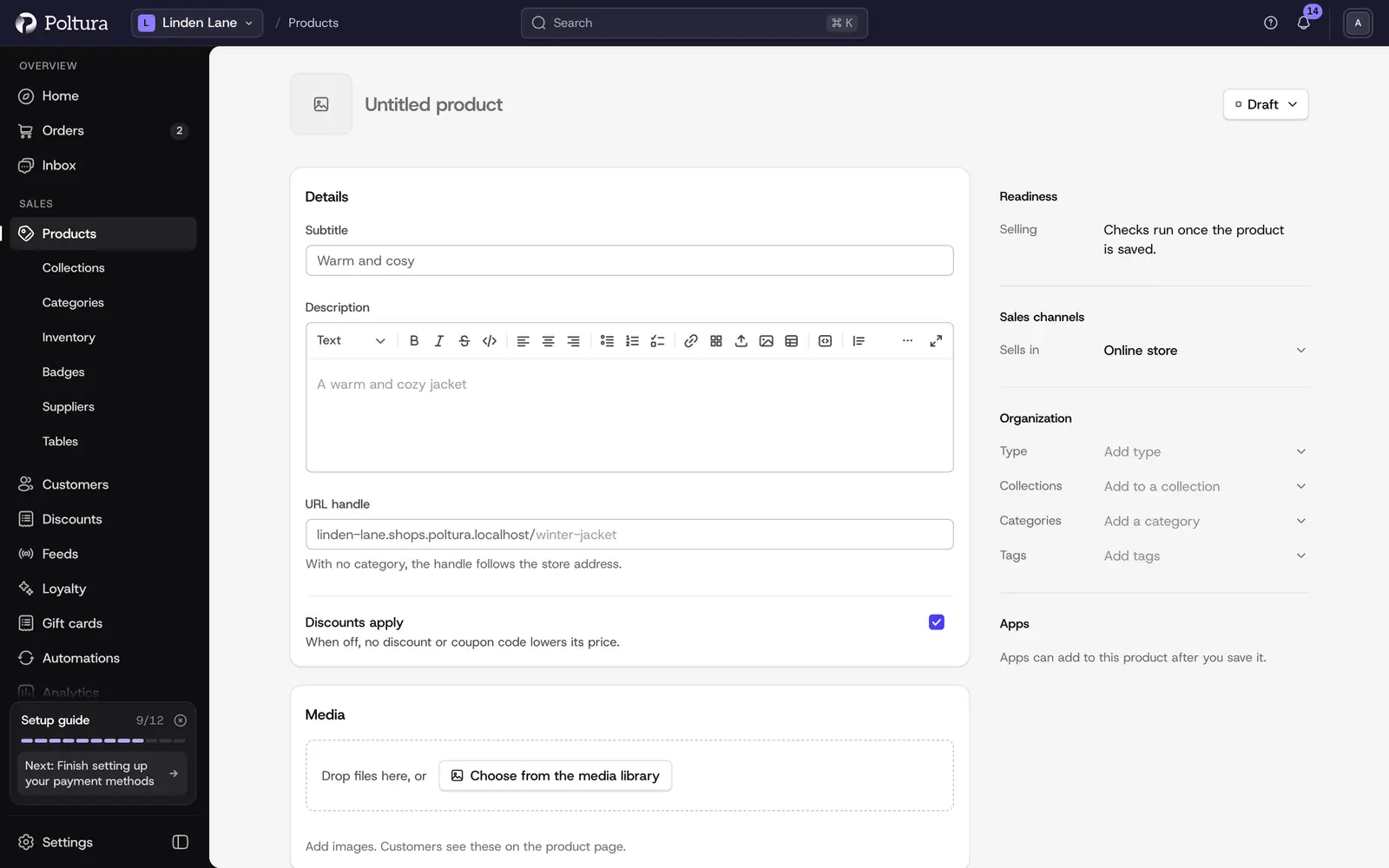
A new product starts on an empty product page. It has the same layout as the page of a saved product, so you fill it in where you will later edit it. Only the title is required. Everything else can wait until after the first save.
Before you start
- Prices are entered per currency. Set up your currencies first, otherwise there is nothing to price in.
- Stock quantities are entered per location. See Stock per location.
Create a product
Open Products and select Create. A new product page opens, ready for the title.
Type the product title at the top of the page. This is the name customers see in your store.
Fill in anything else you already know. Details holds the description, Media the product images (see Images and media), Pricing one price per store currency and Inventory the stock at each location. The weight and customs data are under Additional settings, in Delivery group.
On the right, check Sales channels. Your store's default channel is already selected. Under Organization, pick the type, categories, collections and tags.
The status next to the title is Draft. Leave it, so customers do not see the product yet, or choose Published to sell it right away.
Select Save in the bar at the bottom. The product is created, and the page carries on as its product page.
Discard leaves the page without creating anything. If you have typed something, you are asked to confirm first.
The Readiness and Apps sections stay empty until the first save, because there is no product to check or extend before that.
Create a product with several versions
If you sell the product in more than one size, color or similar, add options while you create it.
On the new product page, go to Versions and select Add options.
Enter the Option title, for example Color, and its values under Variations (comma-separated), for example Red, Blue, Green.
Select Add option for each further option, such as Size.
A table appears with one row per combination. Enter the price of each version in each column and, if you use them, its SKU.
Select Save.
When a product has options, the Pricing card disappears, because each version carries its own price in the table.
Good to know
- A product can have up to 5 options, each with up to 50 values, and up to 200 versions.
- A new product is saved as Draft unless you choose Published next to the title. You can publish it later from the product page.
- A currency set to Converted under Currencies takes its prices from your store currency. In a manual currency, a version with no price cannot be sold.
- The choice of delivery group itself only appears when your store has more than one delivery group.
- In developer mode the page also offers a subtitle, a handle, the discountable switch and inventory kits.
- New products count toward the product limit of your plan. See Plan and billing.
If something goes wrong
- "Add a title to save this product." The title is empty. Type one at the top of the page and save again.
- "SKU must be unique." Two versions on the page share a SKU. Give each its own.
- "Another product in this store already uses that value." The handle or SKU exists on another product. Change it and save again.
- "Product saved, but its stock could not be. Set quantities under Inventory." The product exists, only the quantities are missing. Enter them under Inventory.
- A message about your plan appears instead of saving. The store has reached its product limit. See Plan and billing.