Product images are shown on the product page of your store. One of them is the thumbnail, used in lists and search results. Each version can show its own selection of the product's images, so choosing Red shows the red product.
Before you start
- Supported formats: JPEG, PNG, WebP, GIF and AVIF. SVG files are not accepted.
- You can upload up to 5 files at a time, each up to 10 MB.
- Product videos are not supported.
Upload images
Open the product and find Media.
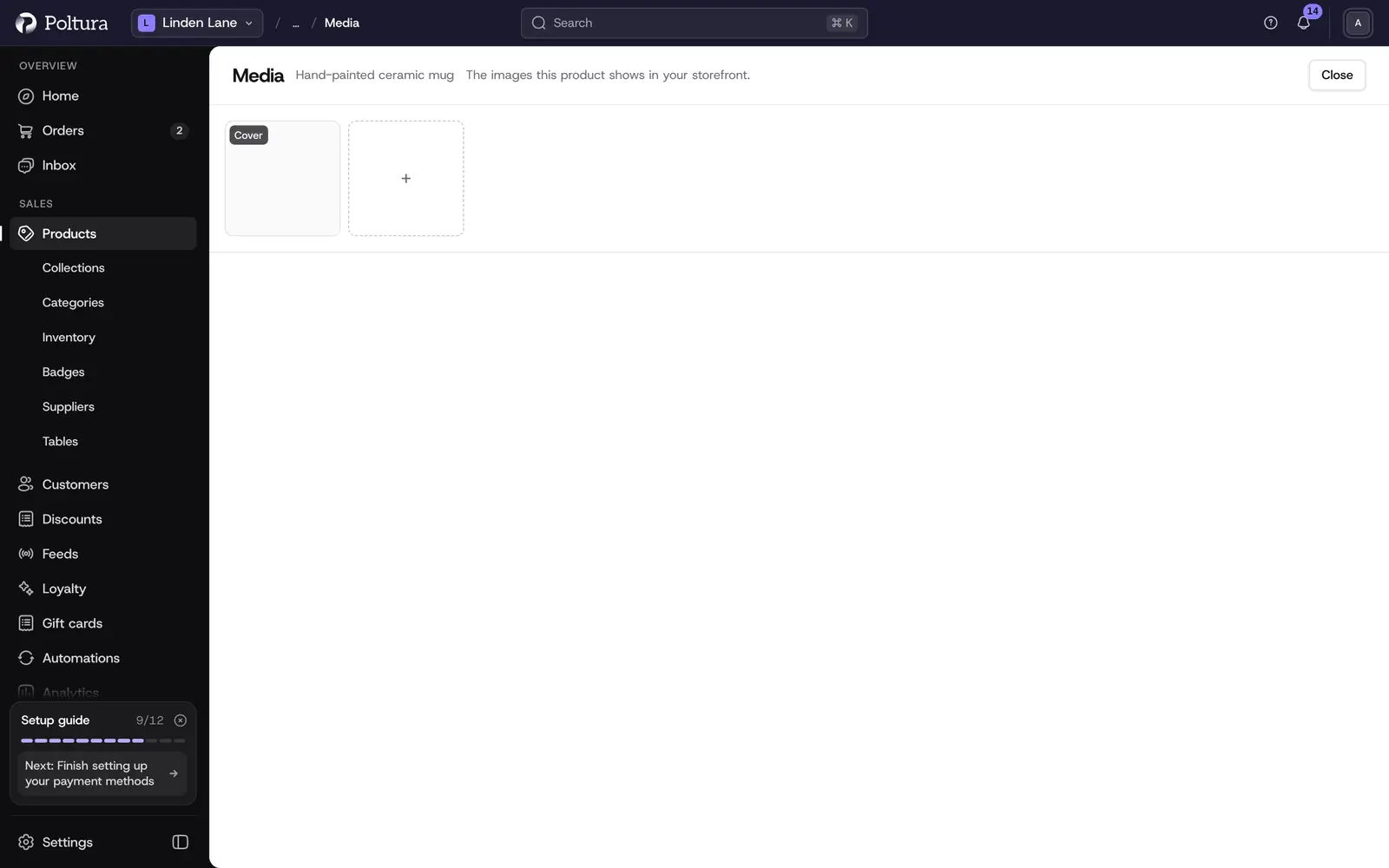
Open the section menu and select Edit images. On a product with no images yet, select Upload new.
Under Add images, choose the files or drag them in.
Select Upload. The images appear in the grid below and the page says Saved.
You can also add images while you create a product, under Media.
Change the order
The order of the grid is the order of the gallery in your store.
Open Media for editing as above.
Drag an image to its new place. With the keyboard, focus an image and use the left and right arrow keys.
Select Save to keep the new order.
Choose the thumbnail
Open Media for editing.
Select Make thumbnail on the image you want. You can also tick the image and press
t.The image now carries the thumbnail mark.
If you see the note "This product's thumbnail is not one of the images below", the thumbnail points at an image that is no longer in the gallery. Pick a new thumbnail to fix it.
Link images to versions
Open Media for editing.
Select Variants on an image, or tick the image and press
m. On the product page, the same action is called Manage associated variants.In Image variants, tick the versions that should show this image.
Select Save.
You can also work from the version: open a version, find Media, select Edit images and choose from the product's images. To give a version a new image, upload the image to the product first.
A version with no image of its own shows the product's images.
Delete an image
Open Media for editing.
Select Delete on the image, or tick one or more images and press
d.Confirm. For a single image, tick Yes, delete this image and select Delete.
If you delete the thumbnail, choose a new one afterwards.
Good to know
- Selecting an image on the product page opens it in a gallery view where you can step through all images.
- Images are the same in every language of your store.
- Categories have their own images, see Categories. Collections have no image.
- The share image shown when someone posts a product link is generated from your theme, see SEO and sharing.
If something goes wrong
- "That file is not an image this store can serve." The format is not supported. Convert the file to JPEG, PNG or WebP.
- "That file is larger than this screen sends." The file is over 10 MB. Reduce its size and upload again.
- "That is more files than this screen sends at once." Upload at most 5 files in one go.
- "That file's contents do not match the kind of image it claims to be." The file extension and the real format differ. Export the image again from your image editor.