Import and export move products in and out of your store as CSV files. Use them to add many products at once, to update existing ones in a spreadsheet, or to keep a copy of your catalog. A second pair of tools, Product details for feeds, handles barcodes and other feed data.
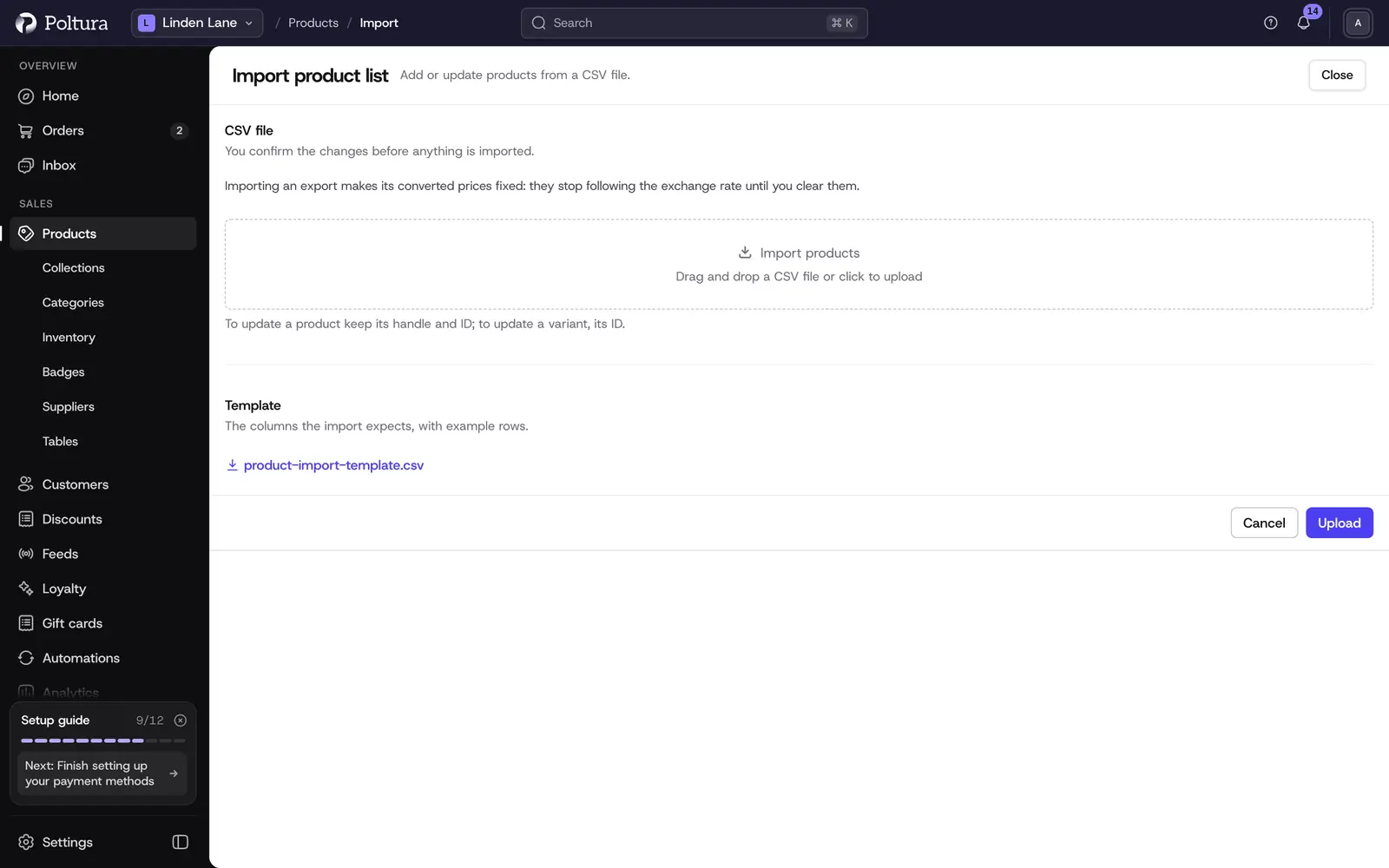
Import products
An import always starts with a check. Nothing changes in your store until you confirm.
Open Products and select Import.
Under Template, download the template file and fill it in, or prepare your own file with the same columns.
Under CSV file, drop the file into Import products or click to choose it, then select Upload.
Check the summary: the number next to Products will be created and the number next to Products will be updated.
Select Import to go ahead, or Cancel to stop without changing anything.
The page confirms with We are processing your import. The import runs in the background and you get a notification in the admin when it is done.
To update products that already exist, keep their existing handle and ID in the file. To update existing versions, keep their ID. The safest way is to export first, edit the exported file and import it again.
Export products
Open Products.
Narrow the list with search and filters if you only want part of the catalog. The export uses the filters of the list.
Select Export.
Check the filters listed under Filters. With no filter, every product in the store is exported.
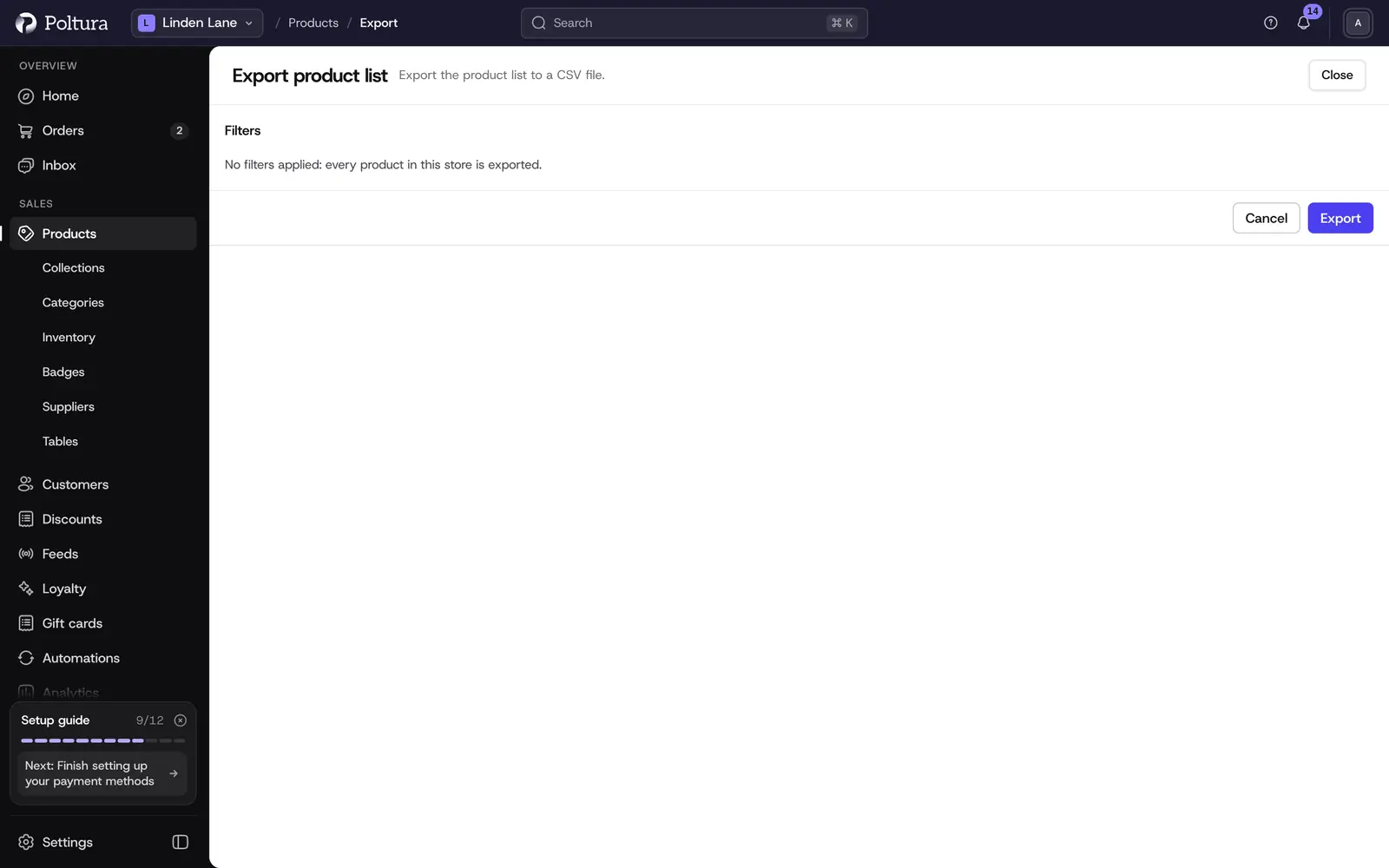
Select Export. The page confirms with We are processing your export.
When the file is ready, a notification in the admin gives you the CSV file to download.
Export and import product details for feeds
Price comparison sites and marketplaces need extra details: barcodes, condition, dispatch time, unit pricing and product safety data. You can edit them for many products in one spreadsheet, with one row per version.
Open Products, open Product details for feeds and select Export product details for feeds.
Check Products in the file. It is either every product in your store or the products your list shows now.
Select Download CSV and edit the file in a spreadsheet.
Back on Products, open Product details for feeds and select Import product details for feeds.
Drop the file in or click to choose it, then select Check file.
Read the preview. Changes lists every value that will change. Problems to fix in the file lists the rows that will be left alone.
Select Apply changes to … products. The page then says how many products were saved.
A column you leave out of the file stays as it is. An empty cell clears that detail.
Good to know
- A product import file can be up to 10 MB and must be a CSV file.
- The template has columns for the product (such as
Product Title,Product Handle,Product Status), for each version (such asVariant Title,Variant SKU,Variant Barcode) and one price column per currency (such asVariant Price EUR). - A feed details file can be up to 10 MB and 20,000 rows. It needs the Product handle column so each row can be matched to a product, and the SKU of the version when a product has several versions.
- Imported products count toward the product limit of your plan. See Plan and billing.
- The file has no column for stock quantities. Those are managed under Inventory.
- If you are moving from another shop system, use Import. It reads your old shop or its own export files, so you do not need to reshape them into this format.
If something goes wrong
- "The store could not read that file. Check the column names against the template." A column name differs from the template. Download the template again and compare the first row.
- "Some barcodes in this file are not valid EAN or UPC codes". The message names the rows. Correct the barcodes or leave those cells empty, then upload the file again.
- "That import is no longer pending. Upload the file again." The checked file is no longer waiting for confirmation. Start the import again.
- "Your products changed after the check, so nothing was saved." Someone edited the products while you were reading the feed details preview. A new preview is shown, apply it again.
- Feed details: "This product has several variants, so the row needs its variant SKU." Add the SKU of the version to that row.