Import brings your products, customers, past orders and old links into the store you are working in. It takes five steps: Where from, Connect, Review, Importing and Done.
Your old shop is only read, never changed. Keep selling there while you build, and sync again until you switch.
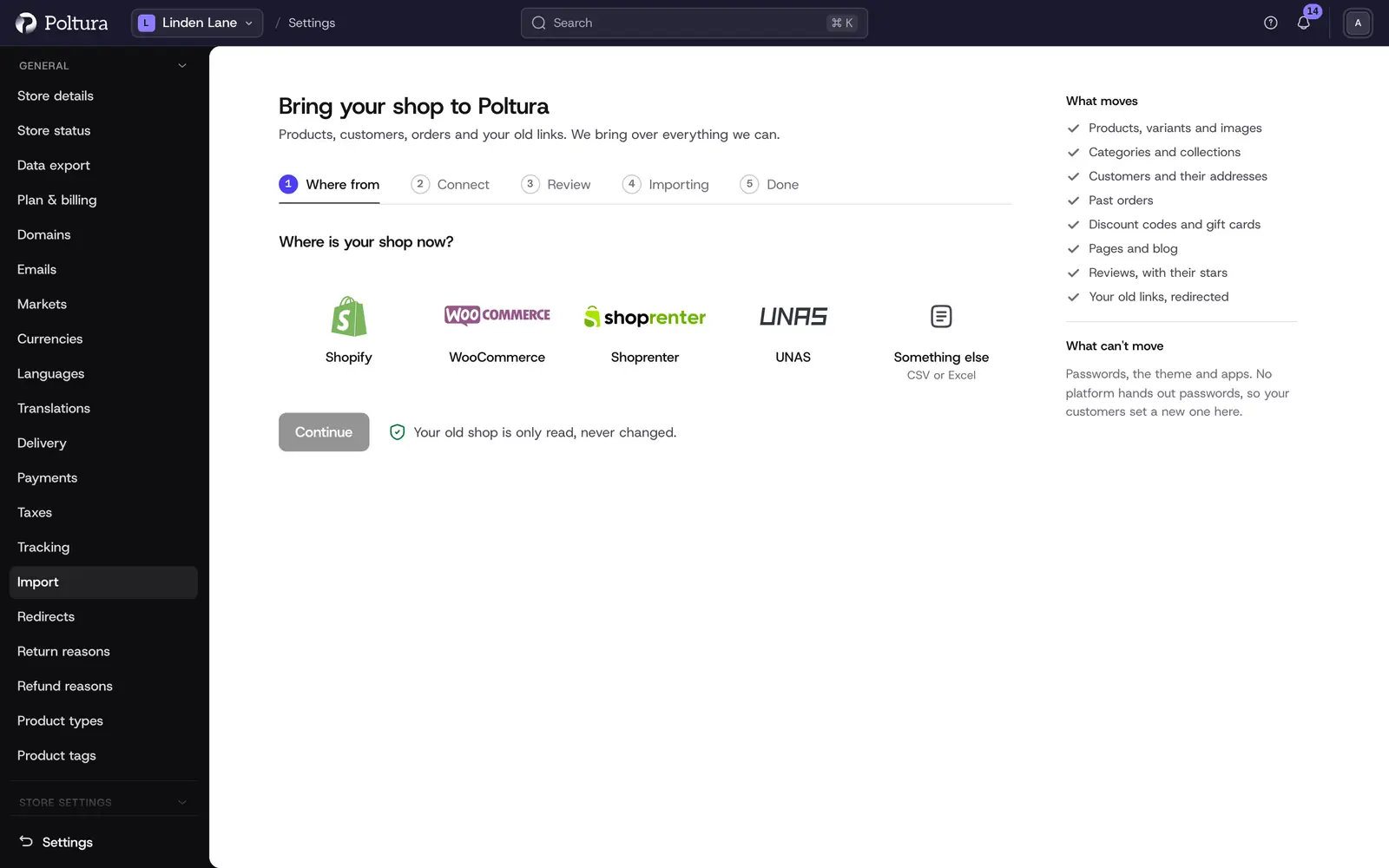
Choose where you are moving from
Open Settings and choose Import.
Pick your old shop. If you named it when you created the store, it comes first.
Stores in Hungary see Shoprenter, UNAS, Shopify and WooCommerce. Stores in other markets see Shopify, WooCommerce, Shoprenter and UNAS.
If your shop is not listed, or you only have spreadsheets, choose Something else (CSV or Excel). It is always last.
Connect your old shop
Each platform has its own way in. Files work for every platform.
Shoprenter
Sign in once:
Enter your shop address, your admin e-mail and your password.
If Shoprenter asks for a two-step code, type it in.
We download the product, customer and order exports for you.
Your password and the two-step code are never stored.
You can also drop the export files yourself. You need the products export (CSV or XLSX), the customers export and the orders export. See Import from Shoprenter.
UNAS
Paste an UNAS API key. UNAS gives API access on its Premium and VIP plans.
UNAS limits how much we may read per hour. A big shop imports in parts, and the screen shows when the next part starts.
Without API access, drop the exports instead:
- the product database (CSV);
- the customer export;
- the XML exports for orders, reviews, pages and coupons.
Product images come only with the API key. The product database has none. See Import from UNAS.
WooCommerce
Choose one:
- Type your shop address and approve read-only access in WordPress. Your shop needs HTTPS for this.
- Paste a read-only REST API key: the consumer key and the consumer secret.
Or drop the files: the WooCommerce product CSV export, and the WordPress export (Tools → Export) for your pages and posts. See Import from WooCommerce.
Shopify
Drop Shopify's exports:
- the products CSV;
- the customers CSV;
- the orders CSV.
See Import from Shopify.
Something else: CSV or Excel
Drop any CSV, TSV or XLSX file. We match the columns for you. You only check the ones we could not place, with a preview of the first rows.
From files you can bring products (variant rows are grouped into one product), categories, customers, redirects and past orders. See Import from a spreadsheet.
Review what to import
The Review step lists everything we found, and all of it is ticked. Untick what you do not want.
Store setup from your old shop is in the list too, and on by default: the currency and languages, and tax and shipping when your old shop has them.
Change what to import opens more choices:
- Filters, to bring only part of what was found: products by status and category, customers by who they are (everyone, those who ordered, newsletter subscribers), past orders by period and status, and only published pages.
- What happens when something already exists here:
- Keep my changes, add the rest (the default): what you changed here stays. Everything else arrives.
- Update from the old shop: fields are overwritten with the old shop's values. Nothing is deleted.
- Only add what's new: things that already exist here stay as they are. We only add what is missing.
- Products can arrive hidden, so you can check them before customers see them.
- Matching: which of the old shop's own fields become product attributes, and which customer tags become customer groups.
Newsletter subscribers
Subscriptions your old shop confirms arrive subscribed. The rest need your tick. With it you confirm that those customers agreed to receive your e-mails. Without the tick they arrive unsubscribed.
What arrives where
- Past orders go to a read-only archive under Order archive. No shipments start, no e-mails go out and stock does not move.
- Old links: your old product, category, page and post addresses become redirects, so old links and search results keep working.
While it imports
The Importing step shows the progress. You can leave the page. The import keeps running.
When it is done
The Done step shows:
- the totals of what arrived;
- anything that needs you, with a fix next to it;
- a report you can download as CSV.
Sync again brings over what changed in your old shop since the last run, and shows only what changed. Your edits here stay. Records changed both here and in your old shop are listed with Review, where you choose the version that stays for each. Products that disappeared from the old shop are listed too, and Hide them hides them in one click. Nothing is ever deleted.
When you have switched for good, choose Finish moving. It deletes the saved keys and our copy of your old shop's data, and dates the move. Your redirects and everything you imported stay.
In the same step you can tick Invite my customers to set a password. Poltura then emails the customers it brought, in small batches spread over time. You can preview the email first, and nothing is sent unless you tick it.
What cannot move
- Customer passwords. No platform hands them out, so your customers set a new one.
- Your theme. Pick one of the eight themes in the Theme store and make it yours in the customizer.
- Apps. Install the ones you need from the App Store.
If something goes wrong
- Shoprenter sign-in fails. Check the shop address, the e-mail and the password, and try again. Or drop the export files instead.
- The UNAS key is refused. Check that your UNAS plan includes API access. If it does not, drop the exports.
- WordPress approval does not start. Your shop needs HTTPS. Paste a read-only REST API key instead, or drop the files.
- Something still does not work. Contact Poltura support.