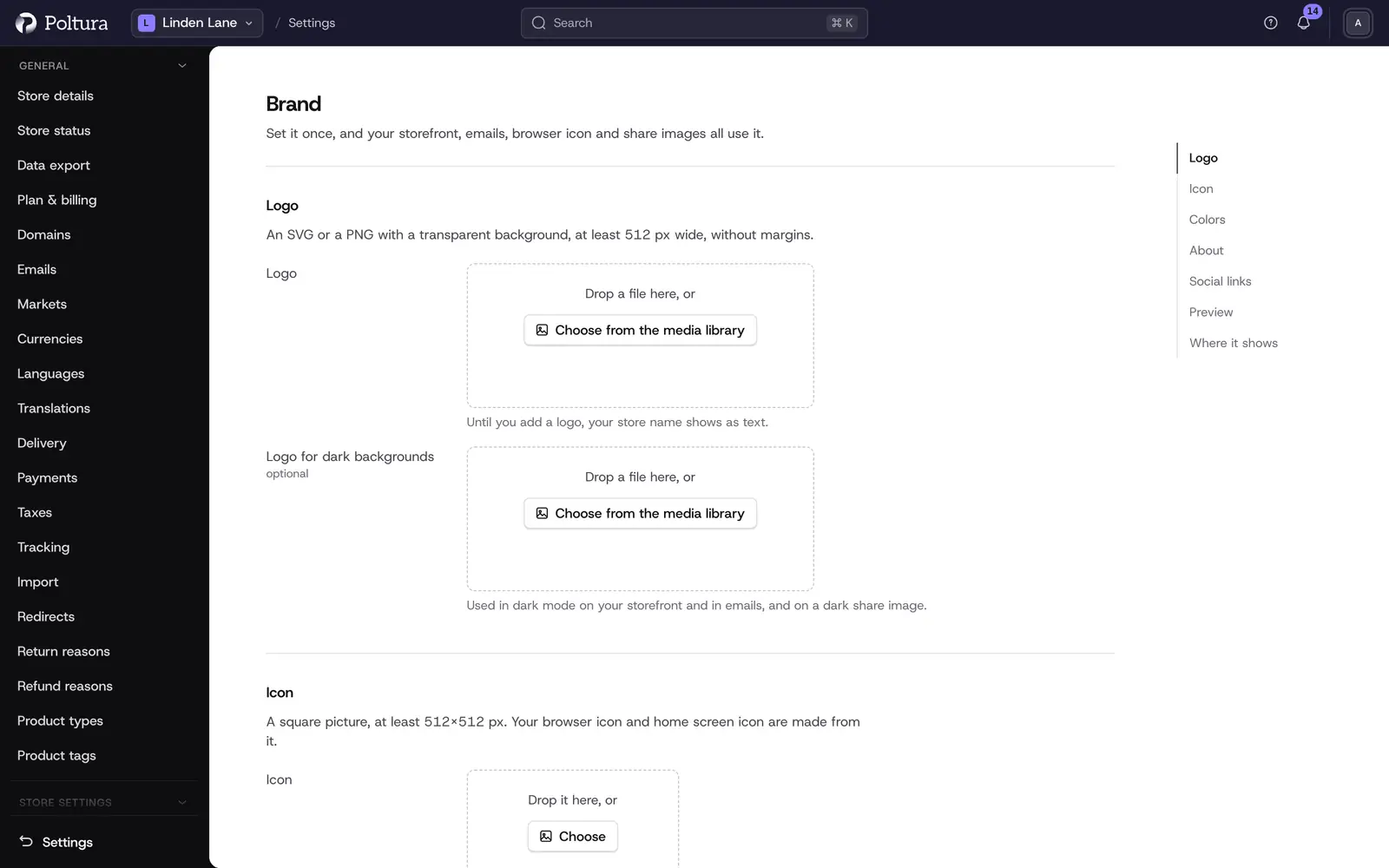
On the Brand page you set your store's look once. Your storefront, emails, browser icon and share images all use it. If you set something just for one place, such as another logo in a theme, that wins over the brand. You can switch it back in that place.
Before you start
- You need a role that can change store settings: Owner, Admin or Store manager.
- You choose pictures from Files. If they are not uploaded yet, you can upload them in the picker.
Set up your brand
Open Settings and choose Brand under Store settings.
Logo: choose an SVG or a PNG with a transparent background, at least 512 px wide. The Logo for dark backgrounds is optional. Your storefront and emails show it in dark mode, and so does a dark share image.
Icon: choose a square picture, at least 512×512 px. Your browser icon and home screen icon are made from it, in every size and uncropped.
Colors: set your primary and accent color. Themes and emails can start from them, and color pickers offer them first. Nothing is changed for you.
About: write your slogan (up to 80 characters) and short description (up to 150 characters). Use the language switch next to the fields to set them for each of your languages.
Social links: use Add a social link to choose a platform, then type your handle after the faint address. Pasting the full address works too.
Click Save.
Where it shows
The Where it shows list on the right tells you what each place uses now:
| Place | What it uses from your brand |
|---|---|
| Storefront | The logo in the header, the footer and the checkout. |
| Emails | The logo in notifications, newsletters and automations. |
| Browser icon | The icon on browser tabs, home screens and bookmarks. |
| Share image | The logo and slogan, when a page has no picture of its own. With a dark primary color and a logo for dark backgrounds, the image is drawn on the primary color with a bar of your accent color along its edge. |
| Assistant | The slogan, description and colors when it writes copy or builds themes. |
| Invoices | Your invoicing service puts the logo set in your account on invoices. |
Set a logo or icon from Files
In Files, a picture's details have a Brand block with Set as logo and Set as icon. Before anything changes you see the current and the new file side by side. Brand files appear as Brand: logo or Brand: icon under Where it's used, and you cannot delete them while the brand uses them.