A redirect sends a visitor who opens an old address to the new one, instead of showing a not-found page. Use redirects when a page moves or you rename a product or category. They also keep old links and search results working when you bring your shop from another platform. An import adds the redirects for your old product, category, page and post addresses by itself.
The Redirects page lists every redirect with its Old address, its New address, its Type, who added it (You or Import), how many Visits it had and when the last one was.
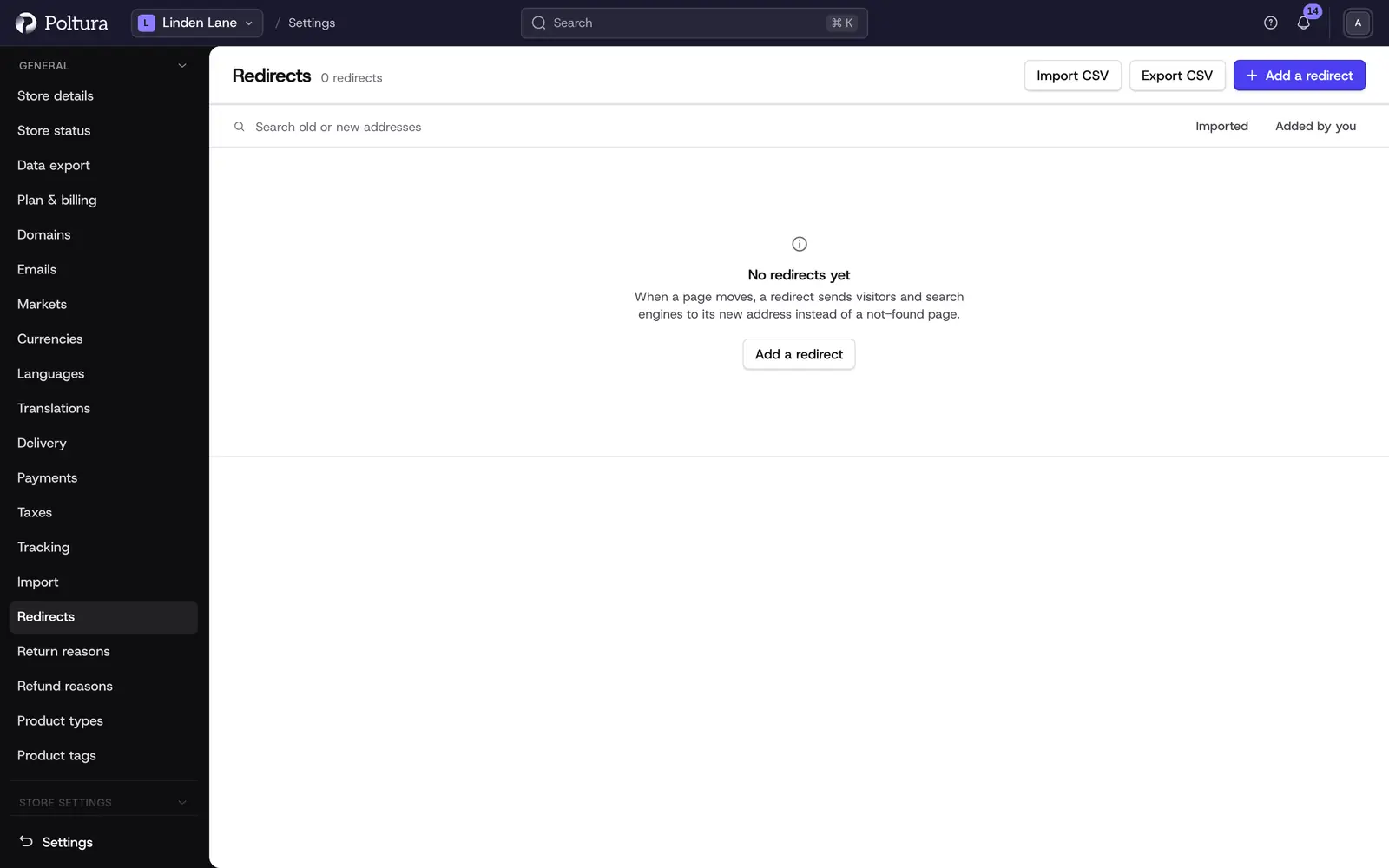
Add a redirect
Open Settings and choose Redirects.
Select Add a redirect.
Enter the Old address, the path people used to visit, for example
/old-page. Capital letters and a trailing slash do not matter. A full web address works too, but only its path is used.Enter the New address: a page of your shop like
/new-page, or a full web address.Choose the Redirect type. Permanent tells search engines to move to the new address. Temporary tells them to keep the old one.
Select Save.
Visitors in another language of your store are sent to the new address in their own language.
What cannot be a redirect
- The home page cannot be redirected.
- An address cannot lead to itself.
- Redirects cannot send visitors round in a circle, for example
/ato/band/bback to/a. The page names the problem and nothing is saved. Redirects that lead to other redirects are followed to the end, up to eight steps. - An address of your shop that has a page still shows that page. A redirect only steps in where there would be a not-found page.
Import and export a CSV file
Select Import CSV and choose a file with a header row. The columns are from, to and, if you like, status (301 or 302). The redirect files other shops export work as they are, for example the ones from Shopify.
Under When a redirect for an address exists already choose what happens to addresses you have set up before:
- Keep the ones I added, update imported ones: redirects you made or edited by hand stay as they are.
- Replace them with the file: the file wins.
If a row of the file cannot be used, nothing is imported. The page lists the first bad lines with the reason, so you can fix the file and try again. After an import the page reports how many redirects were added, updated, unchanged and kept as you made them.
Select Export CSV to download the redirects, as filtered by your search.
Find a redirect
Search matches both the old and the new address. Imported and Added by you narrow the list by who added a redirect. Select a row to edit it. Editing an imported redirect makes it yours, so a later import leaves it alone. The pencil and the bin at the end of a row edit and delete it. After deleting, visitors of that address see the not-found page again.