Poltura reads your WooCommerce shop with a read-only key. Nothing is changed in WordPress or WooCommerce.
What moves
- Products with variations, prices (sale prices with their dates), stock, images, categories and tags.
- Customers, past orders and reviews.
- Coupons, pages and blog posts, and your tax rates, shipping zones and payment methods as store setup.
- The old product, category and page addresses, which become redirects.
Your shop's main language comes over. Translations from WPML or Polylang do not.
Connect
Choose one way in:
Approve in WordPress. Type your shop address, select Connect, and approve read-only access on the WooCommerce page that opens. Your shop needs HTTPS for this.
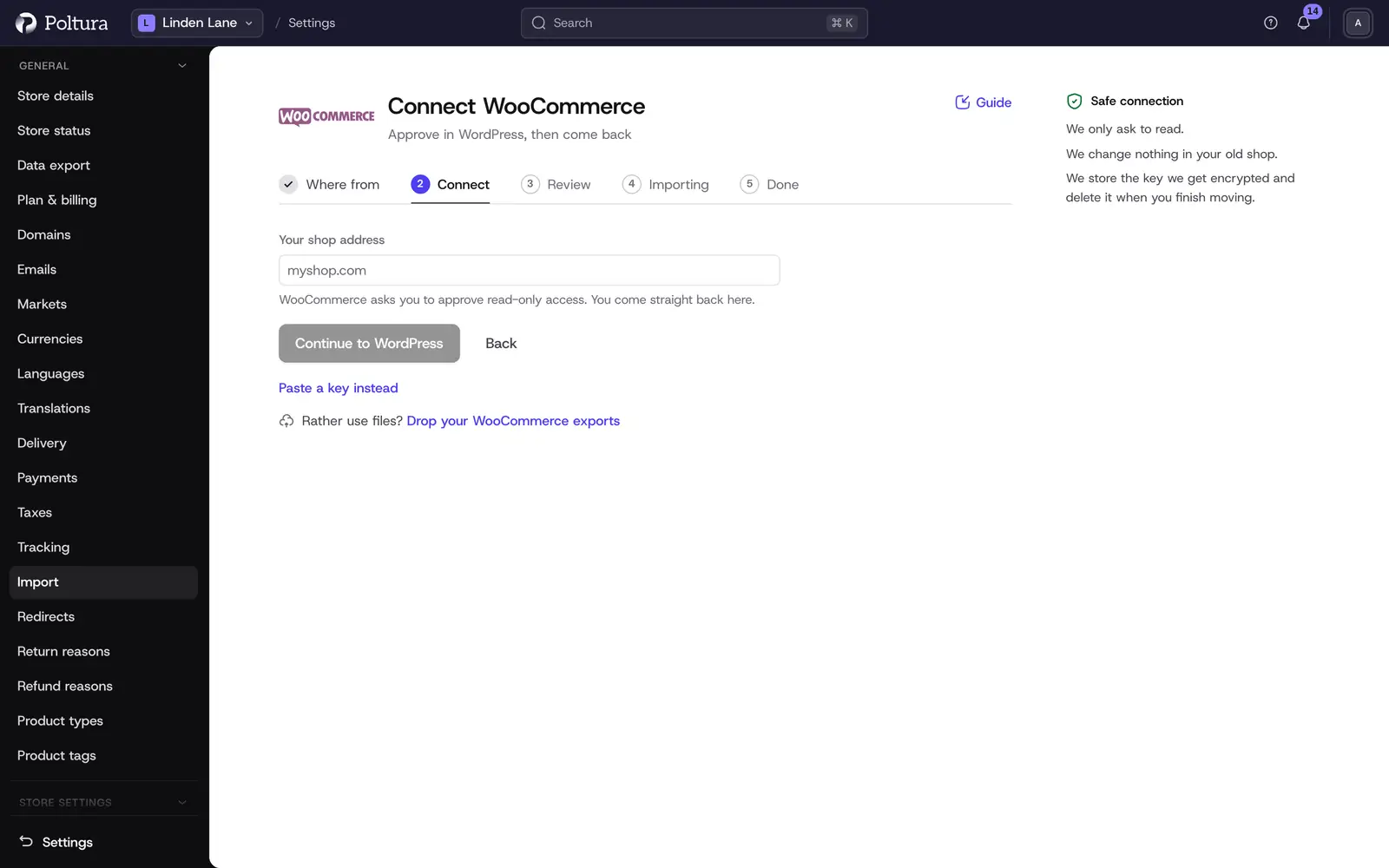
Paste a key instead switches to the key fields. Or paste a key. In WooCommerce, open Settings, Advanced, REST API and create a key with Read permission. Paste the consumer key and the consumer secret into Poltura.
You can also drop the files instead: the WooCommerce product CSV, and the WordPress export (Tools, Export) for pages and posts.
Matching
Under Matching in Change what to import, choose which custom fields become product attributes. Customer roles and tags can become customer groups.
Sync again
While your shop still sells, choose Sync again on the Done step. Poltura reads only the products changed and the orders placed since the last import. Anything you edited here stays. Records changed in both places are listed under Changed here and in WooCommerce, where you choose which version stays for each.
To hide the products you removed in WooCommerce, switch on Hide products that disappeared from WooCommerce. Poltura then reads the whole catalog once and hides what is gone. Nothing is deleted.
When you have switched
Choose Finish moving on the Done step. It deletes the WooCommerce keys, our copy of your old shop's data, and keeps your redirects and everything imported.
You can tick Invite my customers to set a password. Poltura then emails the customers it brought, so they can set a password for their account here. You can preview the email first. It is never sent by itself. It goes out only when you tick it, in small batches, 500 customers on the first day and a bit more each day after, so it stays out of spam.
If something goes wrong
- The approval does not start. Your shop needs HTTPS. Paste a read-only key instead, or drop the files.
- The keys are refused. Check that the key has Read permission and that you pasted both parts.
- Your host blocked us. Allow the requests in the firewall, or drop the files.
- Something still does not work. Contact Poltura support.