Each product has two lists you pick by hand, up to 24 products each:
- You may also like: cards at the bottom of the product page.
- Goes well with: small rows with a one-click add to cart, under the Add to cart button and in the cart, for the products in it.
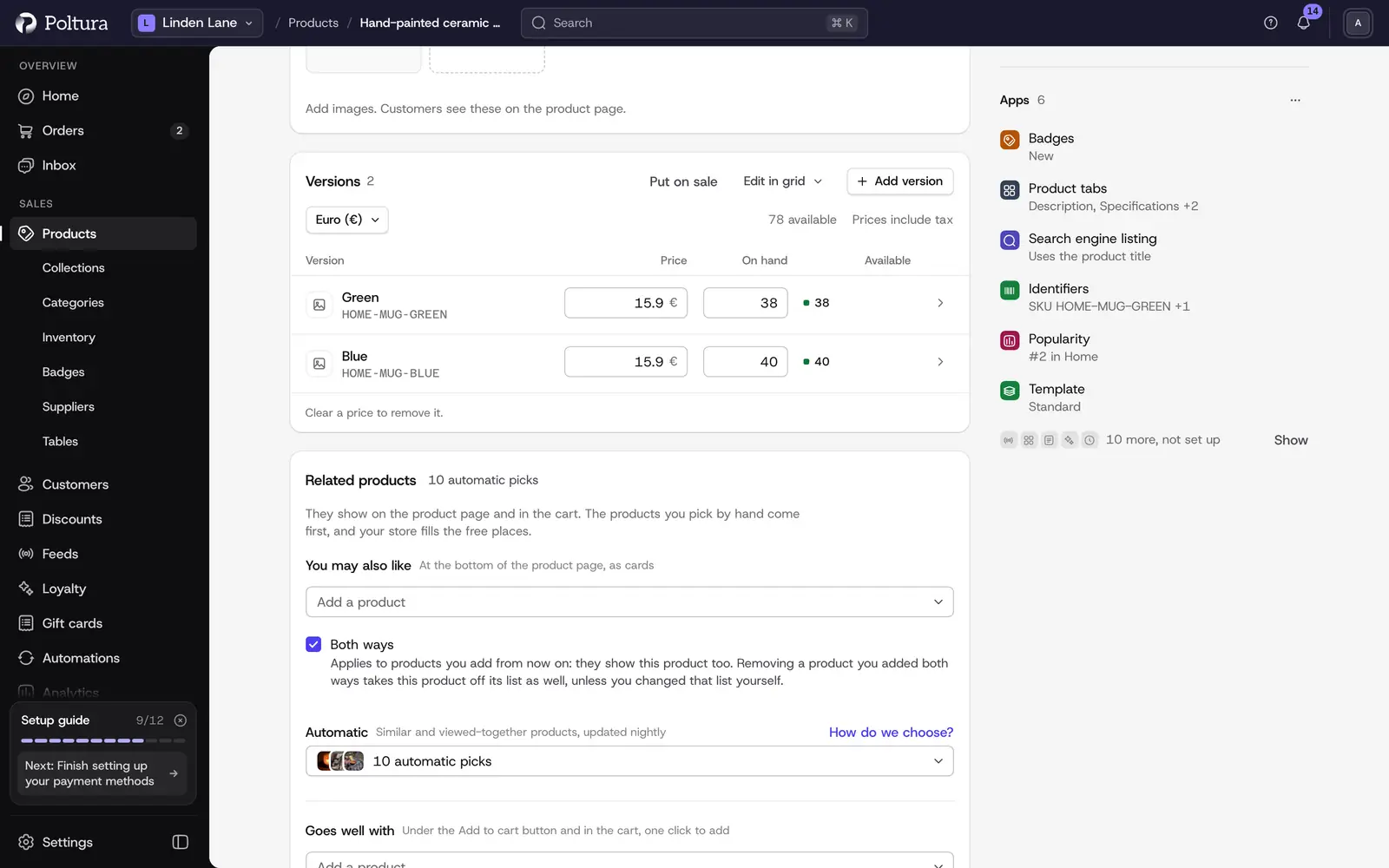
Pick products
Open the product and find Related products on the page.
Under You may also like or Goes well with, type into Add a product and choose a product from the search. The search shows each product's picture.
Drag a row by its handle to change the order, or select the cross at its end to remove it.
Every change saves on its own. A product that is still a draft is marked Draft in the list; shoppers do not see it until it is published. The price in a row is the product's lowest regular price in your main market.
Both ways
Under You may also like, the Both ways box is on by default. It applies to the products you add from now on: they show this product too. A product added both ways carries the both ways mark, and removing it removes it from both products. If the other product already has 24 products in its list, it cannot show this one back, and the page says so under the box.
Goes well with is always one way.
What shoppers see
- You may also like: your picks come first, in your order. If you pick fewer than the section shows, your store fills the free places on its own, first with products shoppers viewed or bought together with this one, then with similar products, and last with popular products of the category and the store. With no picks at all it is only the automatic list.
- Goes well with: your picks come first, then products shoppers bought together with this one. With too few orders to tell, the free places stay empty. A product with a single way to buy it has an Add to cart button on its row. A product with options shows Choose and opens its page. A sold-out product only shows as Sold out where the rows leave room, and never takes a place from a product shoppers can buy. A product that cannot be bought right now is not shown.
- A draft, a product that is not in your online store's sales channel, and a product that is only reachable by its link do not show up in either list.
Under each list of a product, the Automatic list shows what your store adds and why. Pin a product to the front to make it a pick, hide it for this product, or turn the automatic products off for this product. Where the automatic products show, and what they are based on, you set once for the store in Smart recommendations.
Heading and rows
In the theme editor, the Add-on products element on the product page and the one on the cart page have a Heading and Rows shown. Leave the heading empty and the store words it in each shopper's language. The You may also like section has its own heading and number of products.
Import
Related and add-on products come over with your products from Shoprenter, UNAS and WooCommerce. An import only adds products to a list, after the ones already there. See Import and export.