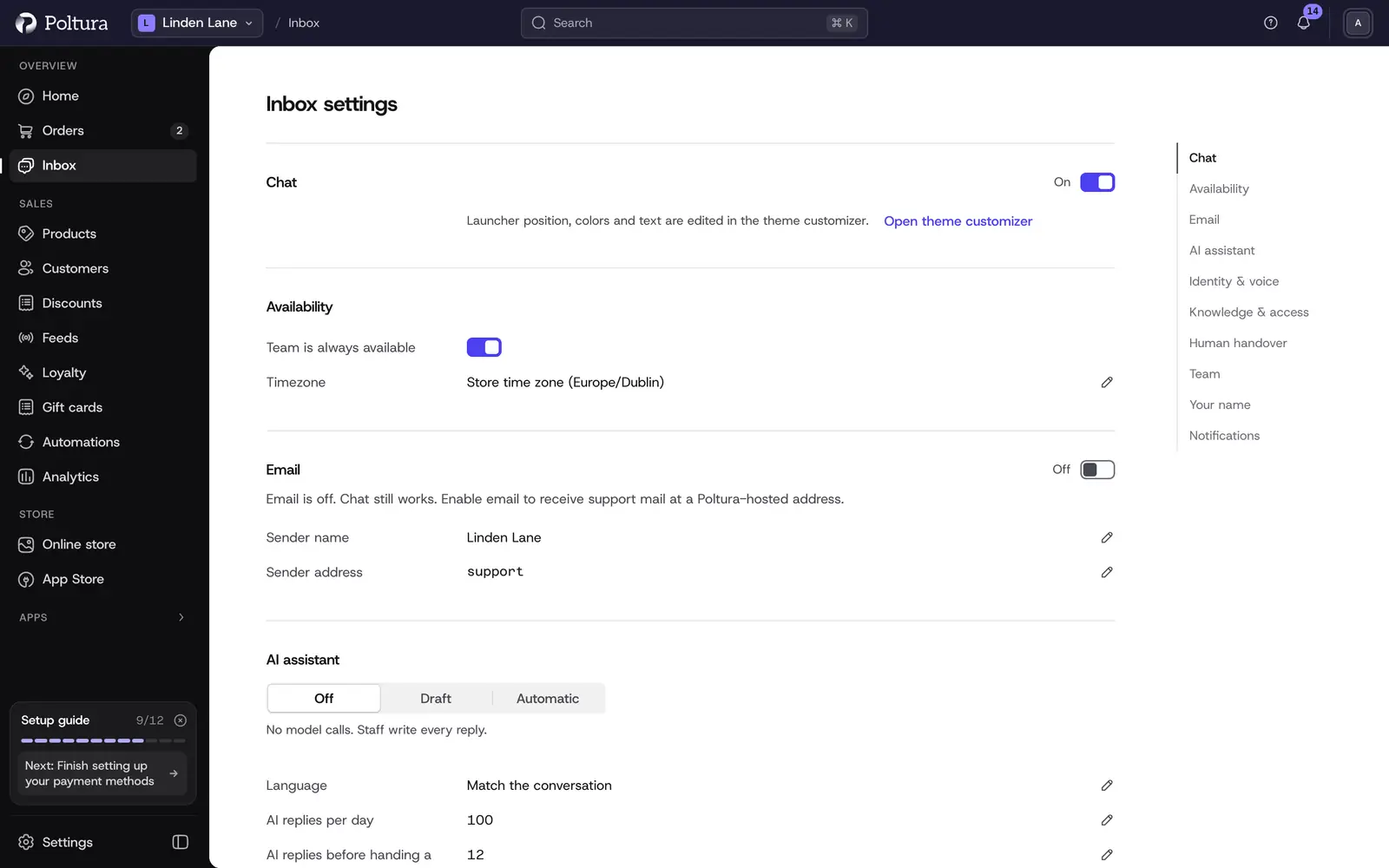
Inbox settings decide how customers can reach you and how the Inbox works for your team. Open them with the Settings icon at the top of the conversation list. The page has seven sections: Your name, Chat, Availability, Email, AI assistant, Team and Notifications. The Inbox is in beta.
Before you start
Changing chat, availability, email and AI settings needs the permission to change inbox settings. Everyone who can use the Inbox can set their own display name and notification sound.
Set the name customers see
Open Your name.
Enter a Display name. Leave it blank to use your account name.
Select Save.
Customers see this name on your replies from now on.
Switch storefront chat on or off
Open Chat.
Tick or clear Offer chat on the storefront.
Select Save.
Chat is on by default. The launcher's position, colors and texts are not set here: select Open theme customizer to edit them. See Customizer.
Set your opening hours
Open Availability.
To be reachable around the clock, tick Team is always available and save.
Otherwise clear it, then under Weekly hours tick the days you work and choose From and To for each.
Check the Timezone. It follows your store's time zone unless you choose another.
Select Save.
Outside these hours the chat shows a short form instead of live chat. The visitor leaves an email address and a message, and it arrives in your Inbox as a conversation.
Receive support email
Open Email.
Select Enable email. The status beside the title changes from Off to Verifying and then Ready.
Enter the Sender name customers see. The store name is used by default.
Enter the Sender address: the part before the @ of the address your replies are sent from, for example
support.Select Save.
Mail sent to the address now arrives in the Inbox, and your replies go back by email. Disable email switches the channel off again. Chat keeps working either way.
Set up AI replies
The AI assistant section decides whether the AI drafts replies, answers by itself or stays off. It is described in AI replies.
See who can use the Inbox
The Team section lists the staff who can use the Inbox for this store, with each person's Inbox display name. Owners and admins can set anyone's display name here. To give someone access or take it away, change their role under People and roles.
Choose how you are notified
Open Notifications.
Tick Play a sound for new customer messages.
Select Test sound to hear it.
The setting is saved automatically for your account and this store, in this browser. The sound starts working after you have clicked somewhere on the page.
Good to know
- Each section has its own Save button. Save one section before you move to the next.
- New customer messages always appear in the bell in the top bar, whether the sound is on or off.
- The sender address may contain lowercase letters, digits and the characters
.,_,+and-, without spaces, and must start and end with a letter or digit. - The email channel counts as one of the inbox channels in your plan. See Plan and billing.
- There is no email or push alert for new chat messages. Keep the admin open, or use the sound.
- Customers switch the sound of their own chat window themselves.
If something goes wrong
- The email status shows Error. The channel could not be set up. Contact Poltura support if it stays in this state.
- "Check the highlighted field." A value is not valid, for example a sender address with a space in it.
- You cannot change a section. Your role allows using the Inbox but not changing its settings.
- No sound plays. Click anywhere on the page first, then select Test sound. Browsers block sound until you have interacted with the page.