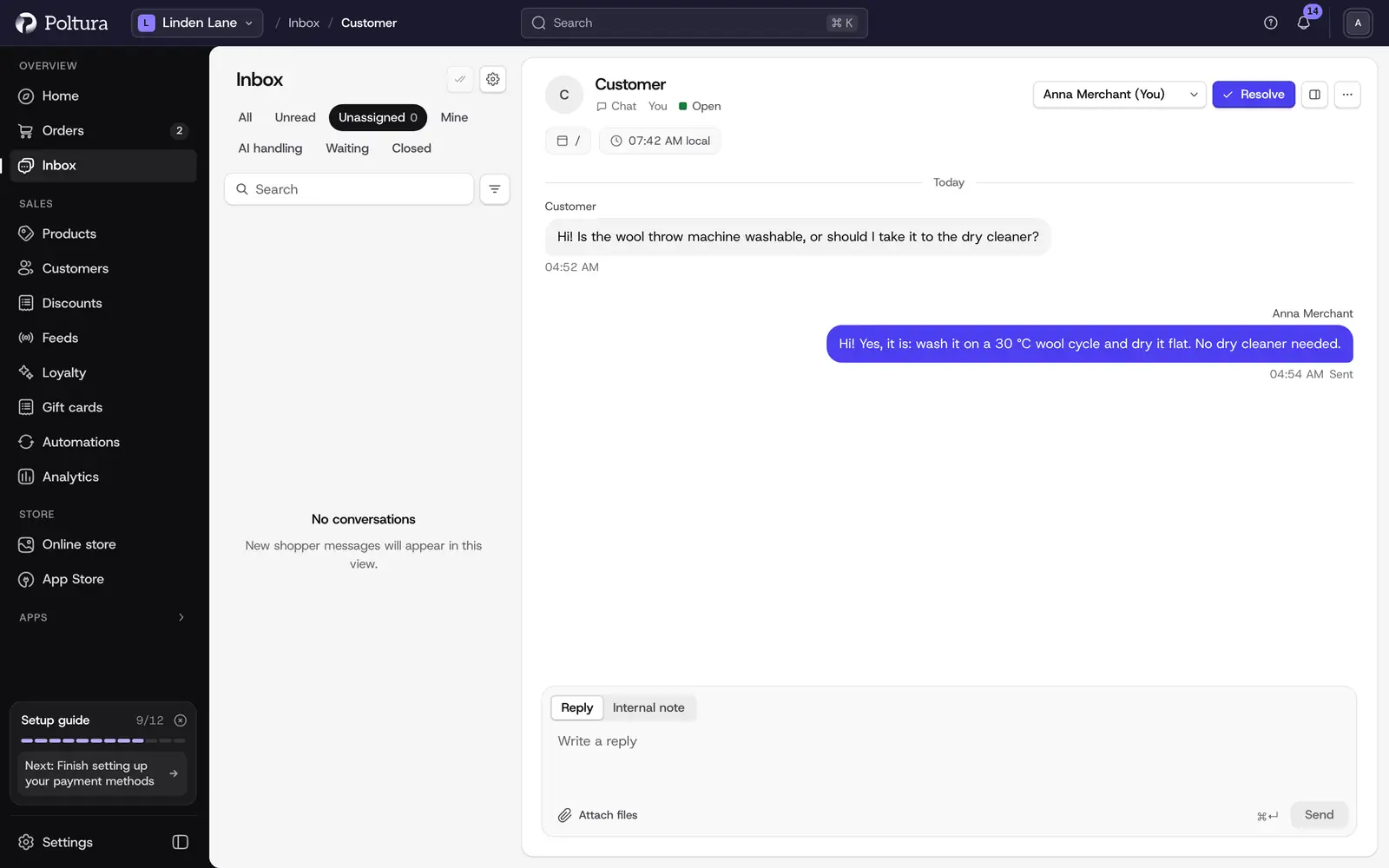
Opening a conversation shows three things side by side: the conversation list, the messages, and a panel with what is known about the customer. This page covers what you can do there. The Inbox is in beta.
Before you start
Replying needs the permission to reply to messages. With read-only access you can open conversations but not answer them. See People and roles.
Reply to the customer
Open Inbox and select the conversation.
Make sure Reply is selected above the message box.
Write your answer.
To add files, select Attach files.
Press
Enteror select Send. UseShift+Enterfor a new line.
Your reply appears in the thread with its delivery state: Queued, Sending, Sent, Delivered, Read or Failed. In a chat the customer sees it at once. In an email conversation it is sent as an email in the same thread.
Customers see your Inbox display name on your replies. You set it in Inbox settings.
Write an internal note
Select Internal note above the message box.
Write the note and send it.
The note is saved in the thread, visible only to your team. The customer never sees it. Use notes to hand a case over or to record what you agreed.
Assign a conversation
The line above the messages shows who owns the conversation: you, a colleague, Unassigned, or AI is answering.
- To take it yourself, open the menu in the conversation header and choose Assign to me.
- To give it to a colleague, select Assign conversation and pick a name. The list contains the team members who may reply.
- To release it, choose Unassign in the menu.
Assigned conversations appear in the owner's Mine view.
Resolve, reopen or snooze
- Resolve closes the conversation. It moves to the Closed view. In a chat, the customer may then be asked to rate the conversation.
- Reopen brings a closed conversation back.
- Snooze, in the header menu, marks the conversation as Snoozed. It does not reopen by itself, so come back to it yourself.
Work with the AI
If AI replies are switched on for your store, the header menu also offers Ask AI for a draft and Hand to AI, and a conversation the AI is answering shows Take over. Select Take over to stop the AI and answer yourself.
Read the customer panel
The panel beside the messages shows:
- The customer's name and whether they are a Guest or Verified, meaning signed in to a customer account.
- A Follow-up email if the visitor left one. It is marked as provided by the visitor and unverified.
- Visitor details: the page they are on, the referrer, an approximate location, language, time zone and when they were last seen.
- Browser and network: browser, device and IP address.
- Customer feedback: the star rating and comment the customer gave after a chat.
- Recent conversations with the same customer, and a link to the emails sent from this conversation.
Good to know
- You can attach images (PNG, JPEG, WebP), PDFs and text files (plain text, Markdown, CSV), up to 10 MB each and 5 per message.
- A reply or note can be up to 8,000 characters long.
- Text you have typed but not sent is kept in this browser until you send it.
- The panel has a Recent orders heading, but orders are not listed there yet. Look the customer up under Customers.
- Bounces, out-of-office replies and mailing list messages are recognized and labeled.
- A scripted message sent by the system, such as a handover notice, is marked Automatic message.
If something goes wrong
- "This conversation changed while you were working." A colleague or the customer changed it in the meantime. Select Reload and try again.
- "You do not have permission to do that." Your role does not include this action.
- "Could not attach files." Use images, PDFs or text files up to 10 MB.
- A message shows Failed. It did not reach the customer. Send it again.
- "Reopen this conversation before handing it to AI." The AI only works on open conversations.